Ajouter une Texture
L'effet Texture permet d'imiter une image sur des surfaces différentes, comme la toile, le mur en brique, une couverture métallique, etc.
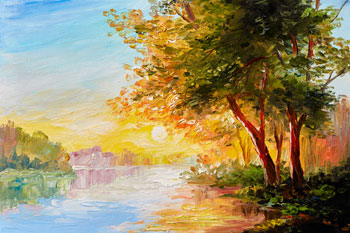
Image source
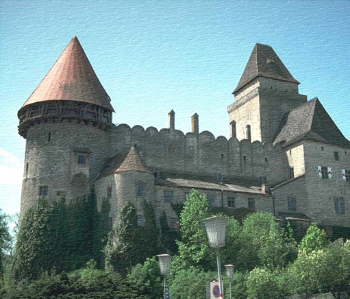
Effet Texture
On peut diviser le processus en deux étapes :
- Création de la texture.
- Application de la texture à l'image.
Il y a les paramètres suivants qui réglent les propriétés de la texture :
- Texture. Sélectionnez une texture dans la Bibliothèque des textures.

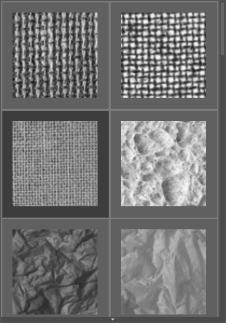
Le logiciel propose une large collection des textures. Les modèles les plus adaptés à cet effet se trouvent dans le dossier Surfaces.
La texture sélectionné est affiché dans un bouton carré qui permet aussi d'ouvrir la Bibliothèque.
Cliquez sur le carré pour voir toutes les textures dans le groupe sélectionné.
Astuce : Vous avez aussi la possibilité d'utiliser vos propres textures. Il peut être n'importe quelle image dans les formats suivants : JPEG, BMP, TIFF ou PNG.
Pour charger votre propre texture dans AKVIS ArtSuite, sélectionnez Votre texture... dans la liste.
-
Échelle (10-400). Le paramètre définit la taille du motif répétitif. La valeur par défaut est 100%. Plus grande est la valeur du paramètre, plus grand est le motif répétitif.
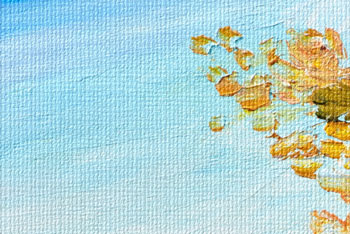
Échelle = 20%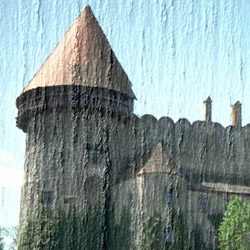
Échelle = 200% -
La case à cocher définissent la façon par laquelle la texture est générée à partir de la texture choisie :
-
Source de lumière. En déplaçant la cible sur la sphère, on figure lorientation de la lumière lors de la prise virtuelle de la photo. Pour changer la position de la source de lumière, gauche-cliquez sur un point de la sphère.

-
Luminosité (0-150). Ce paramètre définit la luminosité de la texture appliquée. La luminosité de la texture originale est de 90. Pour augmenter la luminosité de la texture, augmentez la valeur du paramètre.
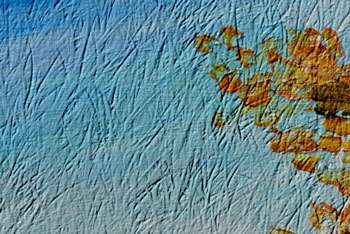
Luminosité = 10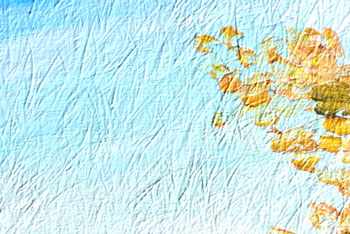
Luminosité = 90 -
Relief (0-150). Ce paramètre définit le relief de la texture. À 0, la texture est plate. Au maximum, la texture apparaît saillante.
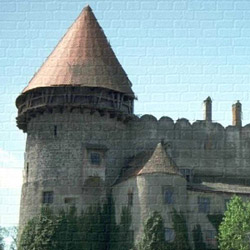
Relief = 30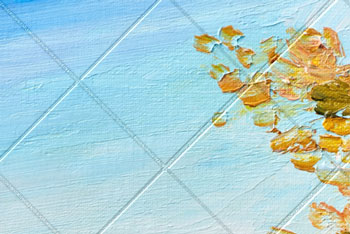
Relief = 150 -
Révéler texture (0-40). Le paramètre influence la visibilité de la texture. Plus grande est la valeur du paramètre, plus visible est la texture et moins visible est l'image originale. L'augmentation du paramètre intensifie aussi l'influence du paramètre Luminosité et augmente le contraste de la texture.
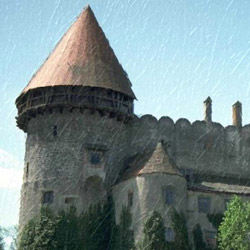
Révéler texture = 10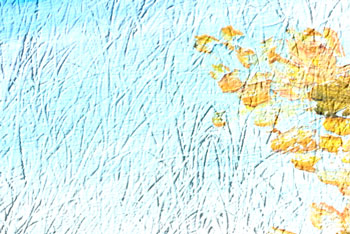
Révéler texture = 35 -
Distorsion (0-50). Le paramètre définit la distorsion de la texture résultante. Plus grande est la valeur, plus déformée et floue est la texture.
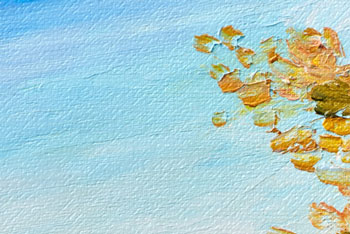
Distorsion = 5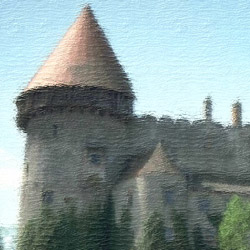
Distorsion = 50
Répétition. La texture est générée par la répétition simple de la texture choisie.
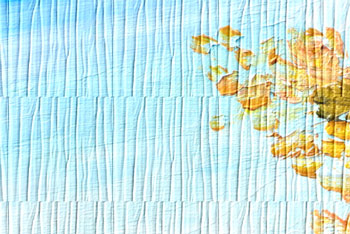
Le case à cocher "La répétition" est activéeRéflexion. La texture est générée par la répétition de la texture choisie de telle façon que les textures se reflètent au point du joint.
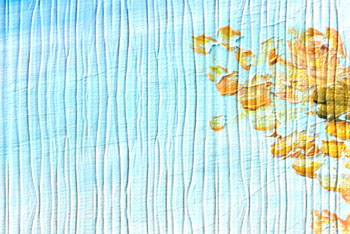
Le case à cocher "La réflexion" est activéeAlignement. Utilisez cette option quand la texture originale est irrégulière et les joints des textures sont visibles sur l'image finale. Cette option permet d'aligner les textures pour générer une texture homogène.
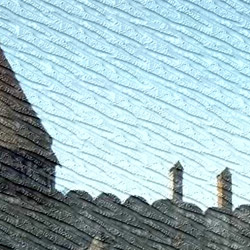
Le case à cocher l'Alignement est activée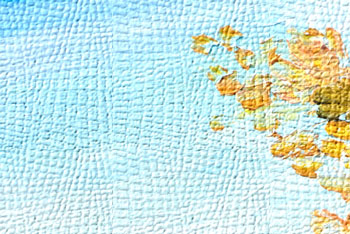
Une autre option est activéeVoici sont les paramètres pour régler l'application de la texture à l'image :
Note: La plupart du temps de traitement est prise par la première étape (la création de la texture). Par conséquent, il est recommandé d'ajuster les propriétés de la texture au début. Ensuite, vous pouvez essayer de différents réglages pour les paramètres de l'application de texture.
ArtSuite v. 21.1 - 10 jours d'essai

-
Source de lumière. En déplaçant la cible sur la sphère, on figure lorientation de la lumière lors de la prise virtuelle de la photo. Pour changer la position de la source de lumière, gauche-cliquez sur un point de la sphère.