Textura
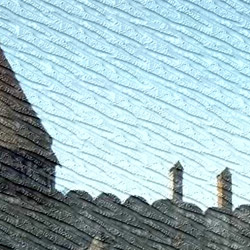
O efeito de Textura imita uma imagem sobre uma superfície irregular, tal como papel, parede de tijolos, revestimento metálico ou cerâmica, etc.
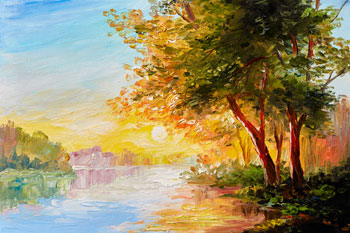
Imagem original
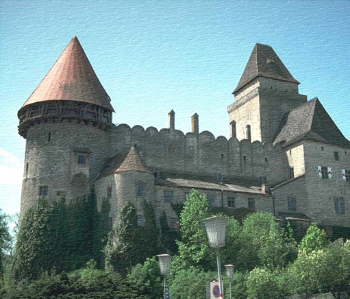
Efeito de Textura
O processo pode ser dividido em duas fases:
- Ajuste das propriedades da textura.
- Ajuste dos parâmetros de aplicação da textura.
É possível ajustar as seguintes propriedades da textura:
- Textura. Selecione um grupo e uma textura da Biblioteca de textura.

O programa vem com uma rica coleção de texturas. As estampas mais adequadas para este efeito podem ser encontrados na pasta Superfície.
A textura selecionada (atual) é visível em na caixa de amostra.
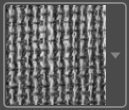
Para abrir a Biblioteca com todas as texturas do grupo selecionado clique na caixa de amostra.
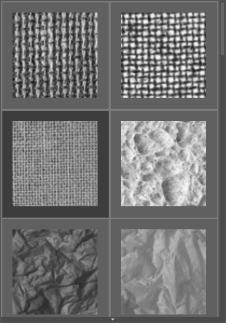
Nota: É possível aplicar suas próprias texturas (imagens JPEG, BMP, TIFF, PNG).
Para carregar sua própria textura para ArtSuite selecione <Textura do usuário>… na lista.
- Escala (10-400). O parâmetro define o tamanho da estampa a ser repetida. Por padrão, a escala é definida como 100%. Quanto maior o valor do parâmetro, maior será o valor da estampa.
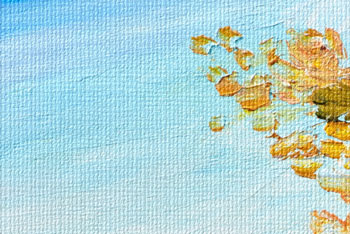
Escala = 20%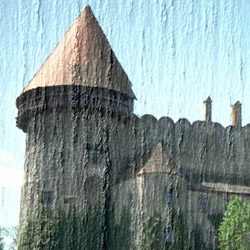
Escala = 200% - São as seguintes as opções que definem a forma como a textura é gerada:
Repetição. Quando esta opção é selecionada, a textura é gerada pela simples repetição da estampa determinada.
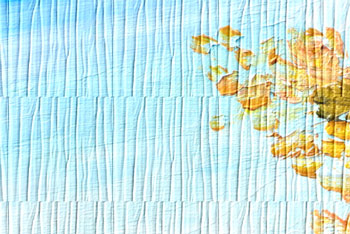
RepetiçãoReflexão. Quando esta opção é selecionada, a textura é gerada pela repetição da determinada estampa. A diferença do modo de Repetição é que as extremidades dos padrões são unidos como se fosse um reflexo no espelho.
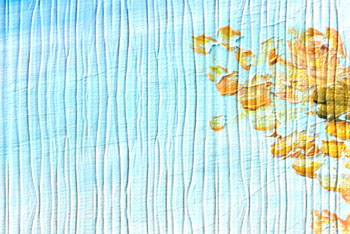
ReflexãoAlinhamento. Esta opção ajuda quando a textura inicial tem uma estampa desigual. Se aplicarmos a textura, como é, veremos junções da textura. Para evitar isso, nós devemos ativar a opção de Alinhamento.
Alinhamento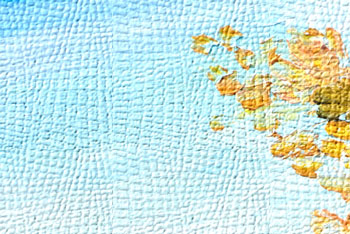
Outra opção
É possível ajustar os seguintes parâmetros de aplicação da textura:
- Fonte de luz. Use o ponto na bola para definir a provável fonte de luz durante a texturização. A posição da fonte de luz influencia a quebra automática da textura. Para alterar a posição da fonte de luz, clique com o botão esquerdo do mouse no ponto indicado na bola.

- Brilho (0-150). Este parâmetro muda o brilho da textura. O brilho da textura original é 90. Quanto maior o valor do parâmetro, mais brilhante a textura será. Como resultado, a imagem será mais clara.
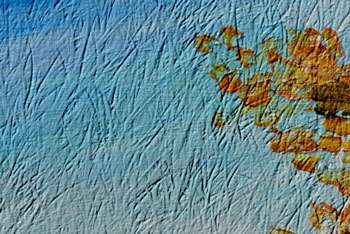
Brilho = 10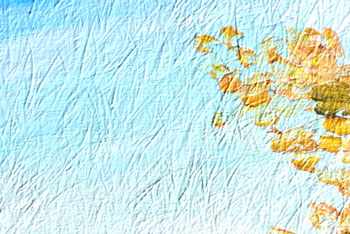
Brilho = 90 - Relevo (0-150). Este parâmetro afeta o relevo da textura. A 0, a textura é plana. Se você aumentar o valor do parâmetro, o relevo da textura será mais destacado.
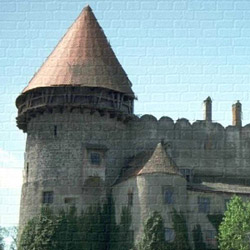
Relevo = 30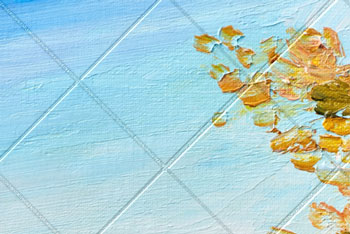
Relevo = 150 - Textura revelada (0-40). O parâmetro define em que medida a textura é revelada através da imagem. Quanto maior o valor, mais nítida a textura fica e menos visível fica da imagem original. Quanto maior valor do parâmetro maior será a influência do parâmetro de brilho e o contraste de textura.
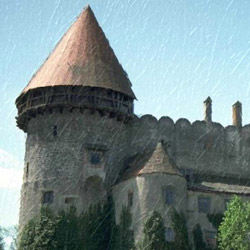
Textura revelada = 10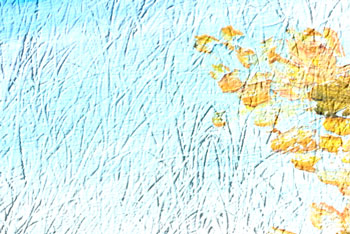
Textura revelada = 35 - Distorção (0-50). Este parâmetro define a clareza da imagem resultante. Quanto maior o valor do parâmetro mais distorcida e borrada as imagens serão.
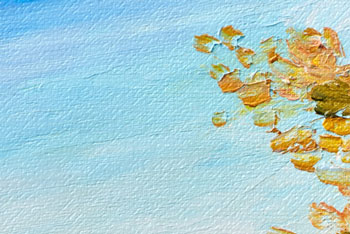
Distorção = 5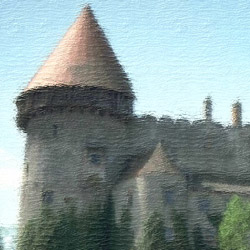
Distorção = 50
Dica: A maior parte do tempo de processamento é tomada pela primeira fase (geração da textura). Portanto, é recomendável ajustar as propriedades da textura primeiro. Em seguida, você pode tentar configurações diferentes para os parâmetros de aplicação da textura.
ArtSuite v. 20.0 - Teste gratuito 10 dias

