Moldura artística
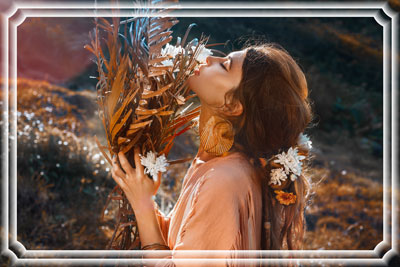
A Moldura artística com bordas transparentes pode dar a qualquer foto uma aparência elegante e festiva.
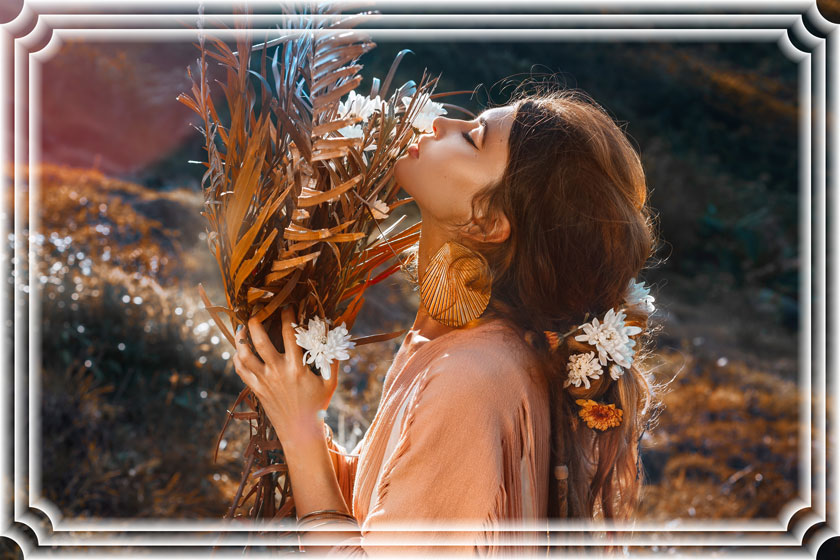
O Painel de ajustes oferece os seguintes parâmetros para esta moldura:
Cor da moldura. Este parâmetro define a cor dos arranhões que formam a moldura da imagem. Selecione uma cor clicando duas vezes a caixa de cor e escolhendo uma cor na caixa Selecionar cor.
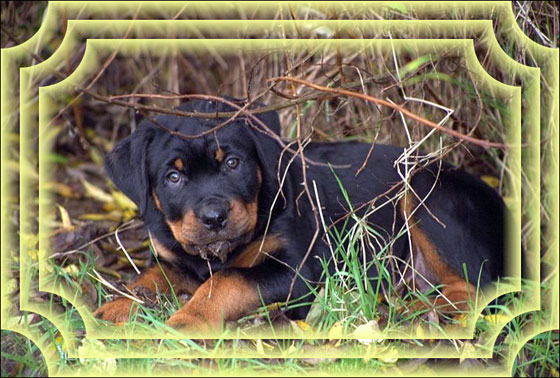
A cor amarela foi selecionada
Transparente. Quando a caixa de seleção Transparente é ativada, a imagem no âmbito da moldura fica transparente. Este recurso pode ser usado em uma imagem com várias camadas; desta forma, a imagem sobre a ultima camada é visível e serve como um quadro.
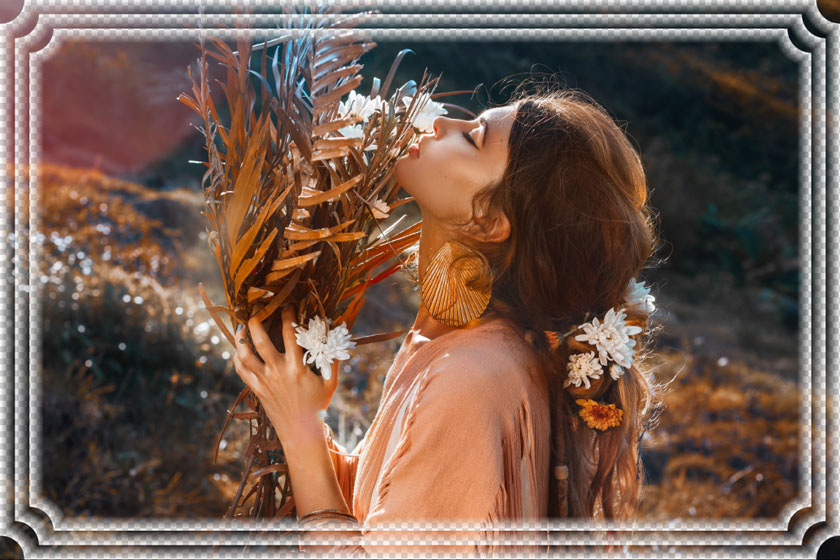
Caixa de seleção "Transparente" ativada
Largura da moldura (0-100%). Este parâmetro define a largura da moldura incluindo o número de submolduras. Em 0% não há nenhum moldura, em 100% a largura da moldura fica em1/4 da menor dimensão da imagem (largura ou altura). Por exemplo, para uma imagem de 600 x 800 pixel, a largura da moldura em 100% é calculada da seguinte forma: 1/4 da menor dimensão (600 px) que é igual a 150 pixels.

Largura da moldura = 20%
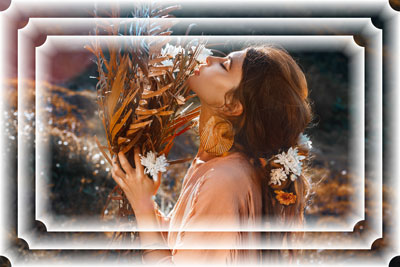
Largura da moldura = 80%
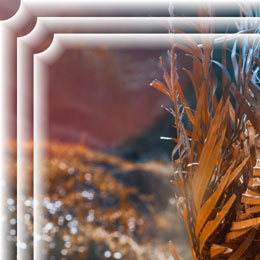
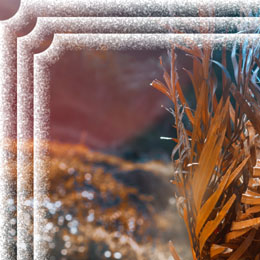
A moldura artistica tem três Tipos de moldura: Suave, Granulada e Com manchas.

Suave

Granulada
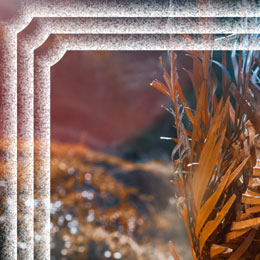
Com manchas
Gradiente inverso. Este parâmetro define a orientação da diminuição da cor – tanto para dentro (quando a caixa de seleção do Gradiente inverso está habilitado) quanto para fora da imagem (quando a caixa de seleção está desabilitada).
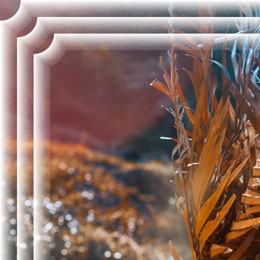
Número de submolduras (0-10). Este parâmetro define o número de submolduras que se encaixam na largura da moldura.
Número de submolduras = 2
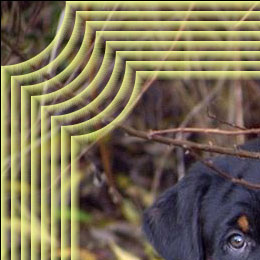
Número de submolduras = 8
Raio do círculo (0-100%). Este parâmetro define o raio do corte do canto. Em 0% não há nenhum corte do canto; em 100% o corte do canto fica em 1/4 do tamanho mínimo da imagem (largura ou altura).
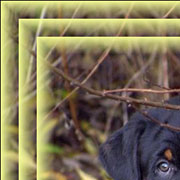
Raio do círculo = 0%
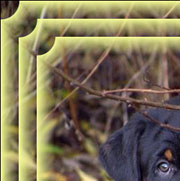
Raio do círculo = 20%
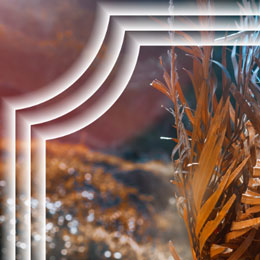
Raio do círculo = 80%
ArtSuite v. 21.1 - Teste gratuito 10 dias
