Efeito de Glamour
Glamour é tudo o que está na moda luxuosa e elegante. Se você chamar uma mulher de glamourosa, você da a ela um elogio especial, mostrando a atenção para a sua beleza, charme ou magnetismo sexual.
Glamour significa também um estilo especial em fotografia, que presta muita atenção na aparência do modelo. A pele deve ser suave e pura. O efeito de glamour esconde defeitos de pele, reduz a pequenas rugas e torna o modelo de aparência perfeita.
Toda mulher quer se sentir charmosa e atraente, especialmente sobre as fotos que são mantidas em álbuns de fotos durante anos.
O efeito de glamour, que processa a pele e esconde os defeitos, foi desenvolvido especialmente para as mulheres.
Agora você pode adicionar uma nota de glamour à sua imagem. Não só as estrelas de filme pode ser glamourosas!
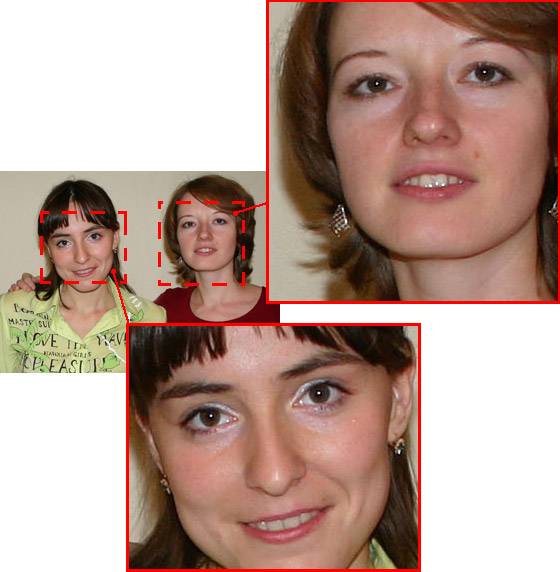
Imagem Original
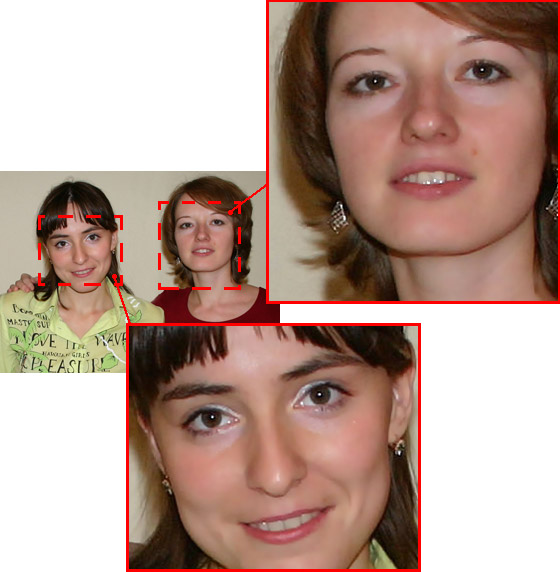
Resultado
O efeito tem os seguintes controles:
-
Cores. Este campo inclui um conjunto de cores que será usada para processar uma imagem.

Conjunto de coresEste conjunto tem 6 quadrados de cor. Por padrão, esses quadrados de cor estão vazios. Se você iniciar o processamento da imagem com a configurações padrão, não haverá nenhuma alteração.
Clicando sobre um quadrado vazio o ponteiro será transformado em um conta-gotas, escolha uma cor da imagem com um clique no botão esquerdo. Este quadrado exibirá a cor escolhida.
Para alterar a cor do quadrado, clique com o botão esquerdo do mouse sobre ela e escolha outra cor de sua imagem.
Para excluir uma cor e limpar o quadrado, clique com o botão direito do mouse sobre o quadrado. O quadrado irá retornar para o Estado padrão.
Nota: O botão Retorna para o Estado Padrã (Reset to Default Settings) permite recuperar as configurações padrão dos parâmetros.
- O parâmetro Limite (0-20) define cores que serão utilizados para processamento. No valor mínimo do parâmetro apenas as cores do conjunto de cores estão envolvidas no processo. Se você aumentar o valor do parâmetro, as cores semelhantes às cores do conjunto serão alteradas. Quanto maior o valor do parâmetro, mais as cores serão alteradas.
-
O parâmetro Suavidade (1-100) suaviza e desfoca a imagem, reduzindo o contraste de cores entre os pixels vizinhos.
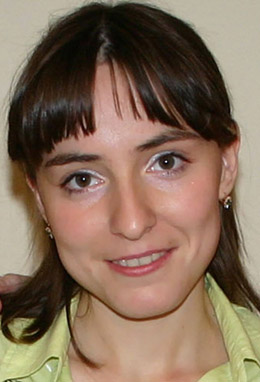
Suavidade = 10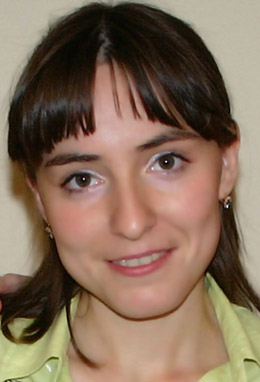
Suavidade = 75
ArtSuite v. 21.1 - Teste gratuito 10 dias
