Détente à la rivière: Créez un dessin encadré
L'auteur de ce tutoriel est Richard Turner.
Ce tutoriel a été créé en utilisant les versions autonomes de AKVIS Sketch et AKVIS ArtSuite.
 |
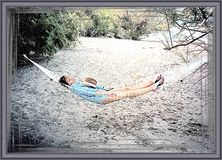 |
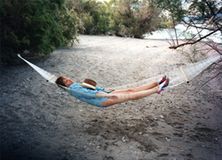
| Image originale | Résultat |
"Elle se balançait dans un hamac et pensait que l'été ne finirait jamais... " Richard Turner a capté un moment et pris une photo de sa femme à la rivière. Après l'utilisation de AKVIS Sketch et AKVIS ArtSuite, cette photo ordinaire a obtenu l'intégralité artistique et la perfection. Dans ce tutoriel, vous pouvez apprendre comment obtenir ce résultat.
- Étape 1. Ouvrez l'image originale dans la version autonome (standalone) de AKVIS Sketch.
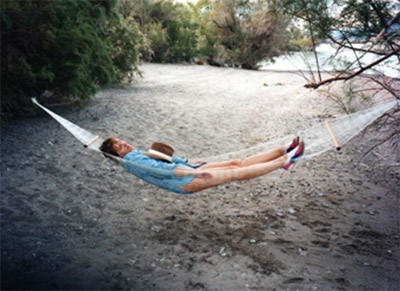
Photo d'une femme à la rivière - Étape 2. Choisissez le style Classique et définissez les paramètres pour transformer votre photo en dessin :
La case à cocher Crayons de couleur est activée;
Angle = 45;
Epaisseur = 8;
Longueur Minimum = 5;
Longueur Maximum = 20;
Intensité aux demi-tons = 8;
Hachures aux demi-tons = 100.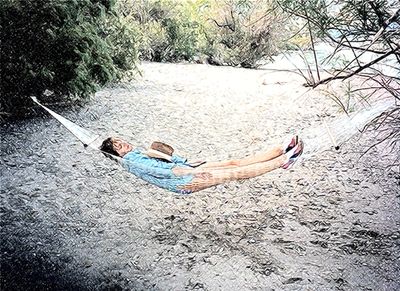
Résultat de la conversion - Étape 3. Sauvegardez vous résultat et fermez AKVIS Sketch.
- Étape 4. Ouvrez le dessin sauvé dans la version autonome de AKVIS ArtSuite pour ajouter un cadre. Il est plus facile de travailler dans le mode Exécution automatique (cette option peut être sélectionnée dans les Préférences). Quand la case est cochée, chaque changement est appliqué automatiquement.
- Étape 5. Choisissez l'option Cadre dans le menu déroulant dans le panneau Paramètres. Dans le menu déroulant voisine, vous pouvez voir les types de cadres. Nous utilisons le cadre Traits.
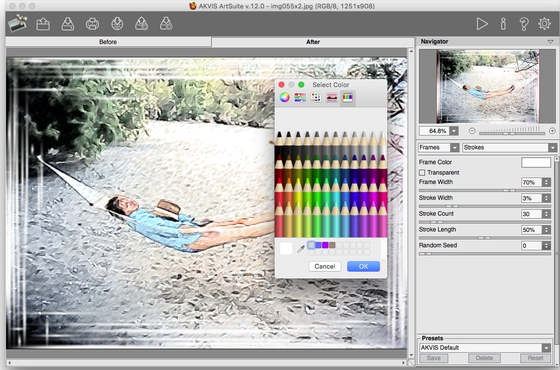
Choisissez un cadre dans AKVIS ArtSuite - Étape 6. Définissez les valeurs des paramètres :
Couleur du cadre - gris;
Largeur du cadre = 47%;
Largeur des traits = 3;
Nombre de traits = 30. - Étape 7. Sauvegardez l'image cadrée. ArtSuite vous demandera si vous souhaitez utiliser le résultat comme l'image de source. Choisissez oui.
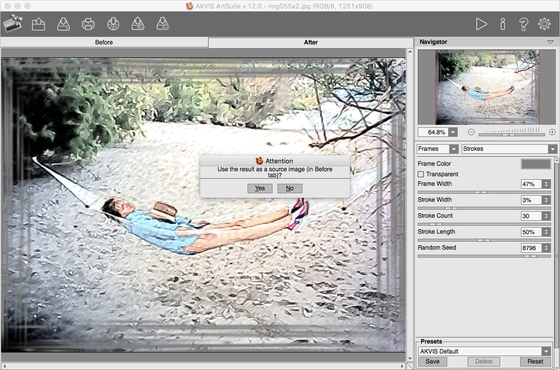
Image cadrée - Étape 8. Choisissez un cadre extérieur à partir du menu déroulant des cadres. Nous voulons utiliser le cadre Classique. Sélectionnez un échantillon dans la Bibliothèque des textures. Aussi, vous pouvez modifier la luminosité et la largeur du cadre sélectionné. Voici les variantes des cadres :
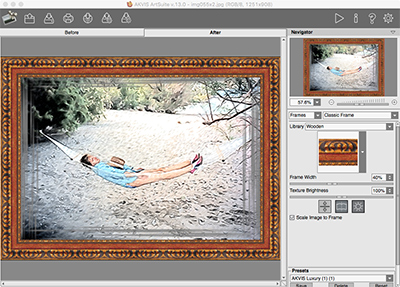
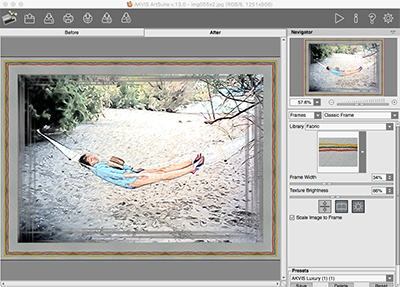
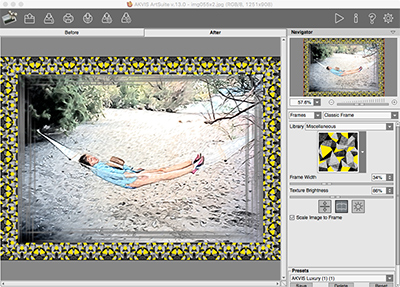
Variantes des cadres Enfin, l'auteur a choisi ce cadre :
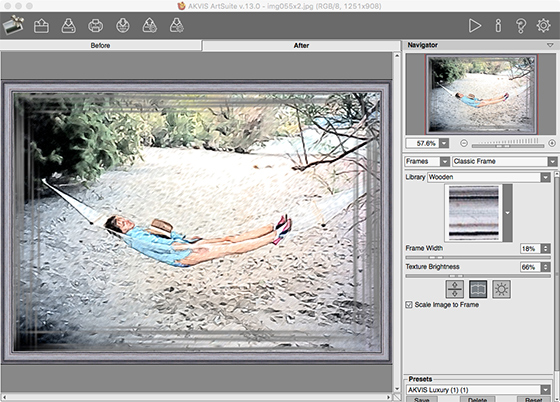
Résultat - Étape 9. Sauvegardez le résultat et fermez AKVIS ArtSuite.
ArtSuite v. 21.1 - 10 jours d'essai
