Relaxing at the River: Make a Framed Sketch with AKVIS Sketch and AKVIS ArtSuite


Inserisci la tua e-mail per essere informato delle novità:
 
 
  Prodotti     Download     Online Store     Tutorial     Supporto     Chi siamo      Account dell'utente
en  fr  de  es  pt  it  jp  ru    
 

Tutorial: AKVIS ArtSuite

Relaxing at the River: Make a Framed Sketch


Siamo spiacenti, questa pagina al momento è disponibile solo in lingua inglese.
La versione italiana sarà presto disponibile.
Se desiderate ottenere la licenza per la traduzione per favore scriveteci.

The author of this tutorial is Richard Turner.

This tutorial was created in AKVIS Sketch and AKVIS ArtSuite.
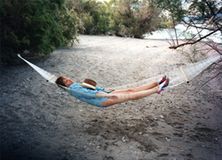
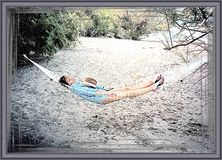
    Original image Result
    Original image Result

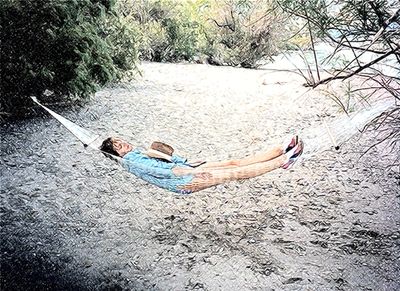
"She was swinging in the hammock cherishing a thought that summer wouldn't end... " Richard Turner catched a moment and took the photo of his wife relaxing at the river. After using AKVIS Sketch and AKVIS ArtSuite this ordinary photo got artistic completeness and perfection. From this tutorial you can learn how to do this.

  • Step 1. Open the standalone version of AKVIS Sketch and open the original image.
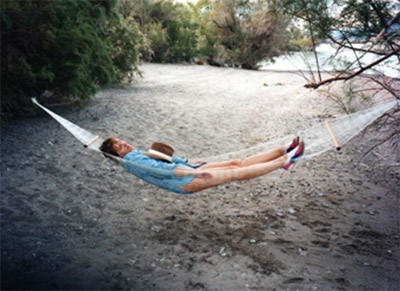
    Photo of a woman relaxing at the river
    Photo of a woman relaxing at the river
  • Step 2. Set the parameters of the strokes and your photo will be converted into the color sketch.

    The values of the parameters are:

    Enable the Color Strokes check-box.
    Angle = 45;
    Size = 8;
    Min length = 5;
    Max length = 20;
    Midtones Intensity = 8;
    Midtones Hatching = 100;
    Sharpen = 100 (this parameter is available if you use the old Sketch algorithm).

    Result of the convertion into the color sketch
    Result of the conversion into the color sketch
  • Step 3. Save you result and close AKVIS Sketch.
  • Step 4. Open AKVIS ArtSuite (standalone edition) and open the saved sketch to add a frame. It's easier to work in Autorun mode (this option can be selected in the Preferences). In this mode the changes (effect adjustments) take effect in real time.
  • Step 5. Choose Frame from the drop menu in the Settings panel. In the neighbouring drop menu you can see the types of frames. The parameters of these frames will be shown later. We use the Strokes frame.
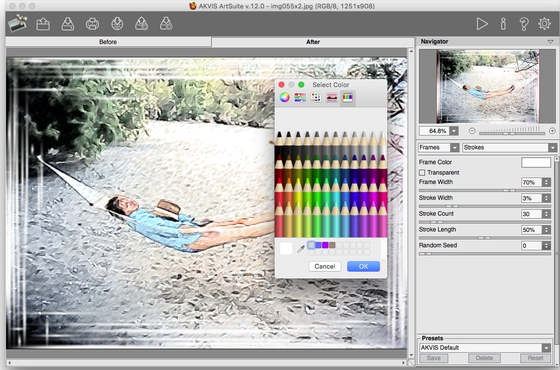
    Choose a frame in AKVIS ArtSuite
    Choose a frame in AKVIS ArtSuite
  • Step 6. Set the values of the parameters as Richard Turner did:

    Frame Color - grey;
    Frame Width = 47%;
    Stroke Width = 3;
    Stroke Count = 30.

  • Step 7. Save the framed image. ArtSuite will ask if you want to use the result as a source image. Choose yes.
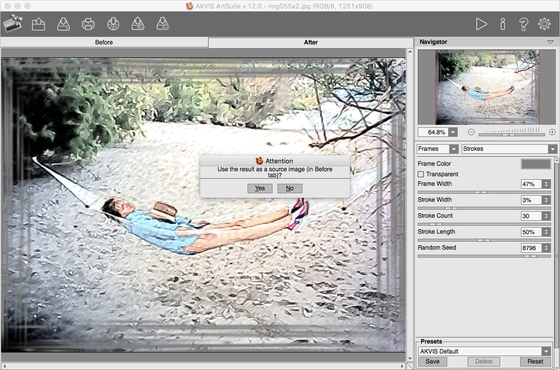
    Framed image
    Framed image
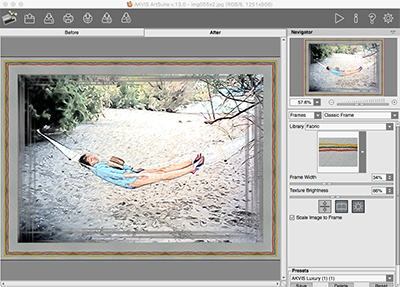
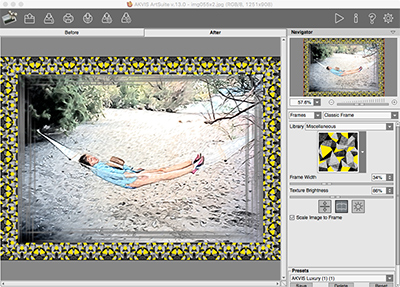
  • Step 8. Choose an outer frame from the drop menu of frames. Let's choose the Classic Frame. Select a pattern from the Texture Library. Also you can change the brightness and width of the selected frame. Here are the variants of the frames:
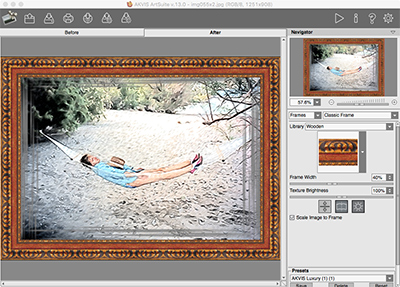
    Classic frame
    Classic frame
    Classic frame
    The variantes of the frames

    Finally the author chose this frame:
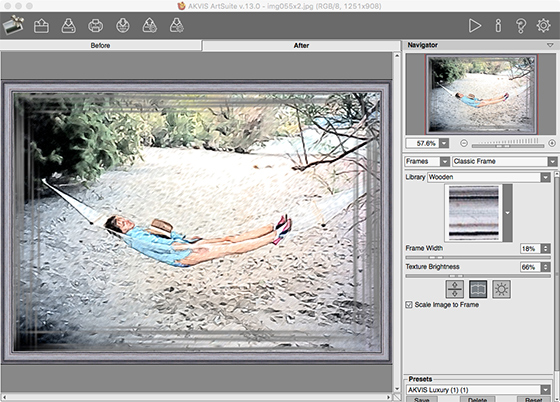
    Outer frame
    Result
  • Step 9. Save the result and close AKVIS ArtSuite.
 
Funzionamento Funzionamento
   — Area di lavoro — Area di lavoro
   — Come usare il programma — Come usare il programma
   — Preferenze — Preferenze
Effetti Effetti
   — Bianco e nero — Bianco e nero
   — Sostituzione colori — Sostituzione colori
   — Miscelare i canali — Miscelare i canali
   — Texture — Texture
   — Glamour — Glamour
   — Due chiavi — Due chiavi
Cornici Cornici
   — Classica — Classica
   — Motivo — Motivo
   — Striata — Striata
   — Incisa — Incisa
   — Arricciatura pagina — Arricciatura pagina
   — Mosaico — Mosaico
   — Frastagliata — Frastagliata
   — Spray — Spray
   — Artistica — Artistica
   — Ritaglio artistico  — Ritaglio artistico
   — Ghiacciata — Ghiacciata
   — Composizioni artistiche — Composizioni artistiche
Esempi Esempi
   — La Cattedrale di Berlino — La Cattedrale di Berlino
   — Cambiare le stagioni — Cambiare le stagioni
   — Creare un calendario — Creare un calendario
   — Si aggira una tigre — Si aggira una tigre
   — Sogni d’estate (Tutorial avanzato) — Sogni d’estate (Tutorial avanzato)
   — Felice Anno Nuovo – l’Anno della Tigre — Felice Anno Nuovo – l’Anno della Tigre
   — Creazione di un invito a nozze — Creazione di un invito a nozze
   — Ritratto in stile retrò — Ritratto in stile retrò


ritorna sopra


   Informativa sulla privacy | Mappa del sito | Cerca nel sito    
   Contatti | Twitter | Facebook | YouTube Channel    
| English  |Français  |Deutsch  |Español  |Português  | Italiano  |日本語  |Pусский  | © 2004-2012 AKVIS. Tutti i diritti riservati.