Descansando en el río: Hacer un dibujo enmarcado
El autor de este tutorial es Richard Turner.
Este tutorial fue creado con AKVIS Sketch y AKVIS ArtSuite.
 |
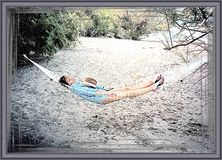 |
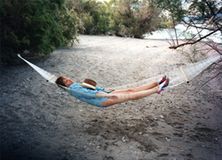
| Original image | Result |
"Ella balanceaba en la hamaca y acariciaba un pensamiento de que el verano no acabaría..." Richard Turner eligió un momento y tomó la foto de su esposa que descansaba junto al río. Después de usar AKVIS Sketch y AKVIS ArtSuite testa foto ordinaria tiene la perfección e integridad artística. A través de este tutorial puedes aprender cómo hacerlo.
- Paso 1. Abra la versión independiente de AKVIS Sketch y luego abra la imagen original.
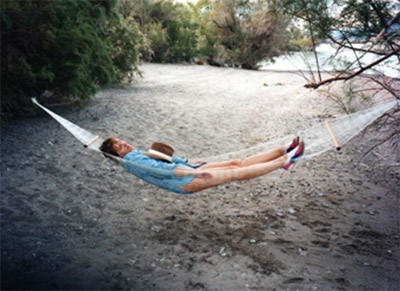
Foto de una mujer que está descansando en el río - Paso 2. Configura los parámetros de los trazos y su foto se convertirá en un dibujo a color.
En el estilo Clásico ajuste los parámetros:
Activar la casilla de verificación trazos de Color;
Ángulo = 45;
Espesor = 8;
Longitud mínimo = 5;
Longitud máximo = 20;
Intensidad de tonos medios = 8;
Sombreado de tonos medios = 100.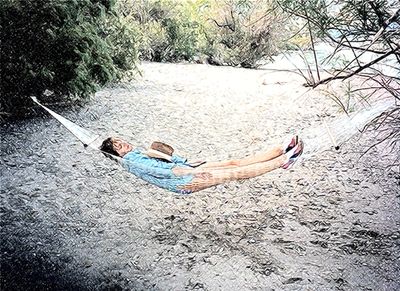
Resultado de la conversión del dibujo a color - Paso 3. Guarde el resultado y cierre AKVIS Sketch.
- Paso 4. Ejecute AKVIS ArtSuite (edición independiente) y abra el dibujo guardado para agregarle un marco. Es más fácil trabajar en el modo de Tratamiento automático (esta opción puede ser seleccionada en las Opciones). En este modo los cambios (ajustes de efecto) surtirán efecto en tiempo real.
- Paso 5. Elija Marcos en el menú desplegable en el Panel de ajustes. En el menú desplegable de al lado se pueden ver los tipos de marcos. Los parámetros de esos marcos los veremos después.
Utilizamos el marco Rayas.
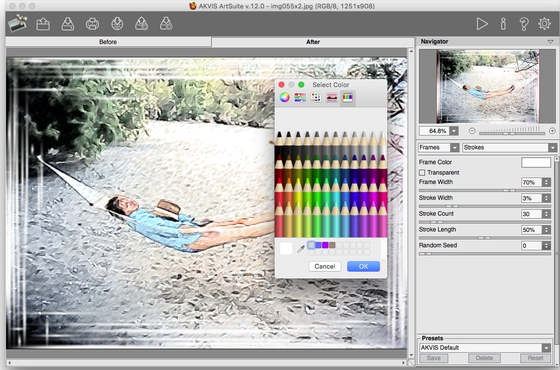
Elegimos el marco con AKVIS ArtSuite - Paso 6. Establezca los valores de los parámetros como hizo Richard:
Color del marco - gris;
Ancho del marco = 47%;
Ancho de trazos = 3;
Cantidad de trazos = 30. - Paso 7. Guarde la imagen enmarcada. ArtSuite le preguntará si desea utilizar el resultado como una imagen de origen. Elija Sí.
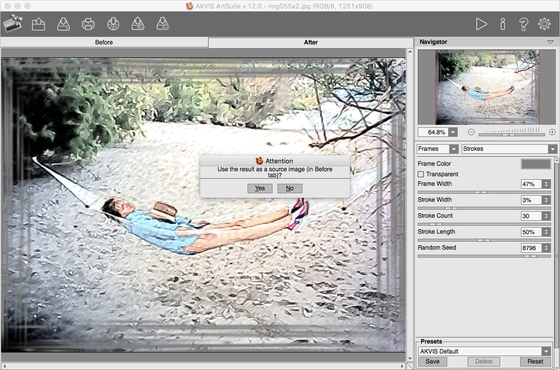
Imagen enmarcada - Paso 8. Elija un marco externo en el menú desplegable de Marcos. Vamos a elegir el Marco clásico. Seleccione un patrón de la biblioteca de texturas. También se puede cambiar el brillo y el ancho del marco seleccionado. Aquí están las combinaciones o variantes de los marcos:
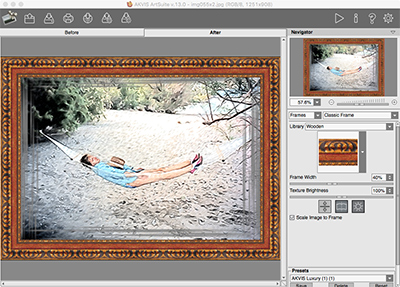
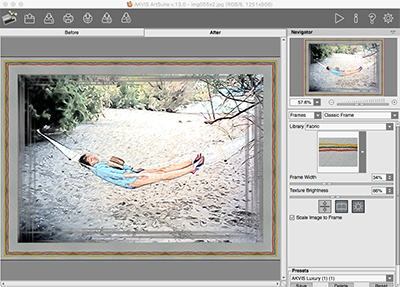
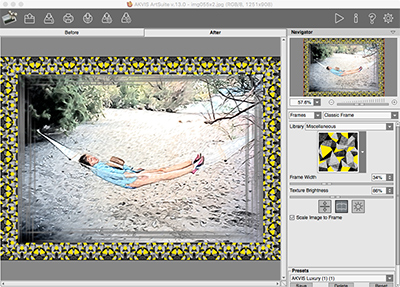
Las variantes de los marcos Finalmente el autor eligió este marco:
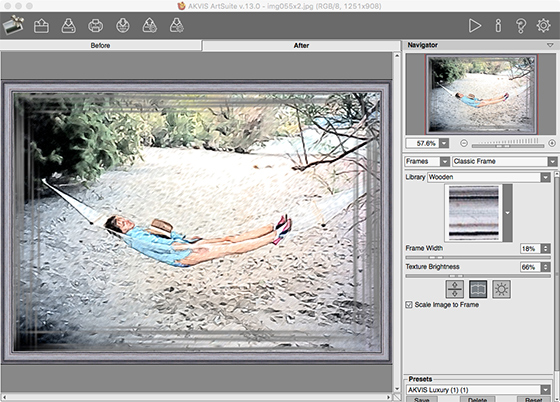
Resultado - Paso 9. Guarde el resultado y cierre AKVIS ArtSuite.
ArtSuite v. 21.1 - Prueba gratuita de 10 días
