Mezclar canales
Este efecto permite ajustar una imagen mediante tres canales: Rojo, Verde y Azul. Puede cambiar los colores, la saturación, el contraste y la luminosidad de una imagen.
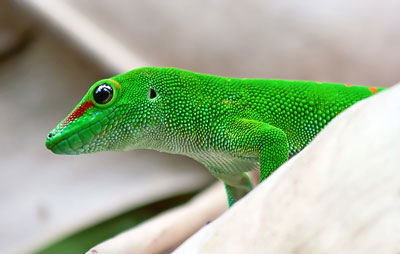
Imagen original
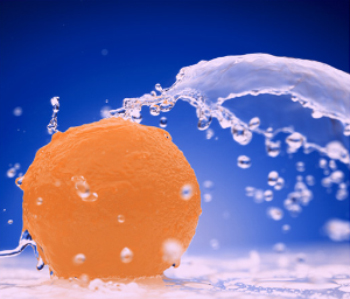
Mezclar canales
Cada canal está representado por una escala con un control triangular.
El parámetro se puede ajustar de la siguiente manera:
- Si mueva el triángulo a la derecha/izquierda aumenta/diminuye el componente del color correspondiente en cada punto de la imagen.
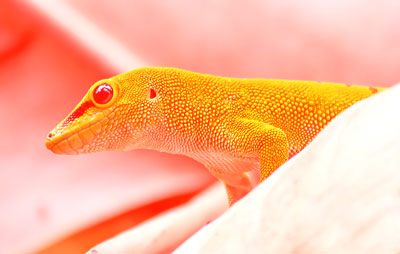
Aumentar el componente rojo
en cada punto de la imagen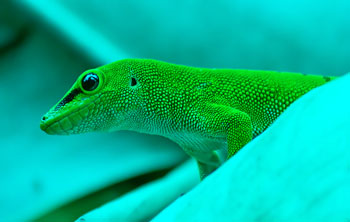
Reducir el componente rojo
en cada punto de la imagen - Agrandar/reducir. Haga clic izquierdo en una esquina del triángulo y mueva el cursor hacia/ desde el centro del triángulo. Al agrandar/reducir el tamaño del triángulo, refuerza / debilita este componente de color. El color está reforzado o debilitado sólo en los puntos donde estaba presente, otros puntos de la imagen permanecer sin cambios.
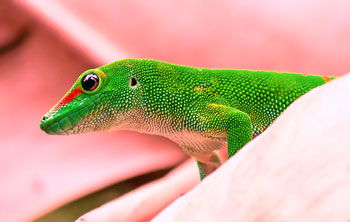
Aumentar el componente rojo en el canal rojo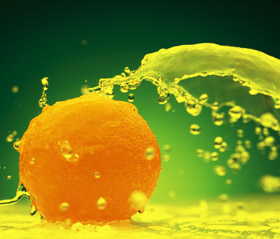
Reducir el componente rojo en el canal rojo - Cambiar el color del triángulo. Para ello, haga clic izquierdo en el círculo blanco en el vértice del triángulo, y arrastrelo a otro vértice. Por ejemplo, si cambiamos el color del triángulo en el canal rojo a azul, el componente rojo en cada punto de la imagen se convertirá en azul.
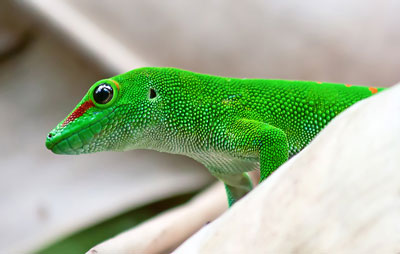
Imagen original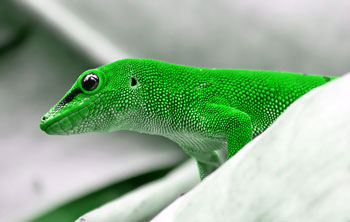
Reemplazar rojo por azul en el canal rojo - Cambiar el color del triángulo usando dos sectores de color. Para ello, haga clic izquierdo en el círculo blanco en el vértice del triángulo, y arrastrelo a uno de los lados del triángulo. Por ejemplo, si el triángulo en el canal verde se compone de los sectores azul y rojo, el nuevo valor del componente de color verde se calculará como la suma de los componentes de azul y rojo. Otros componentes de color permanecer sin cambio.
Imagen original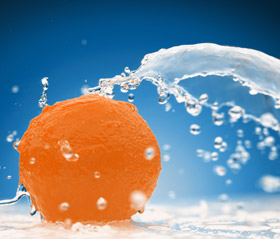
Reemplazar un color en un canal - Cambiar el color del triángulo usando tres sectores de color. Para ello, haga clic izquierdo en el círculo blanco en el vértice del triángulo, y arrastrelo hacia el centro del triángulo. Por ejemplo, si el triángulo en el canal azul tiene tres secciones de color, el nuevo valor del componente azul de cada punto de la imagen se calcula como la suma de estas tres secciones de color. Otros componentes de color en la imagen (en este caso, rojo y verde) permanecen sin cambio.
Imagen original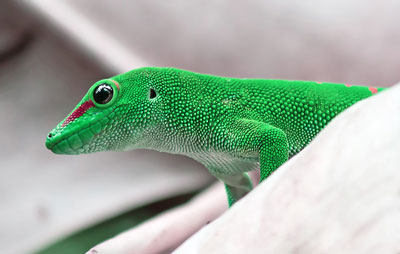
Reemplazar el color azul con azul, rojo y verde
¡Atención! El triángulo de control no muestra el resultado. Sólo muestra la forma de calcular los puntos de este canal en la imagen.
ArtSuite v. 21.1 - Prueba gratuita de 10 días
