El cambio de las estaciones
Este ejemplo se basa en los métodos utilizados por Andrew Blazhin, quien fue uno de los ganadores de nuestra competencia de edición fotográfica Año Nuevo 2009, por su fotografía en la categoría "Las 4 estaciones".
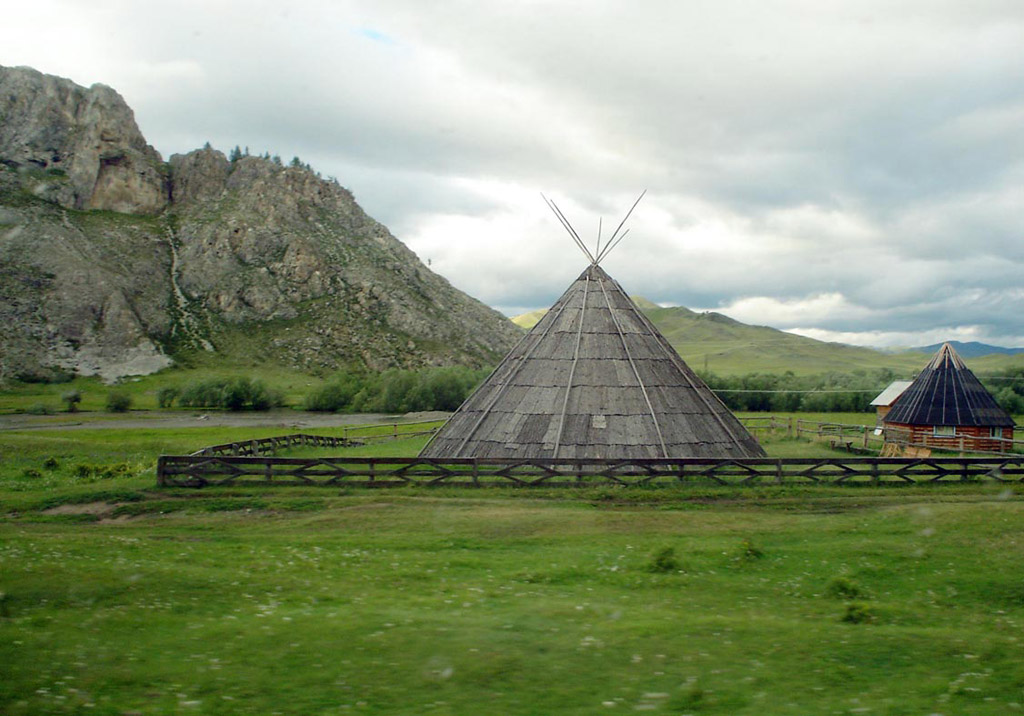
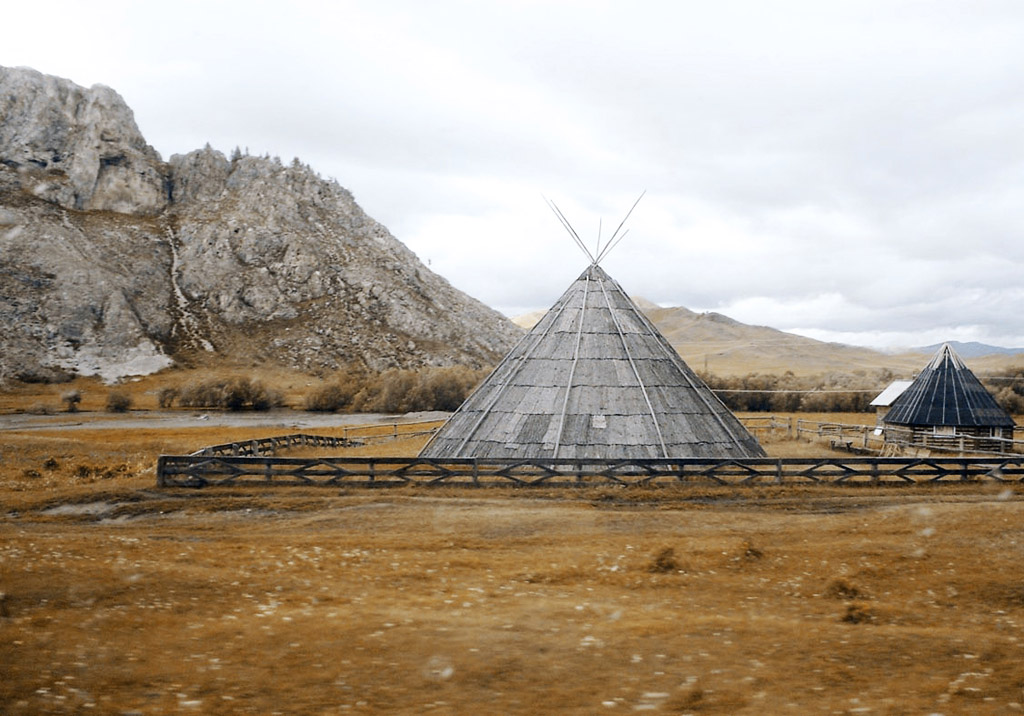
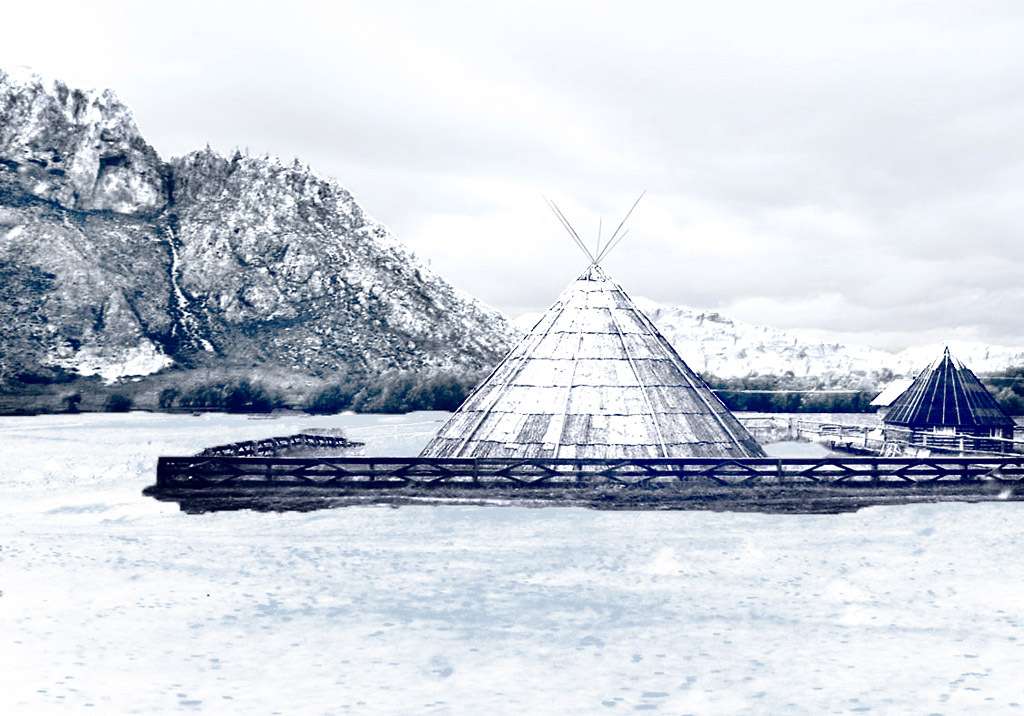
Estaciones
Haga clic en cualquiera de las imágenes para visualizar una versión ampliada en otra ventana
Todo el trabajo se realizó en AliveColors utilizando los plugins AKVIS ArtSuite y AKVIS Decorator.
-
Paso 1. Abra la imagen en el editor fotográfico.
-
Paso 2. He aquí una fotografía de la estación verano. La utilizaremos para representar las otras estaciones. Comenzaremos con el otoño. Una característica de esta estación es el color amarillento de la vegetación. De esta manera, comenzaremos con el cambio del color. Para empezar, abra el plugin AKVIS ArtSuite (en el menú, seleccione Efectos -> AKVIS -> ArtSuite).
En el Panel de ajustes, utilice el efecto Mezclar canales y ajuste la configuración.
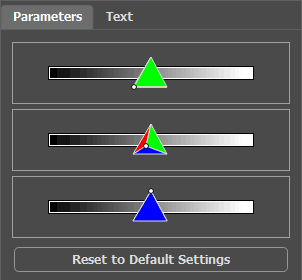
Haga clic en botón
 para aplicar los cambios.
He aquí el resultado:
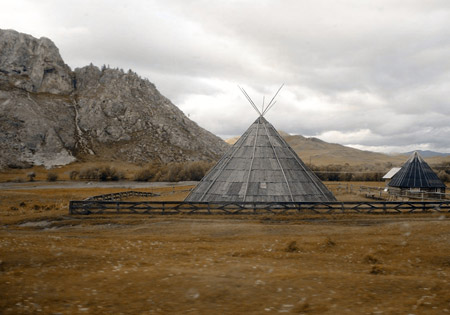
-
Paso 3. La imagen se ve oscura. Ilumínela con una de las características estándar de AliveColors. En el menú principal seleccione Imagen -> Ajuste -> Brillo/Contraste y aumente Brillo.
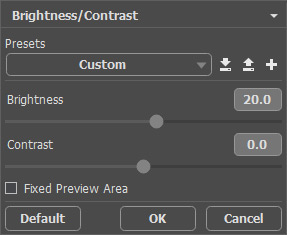
Haga clic en OK para aplicar el cambio.
He aquí el otoño:
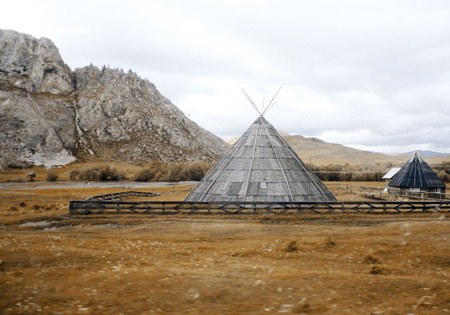
-
Paso 4. Después del otoño, desde luego, llega el invierno. Pero ¿qué es lo que falta aquí? Nieve. Haremos que las montañas tengan una apariencia escarchada aplicando una textura de hielo con el plugin AKVIS Decorator.
Primero, utilice la herramienta Selección rápida
 para seleccionar las montañas.
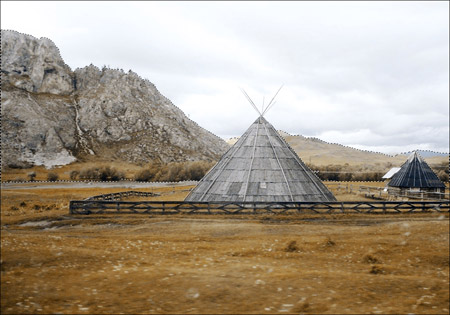
Abra el plugin AKVIS Decorator (Efectos -> AKVIS -> Decorator). En la Biblioteca de texturas encontrará una textura adecuada. Ajústela a su gusto. Por ejemplo:
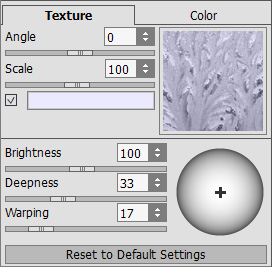
Empiece el procesamiento de la aplicación de la textura presionando el botón
 . El resultado será mostrado en la pestaña Después.
Para aceptar los cambios y regresar al editor fotográfico, presione el botón
.
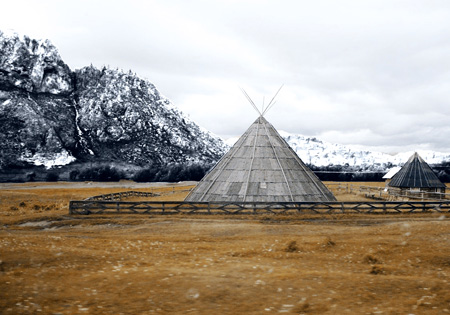
Ahora, las montañas se encuentran cubiertas de escarcha.
-
Paso 5. Continuamos. Ahora seleccione el suelo y la casa.
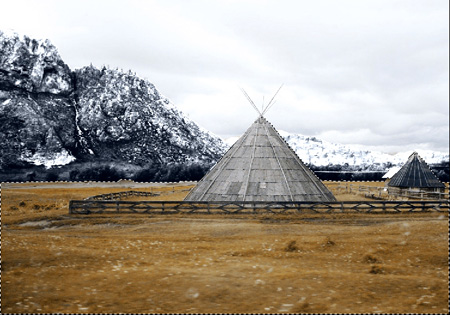
Abra el plugin AKVIS Decorator. Esta vez elija una textura diferente y ajuste los parámetros.
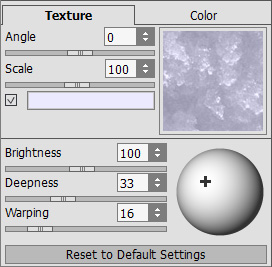
Empiece el procesamiento de la aplicación de la textura. Aplique los cambios y regrese al editor fotográfico.
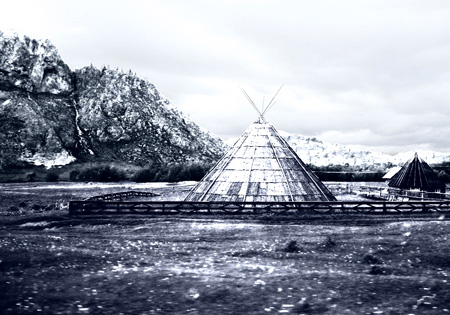
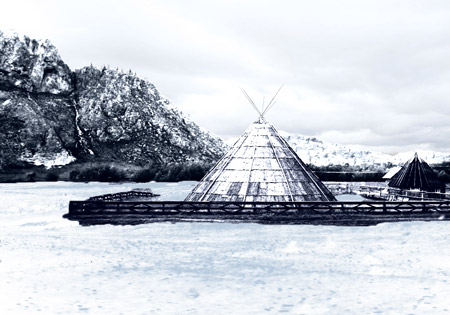
- Paso 6. Intentaremos cubrir el césped con nieve. Seleccione el área deseada con la herramienta Selección rápida , como ya ha hecho antes. Luego, en el menú principal del editor haga clic en Imagen -> Ajuste -> Curvas.
Haga clic en OK para aplicar el efecto.
-
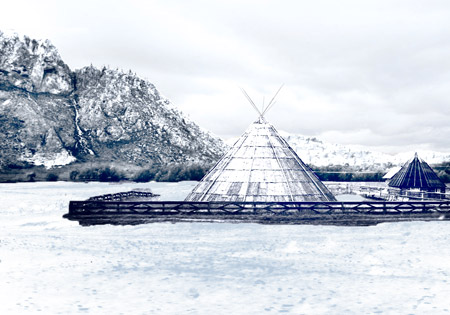
Paso 7. Regresemos a las montañas. Las iluminaremos, también lo hacemos con la casa y con todo que está alrededor. De este modo, el contraste será reducido y se obtendrá un fantástico cuadro realista. Para llevarlo a cabo, utilice la herramienta Aclarar
 en AliveColors.
Unos pocos pasos sencillos y hemos logrado el invierno:
ArtSuite v. 20.0 - Prueba gratuita de 10 días

