Graphic plugins for Windows Mac graphic plugins  
Please enter your email to be kept posted on updates and discounts:
 
  
  Products     Download     Online Store     Tutorial     Support     About Company
en  fr  de  es  pt  it  jp  ru    
 

Tutorial: AKVIS ArtSuite

Channel Mixer


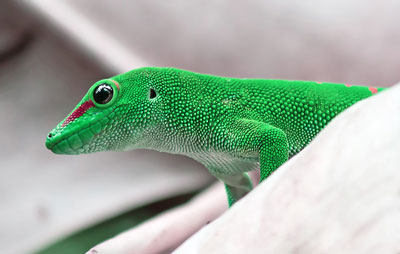
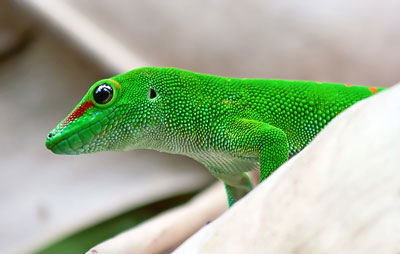
This effect allows adjusting the image (changing its color tones, saturation, contrast, lightness, etc.) using three channels: Red, Green and Blue.
Channel Mixer

Every channel is represented by a scale with a triangle control.

The parameter can be adjusted in the following way:

  • Shifting the triangle to the right/left leads to increase/reduction of the corresponding color component in every image point.
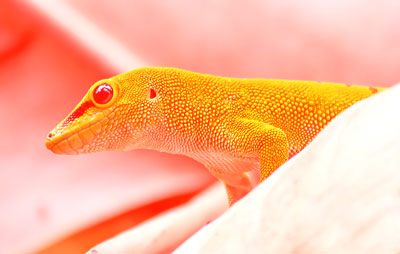
    Increase red color in every image point Reduct red color in every image point
    Red color increasing in every image point Red color reducing in every image point

  • Enlarge/reduce. Left-click on a triangle's corner and move the cursor to/from the center of the triangle. By increasing/reducing the triangle size, you strenthen/weaken this color component. The color is strengthened/weakened only in the points where it was, other points of the image stay unchanged.
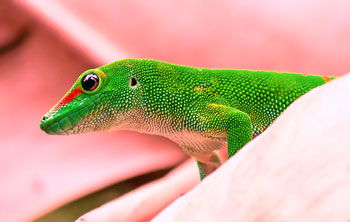
    Increase red color in the red channel Reduce red color in the red channel
    Red color increasing in the red channel Red color reducing in the red channel

  • Change the color of the triangle. For this purpose, left-click on the white circle at the apex of the triangle, and drag it to another apex. For example, if we change the triangle's color in the red channel to blue, the red color components in every point of the channel will become blue.
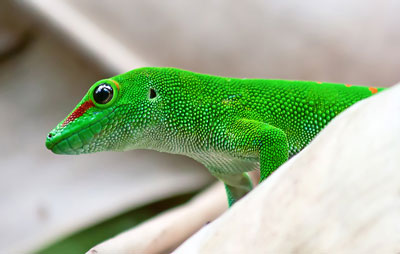
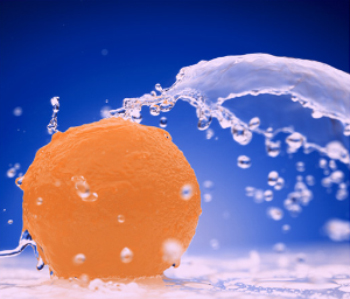
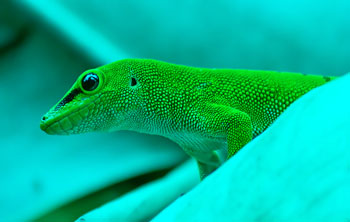
    A source image Replacing the red color with blue in the red chanel
    A source image Replacing a color in a chanel

  • Change the color of the triangle to two color sectors. For this purpose, left-click on the white circle at the apex of the triangle, and drag it to one of the triangle' sides. For example, if the triangle in the green channel consists of blue and red sectors, the new value of the green color component will be calcualted as a sum of blue and red components. Other color components will not change.
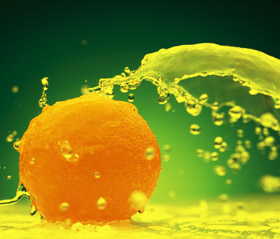
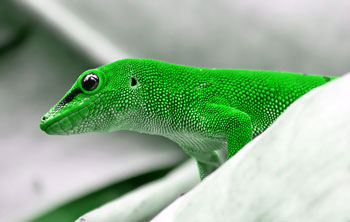
    A source image Replacing the green color with blue and red in the green chanel
    A source image Replacing a color in a chanel

  • Change the color of the triangle to three color sectors. For this purpose, left-click on the white circle at the apex of the triangle, and drag it towards the middle of the triangle. For example, if the triangle in the blue channel consists of three color sections, the new value of the blue component for every point of the image will be calculated as a sum of these three color sections. Other color components on the image (in this case, red and green) will not change.
    A source image Replacing the blue color with blue, red and green
    A source image Replacing a color in a chanel

Attention!

The triangle control does not show the result. It only shows the way the points in this channel will be calculated.


Hint: To understand it better, you are welcome to read the mathematic description of the effect ( the red channel as an example).

As you change the position of the channel's control, the program recalculates the value of the corresponding points using the following formula:

Rres = ( R * r' + G * g' + B * b' ) * T + C,

where:

Rres – the resulting value of the red component for this point.

R, G, B - the starting values of the red, green, and blue components accordingly.

r', g', b' – the area taken by the red, green, and blue sections on the total area of the triangle control.
Sum r' + g' + b' = 1.
For example, when the triangle is red, than r' = 1, g' = 0, b' = 0, if the triangle has two sections, the ratio can be: r' = 1/3, g' = 2/3, b' = 0, if three section - for example r' = 1/2, g' = 1/3, b' = 1/6,etc.

T – a coefficient depending on the size of the triangle. By default it is set to Т = 1. If you increase the control size, then Т > 1; if you reduce its size, then T < 1.

C – a coefficient depending on the position of the control on the scale. By default С = 1. If you move the control to the right, then С > 0, to the left - C < 0.

If the starting point was represented as (R, G, B), the resultng point will be calculated as (Rres, G, B).

The transformations in the green and blue channels are made in the same way. .


How It Works How It Works
   — Workspace — Workspace
   — How It Works — How It Works
Effects Effects
   — Black and White — Black and White
   — Shift Colors — Shift Colors
   — Channel Mixer — Channel Mixer
   — Texture — Texture
Frames Frames
   — Classic — Classic
   — Pattern — Pattern
   — Strokes — Strokes
   — Scratches — Scratches
   — Squares  — Squares
   — Ragged — Ragged
   — Spray — Spray
   — Artistic — Artistic
   — Page Curl — Page Curl
   — Artistic Crop — Artistic Crop
   — Frost — Frost
Examples Examples
   — Summer Dreams — Summer Dreams
   — Prowling Tiger — Prowling Tiger
   — Art Gallery — Art Gallery
   — Frog prince house — Frog prince house
   — Gold autumn — Gold autumn


   Privacy Policy | Site Map | Search | English  | Français  | Deutsch  | Español  | Português  | Italiano  | 日本語  | Pусский  | © 2004-2008, AKVIS LLC. All rights reserved.