Invitación de boda realizada a mano
Prepararse para una boda es un reto. Para que sea una ocasión especial, usted deberá hacer todo lo posible para que resulte original, y memorable, y para que todos los elementos trabajen en conjunto armoniosamente. Esto requiere mucho tiempo y atención.
Lo importante no es sólo la compra de un vestido de novia o la planificación de la recepción, sino que también es vital el diseño de las tarjetas de invitación. Seguramente usted querrá crear algo único que sus invitados apreciarán. Este tutorial está dedicado a la creación de invitaciones a bodas. Crearemos una tarjeta de invitación.

Imagen original
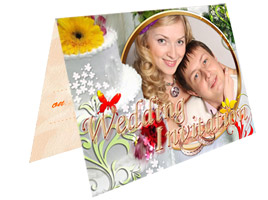
Resultado
La invitación consistirá de dos partes: la cubierta y un espacio para el contenido. Trabajaremos con cada parte por separado.
La cubierta
La cubierta de nuestra tarjeta será hecha con ArtSuite, y ya que nuestra idea incluirá el uso de un marco pintado a mano, usaremos la versión Standalone.
- Paso 1. Abra el programa y luego la imagen presionando el botón
 .
.
Elija Marco Pintado a mano de la lista desplegable en el Panel de ajustes. Por defecto, la fotografía será colocada en el primer marco pintado a mano en la Biblioteca.
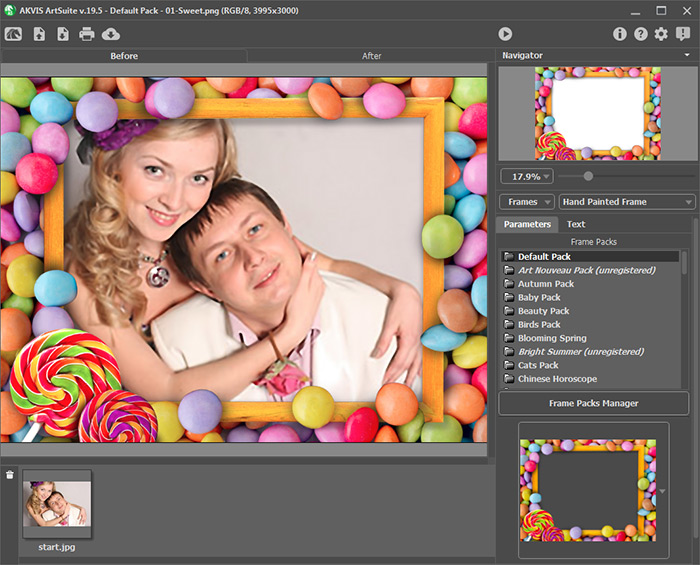
- Paso 2. No usamos este marco. Regresamos a la Biblioteca y elegimos uno de los Marcos de boda.
Nota:
Este paquete de marcos está disponible por un precio. Busque aquí información sobre compra y registro… No se preocupe.
Cuando instala ArtSuite, en la Biblioteca ya hay los marcos gratis, de los cuales usted puede elegir el que se adapte a su gusto. Además hay un paquete de marcos gratis que usted puede descargar aquí.
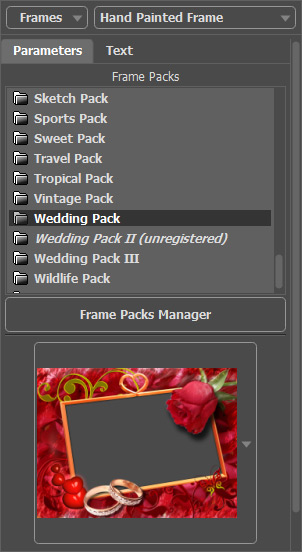
Elegimos una opción adecuada. El programa insertará la fotografía en el marco automáticamente.
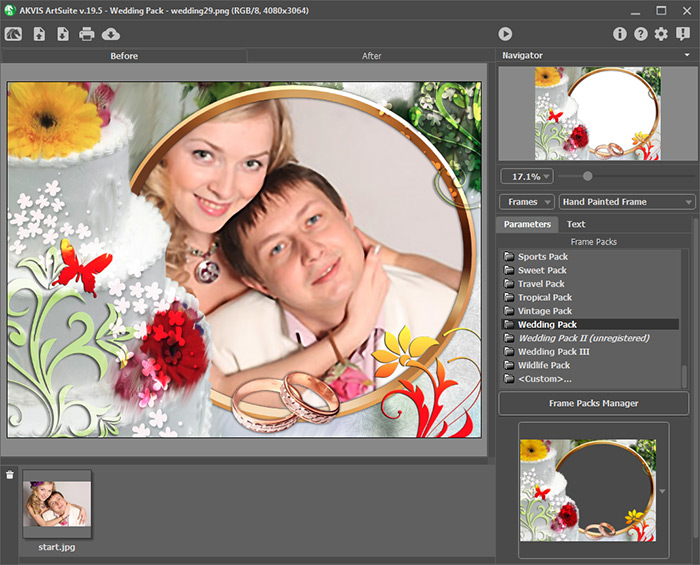
- Paso 3. Ajuste el tamaño y posición de la fotografía en el marco.
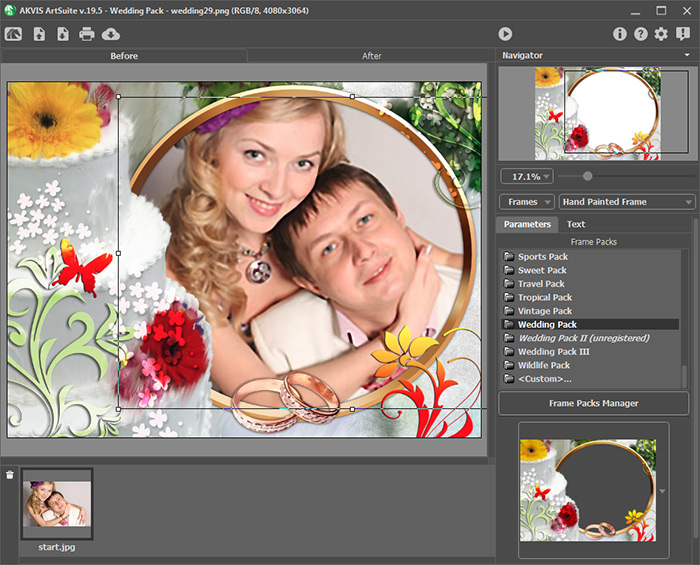
- Paso 4. Empiece el procesamiento de la imagen presionando el botón
 , y luego la fotografía lucirá como se ve a continuación:
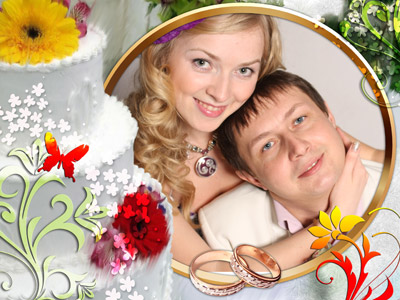
¡La fotografía para la cubierta está terminada! Guardaremos el resultado presionando el botón
 .
.
- Paso 5. Ahora necesitamos nuestro editor de gráficos. Usaremos AliveColors. Abra la imagen que acabamos de procesar en el editor.
La fotografía debe ajustarse al tamaño de la invitación. Queremos que nuestra invitación tenga 10 cm de ancho; por lo cual reduciremos la imagen a ese tamaño (seleccionando Imagen -> Tamaño de imagen del menú).
- Paso 6. Agregue texto y efectos varios.
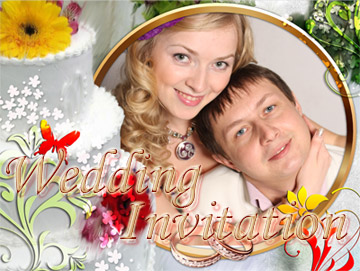
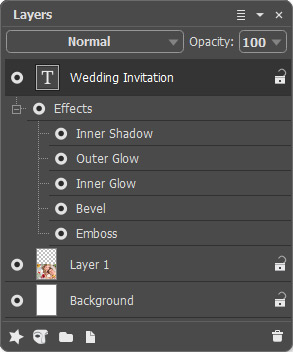
Agregado de texto a la invitación Efecto aplicado al texto - Paso 7. Aumente la altura del lienzo (Imagen -> Tamaño de lienzo) dos veces para que la imagen principal se encuentre en la parte inferior.
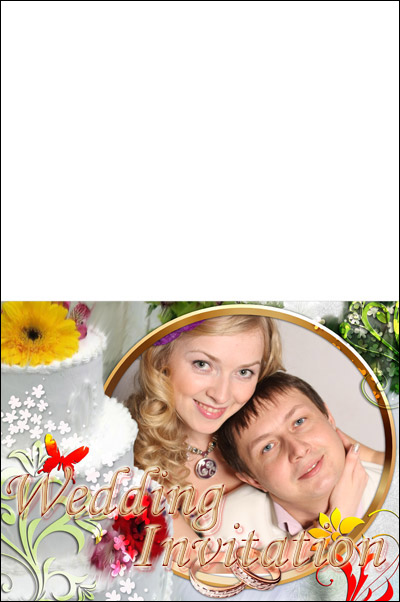
La cubierta de la invitación está terminada.
Parte interior
- Paso 1. Cree un documento del mismo tamaño que el primero.
- Paso 2. Agregue una nueva capa (Capas -> Nueva -> Capa Raster) y dibuje algo o llénela con un patrón.
Luego utilice la herramienta Lápiz de color
 para trazar una línea horizontal que atravesa la imagen, dividiéndola en dos partes. Esta línea indicará por donde se debe doblar la invitación, facilitando el trabajo más tarde.
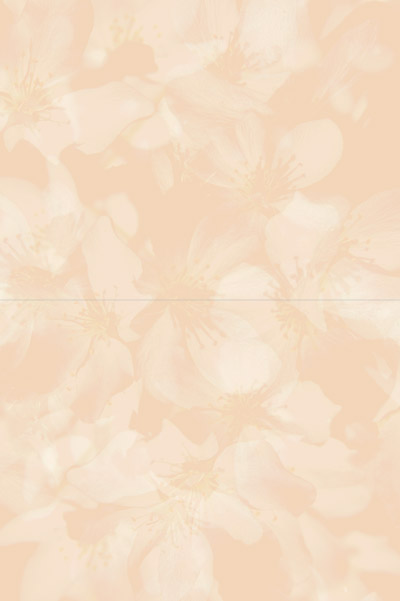
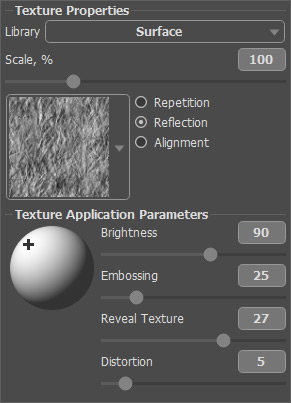
- Paso 3. Abra el AKVIS ArtSuite (Efectos -> AKVIS -> ArtSuite) y agregue una textura para darle al papel un efecto de relieve.
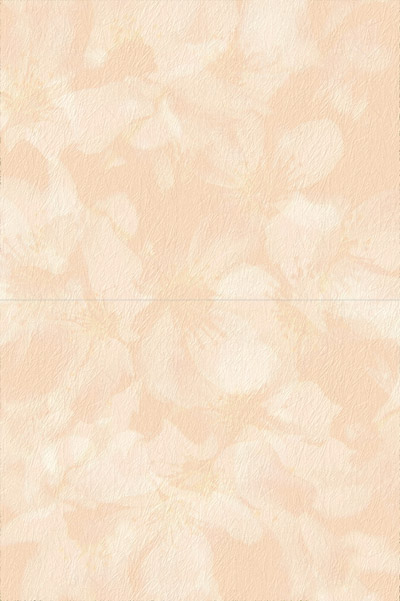
El patrón y la configuración de la textura se muestran a continuación.
- Paso 4. Paso final. Seleccione Texto
 y rellene la invitación con un mensaje para todos los invitados.
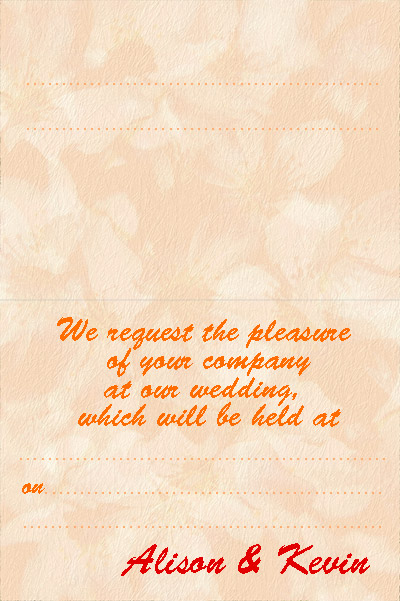
¡Ambos lados están terminados! Ahora sólo imprima varias copias de la invitación y envíelas a sus invitados.
ArtSuite v. 21.1 - Prueba gratuita de 10 días
