カスタム フレームパックの作成
ArtSuite ライブラリで利用可能な手作りフレームとダウンロード可能なテーマ別のフレームパックに加え、自分の写真をカスタマイズしたフレームを作成することができます。
AKVIS ArtSuite で、AliveColors イメージエディターを使用したカスタムフレームの作成方法を紹介します。選択範囲と透過度をサポートしてるプログラムであれば何でも構いません。
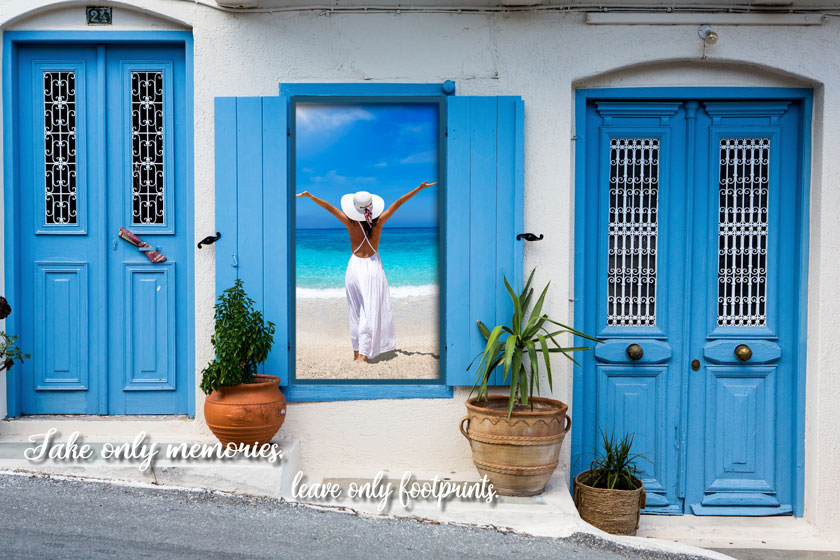
カスタム フレーム
フレームの作成
-
ステップ 1: AliveColors グラフィック エディターで、フレームに変換するイメージ (画像) を開きます ([ファイル]メニューの[開く]を使用)。
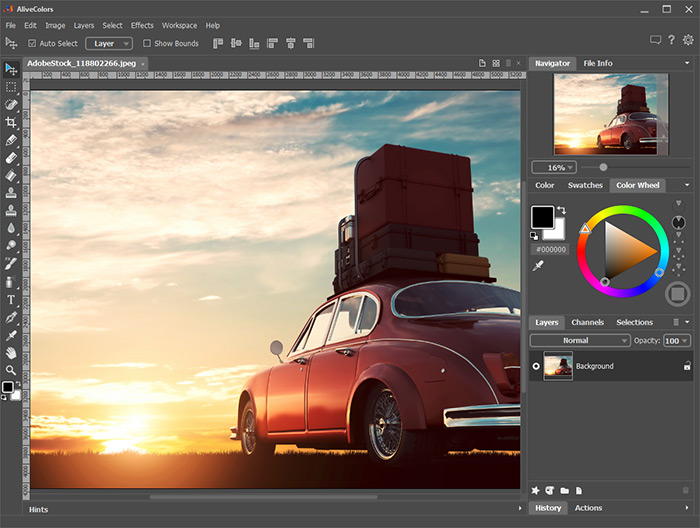
AliveColors で開いたイメージ -
ステップ 2: フレームとなるイメージに、写真を挿入するための穴を作成します。
選択範囲ツール、例えば、長方形選択ツール
 を選択し、イメージ内で範囲を指定します。その後指定した範囲をDeleteキーまたは、[編集]メニューの[消去]コマンドを使用して、切り取ります。
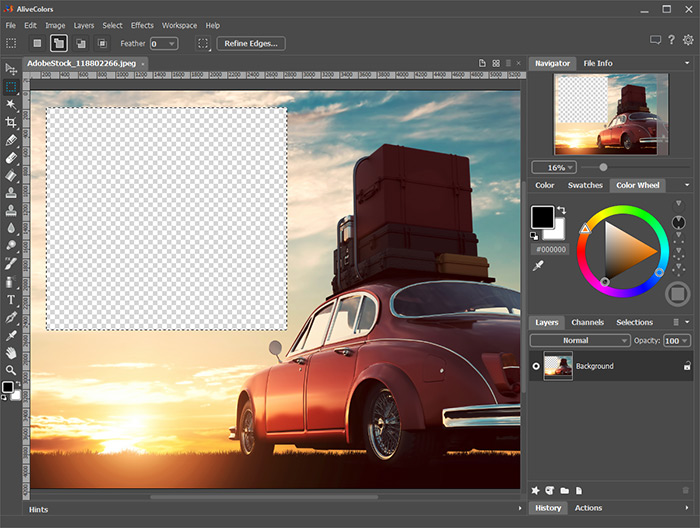
写真を挿入するための穴注意: 複数の写真を挿入するため、複数の穴を作成するには、追加モード
 を使用して新しい選択範囲を複数指定し、すべて切り取ります。
選択範囲の解除は、[選択]メニューの[選択解除]コマンド、またはCtrl+Dキーを使用します。
-
ステップ 3: 穴の内側は、色を使って縁取りします。そのためには、レイヤー効果の[ストローク]を適用し、次のように設定します (レイヤー効果の設定を行うには、[レイヤー] > [レイヤー効果]を選択します)。
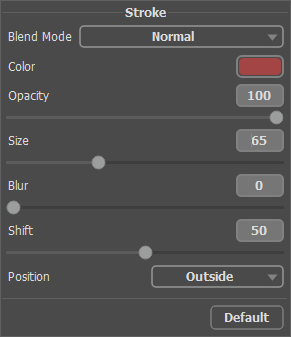
レイヤー効果 (ストローク)ボリュームを出すためには、レイヤー効果の[外側の影]を適用し、パラメーターを調整します。
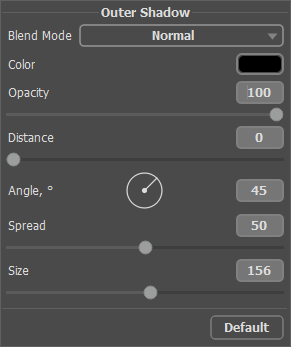
レイヤー効果 (外側の影) -
ステップ 4: フレームに合うコメントを補うには、テキスト ツール
 を使用し、レイヤー効果を使用して配置します。
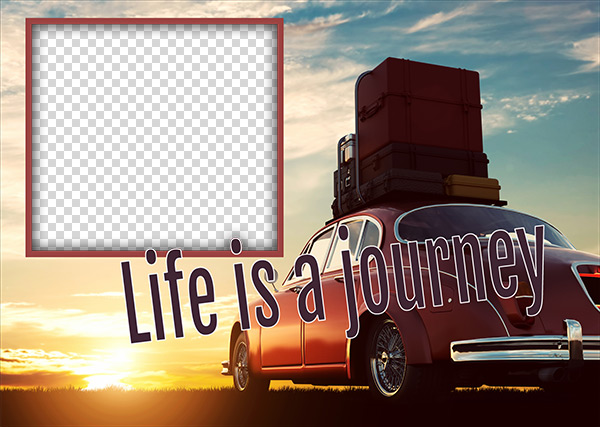
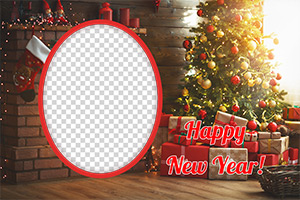
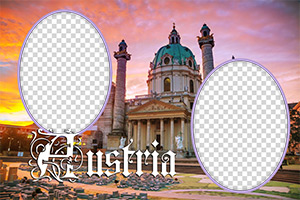
すぐに使えるフレームフレームを、特別に作成したフォルダーに保存します。PNG フォーマットを選択し、透過が有効になっていることを確認します。
同じ方法で、他のフレームのデザインも調整し、同じフォルダーに PNG ファイルとして保存します。
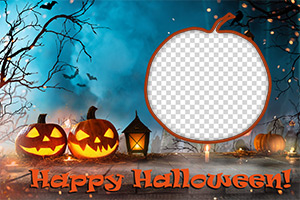
フレームパックの作成
-
ステップ 5: AKVIS ArtSuite を実行します。
[フレーム]、[手作りフレーム]を選択し、フレームパック マネージャーをクリックします。表示されるウィンドウで、[カスタム フレームパック]ボタンをクリックします。
ダイアログボックスの最初のフィールドには、フレーム グループの名前、例えば My Frames と入力します。[参照...]をクリックして、新しいフレームのフォルダーを選択します。[OK]をクリックします。
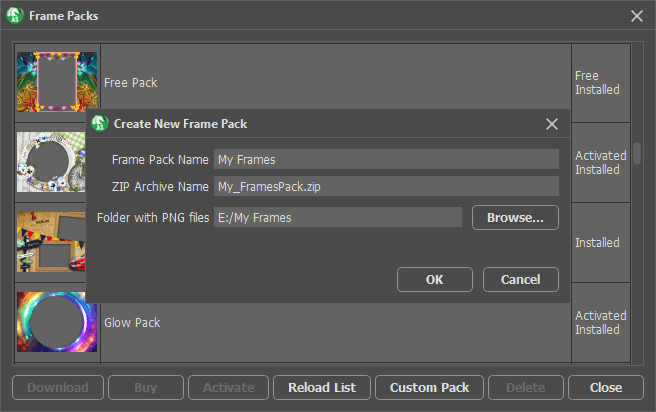
フレームパックの作成 -
ステップ 6:フレームパックの一覧で、[ユーザー指定のフレーム]を選択します。新しいフレームのうちの1つが、設定パネルの下の四角いプレビュー ウィンドウに表示されます。クリックすると、フレームセット内のフレームがすべて表示されます。マウスクリックで、希望のフレームを選択します。
コントロールパネルの
 をクリックして、処理する写真を選択します。写真のサムネイルは、メイン ウィンドウの下に表示されます。最初の写真は、自動的にフレームに挿入されます。サムネイルをダブルクリックすると、別の写真を選択できます。
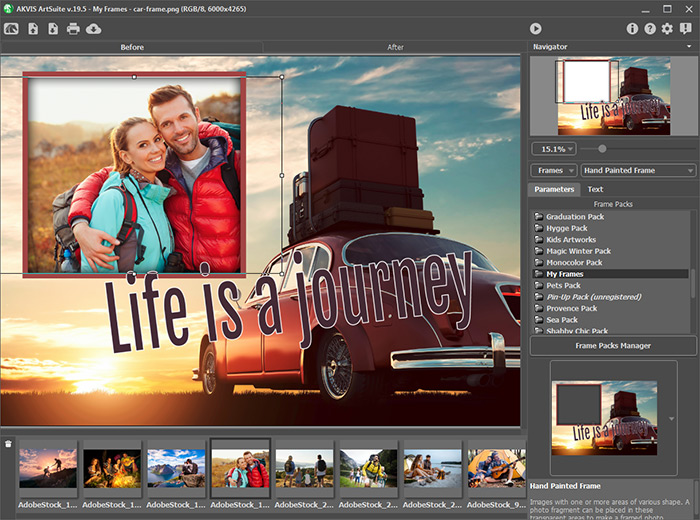
写真の追加 -
ステップ 7:フレーム内での写真の位置を調整し、最も良いと思う位置にします。
 を使用して、写真の処理を開始します。
写真を挿入処理結果の保存には
 を使用し、
を使用し、  を使用して印刷もできます。
これにより、あなただけのフレーム コレクションが、いつでも ArtSuite プログラムで利用可能な状態になります!
写真の挿入
ArtSuite v. 21.1 - 10日間の評価期間
