Graphic software for Windows Mac graphic software
AKVIS ニュースの購読を申し込むには, 電子メールアドレスを入力してください。
 
  
  プログラム     ダウンロード     サイバーショップ     チュートリアル     サポート     会社情報
en  fr  de  es  pt  it  jp  ru    
 

チュートリアル: AKVIS ArtSuite

Seasons


あいにく, このページは英語にだけ使用可能です。日本語のバージョンは遠からず出ります。
Attention! You can get a free licence for an AKVIS program by translating texts from English to Japanese.
Please contact us at team@akvis.com.

This example was made after our New Year 2009 photo-editing competition. In the category “4 Seasons”, the winner was Andrew Blazhin, for his photo “4 Seasons”. His idea inspired this example.
Summer Autumn Winter
Seasons

Click on any of the images to see a larger version in another window


All work was done in Adobe Photoshop using the AKVIS ArtSuite and AKVIS Decorator plugins.

  • Step 1. Open the image in the photo editor.
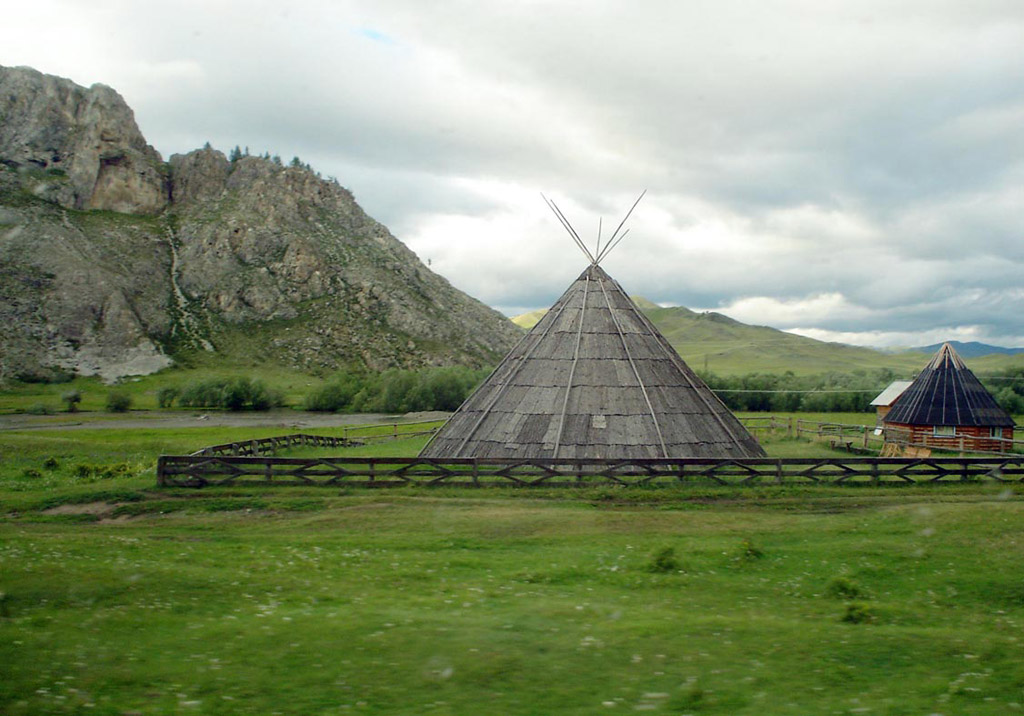
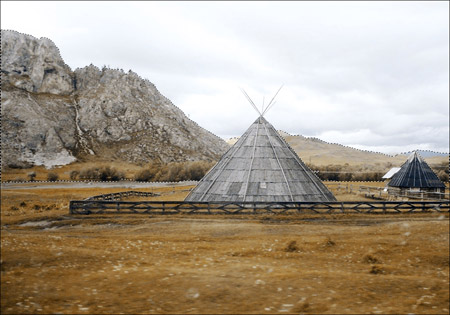
    Summer landscape
  • Step 2. Here is our picture of summer. We will use it to represent the other seasons too. Let's start with autumn. A characteristic of autumn is yellowed vegetation, so let's begin our change there. To begin call the AKVIS ArtSuite plug-in (in the menu select Filter -> AKVIS -> ArtSuite).

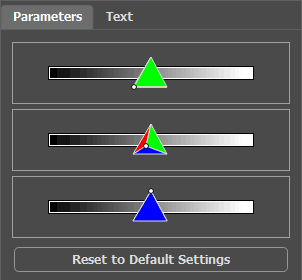
    On the Settings panel we will choose the effect Channel Mixer and adjust its settings. We recommend that while making adjustments, click Autorun , which automatically updates processing after any change. Set the parameters as shown below.

    Adjusting Channel Mixer

    Click on to make the changes.

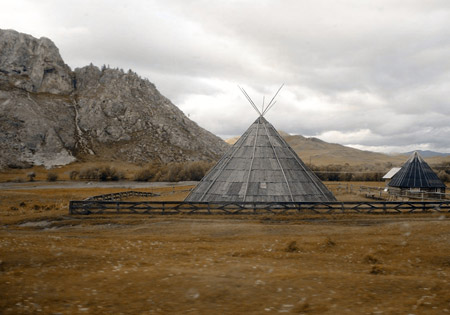
    Here is the result:

    After image processing with ArtSuite
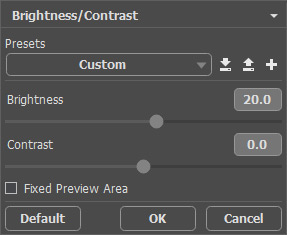
  • Step 3. The image looks gloomy. We will brighten it up with one of the standard features of Photoshop. In the main menu select Image -> Adjustments -> Brightness/Contrast and increase the amount of Brightness.
    Increase Brightness

    Click on OK to apply the change.

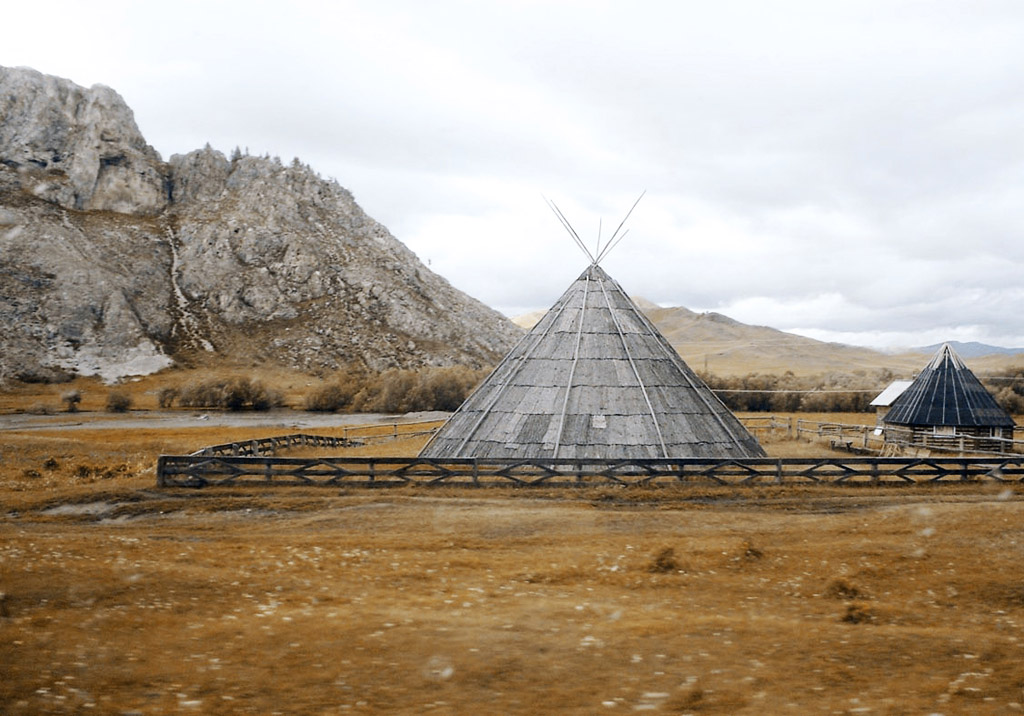
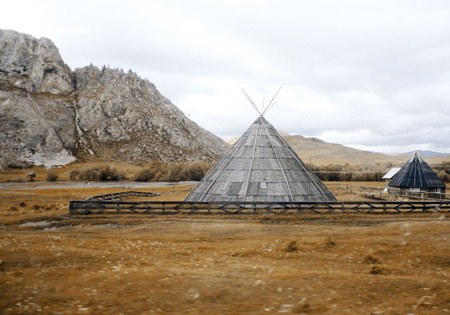
    Here is autumn:

    Autumn landscape
  • Step 4. After fall, of course, is winter. But what is missing here? Snow. We will give the mountains a frosty appearance by applying an ice texture with the AKVIS Decorator plug-in.

    First use the Quick Selection Tool to select the mountains.

    Select the mountains

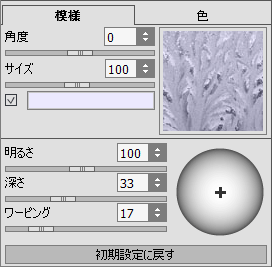
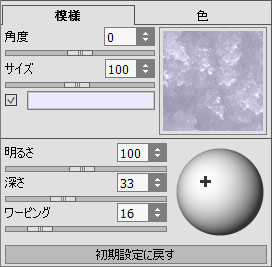
    Call the AKVIS Decorator plug-in (Filter -> AKVIS -> Decorator). In the Texture Library we will find a suitable texture and adjust it to our liking. For example:

    Adjust texture

    Start the process of applying the texture by pressing the button. The result will be shown in the After tab.

    To accept the result and return to the photo editor, press .

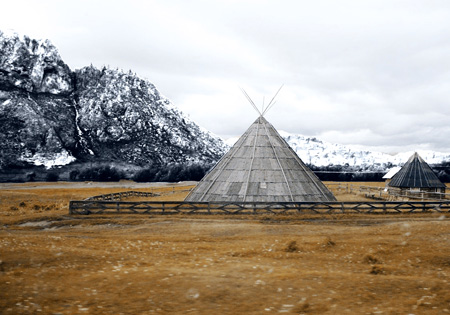
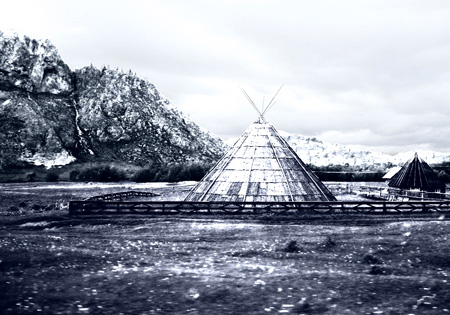
    Apply a new texture with Decorator

    The mountains are encased in frost.

  • Step 5. Let’s continue. Now select the ground and the house.
    Select the ground and the house

    Once again we will call the AKVIS Decorator plug-in. This time we choose a different texture and adjust the parameters.

    Adjust the parameters

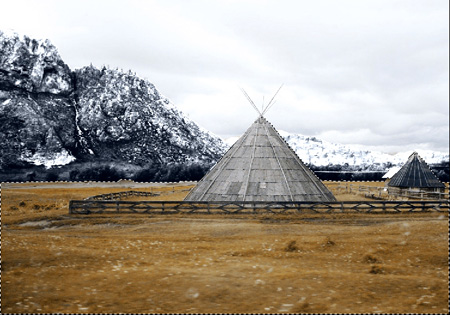
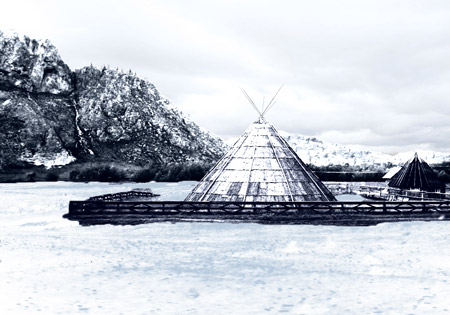
    Press to start the texture application process and to apply the result and return to the photo editor.

    Image processed with Decorator
  • Step 6. We will try to cover the grass with snow. In order to imitate snow we will use a gradient. We select the desired area with the Quick Selection Tool as before. Then in the editor’s main menu we click Image -> Adjustments -> Gradient Map and in the window that appears, we choose the kind of overlay gradient, as show below. The colors will take on a white and light blue hue.
    overlay gradient

    Click on OK to apply the effect.

    With the gradient applied
  • Step 7. Let’s return to the mountains. We will brighten them, as well as the home and fence, thereby reducing contrast and making a great realistic portrait. To do this we used the Dodge Tool in Photoshop.

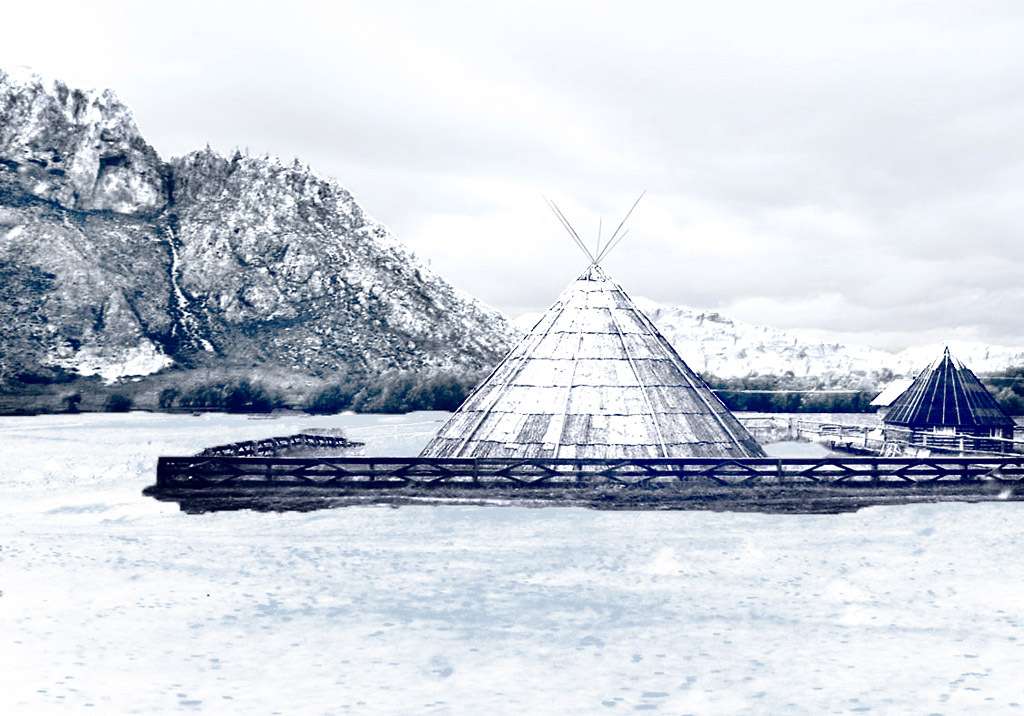
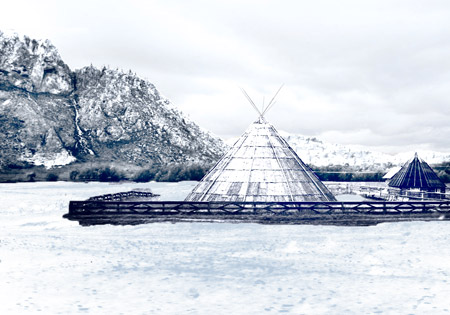
    A few simple steps and we have winter:

    Winter landscape

 
操作方法 操作方法
   — ワークスペース — ワークスペース
   — 操作方法 — 操作方法
効果 効果
   — 白黒 — 白黒
   — カラーシフト — カラーシフト
   — チャンネルミキサー — チャンネルミキサー
   — テクスチャ — テクスチャ
   — グラマー エフェクト — グラマー エフェクト
   — 2つの基本 — 2つの基本
フレーム フレーム
   — クラシック フレーム — クラシック フレーム
   — パターン フレーム — パターン フレーム
   — ストローク — ストローク
   — スクラッチ — スクラッチ
   — ページカール — ページカール
   — 正方形フレーム — 正方形フレーム
   — ラグフレーム — ラグフレーム
   — スプレーフレーム — スプレーフレーム
   — 芸術的なフレーム — 芸術的なフレーム
   — 芸術的切り取り — 芸術的切り取り
   — 霜フレーム — 霜フレーム
   — Hand Painted Frame — Hand Painted Frame
操作例 操作例


   プライバシー | サイトマップ | Web サイトの検索 | English  |Français  |Deutsch  |Español  |Português  |Italiano  | 日本語  |Pусский  | © 2004-2009, AKVIS Software Inc. All rights reserved.