As estações
Este tutorial foi baseado nos métodos usados por Andrew Blazhin, que foi um vencedor em nossa competição de edição de fotos de Ano Novo 2009, por a sua foto na categoria "4 estações".
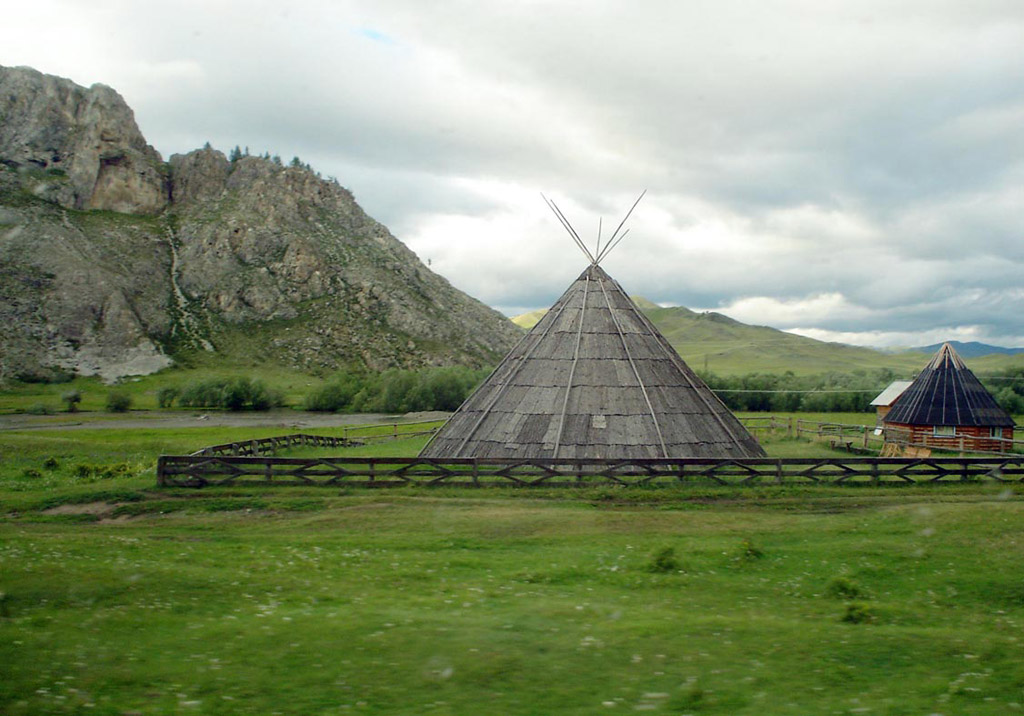
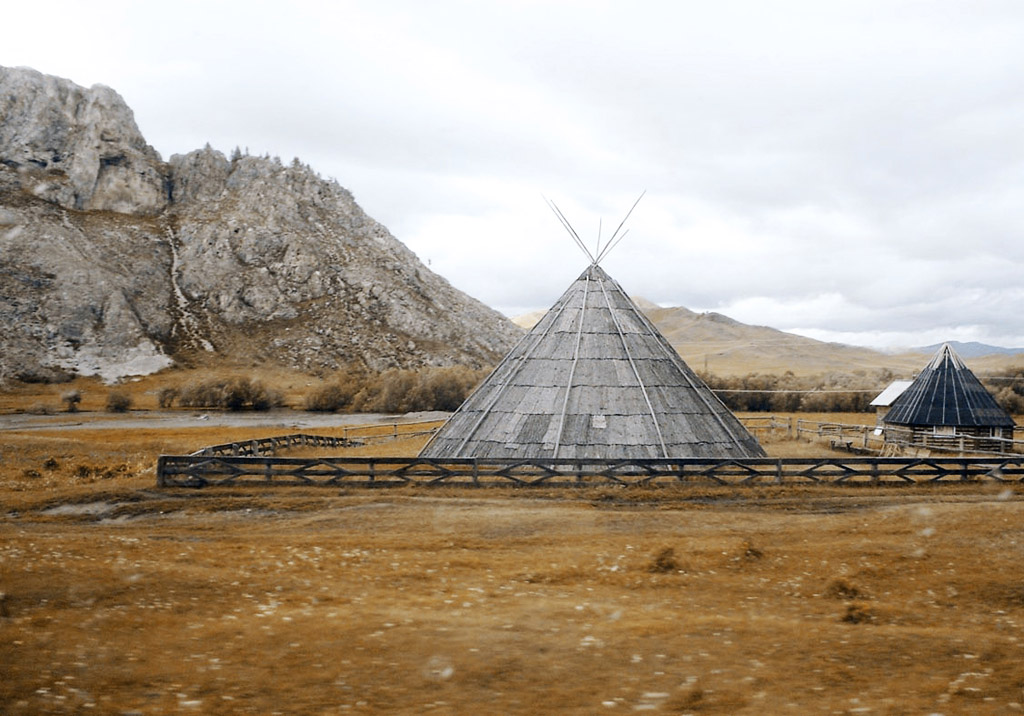
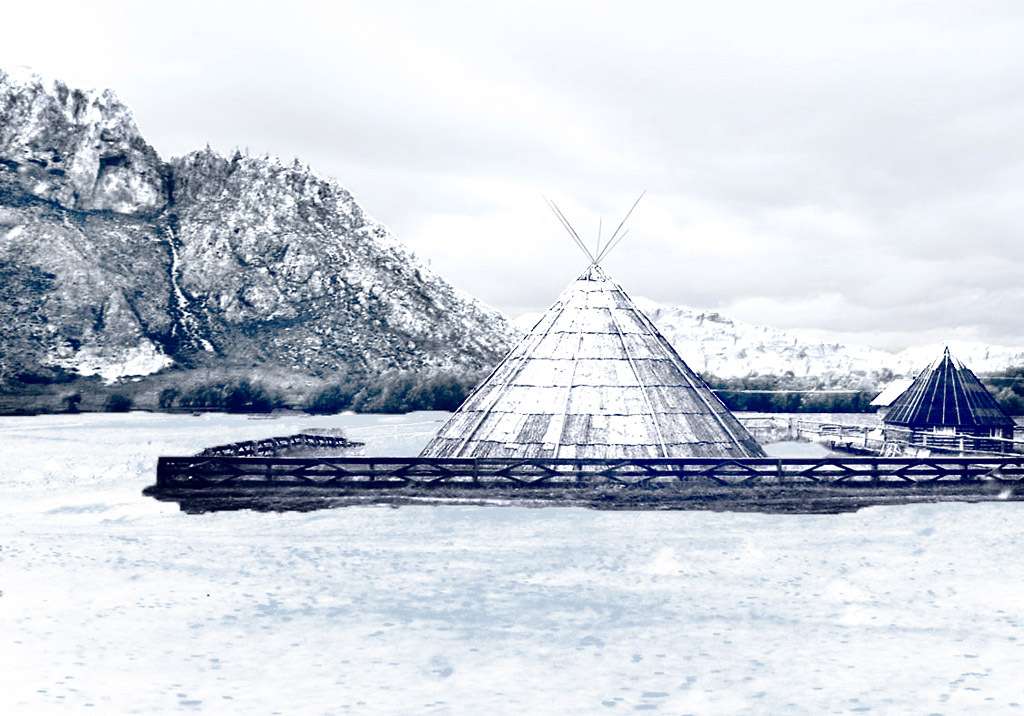
Estações
Clique numa das imagens para ver uma versão maior em outra janela
Todo o processo foi feito em AliveColors com o uso dos plugins AKVIS ArtSuite e AKVIS Decorator.
-
Passo 1. Abra a imagem no editor de fotos.
- Passo 2. Aqui está uma foto do verão. Usaremos esta imagem para representar as outras estações também. Vamos começar com o outono. Uma característica do outono é a vegetação amarela, então vamos começar a mudança nesta parte. Para começar chame o plugin AKVIS ArtSuite (no menu selecione Efeitos -> AKVIS -> ArtSuite).
Na Painel de ajuste nós escolheremos o efeito Misturador de canais e ajustaremos as suas configurações.
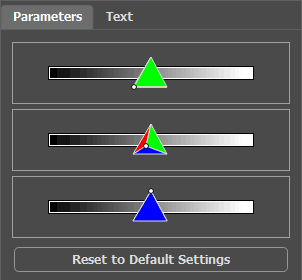
Clique no
 para fazer as mudanças.
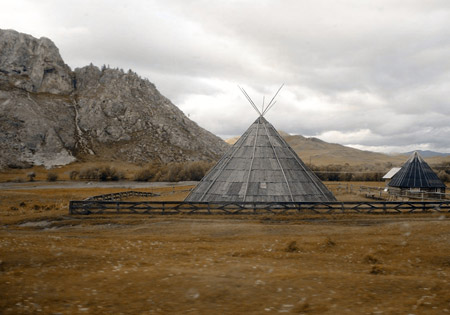
Aqui está o resultado:
-
Passo 3. A imagem parece sombria. Vamos iluminar-la com uma das características padrão de AliveColors. No menu principal selecione Image -> Adjustment -> Brightness/Contrast e aumente a quantidade de Brightness.
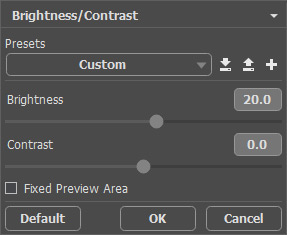
Clique no OK para aplicar a mudança.
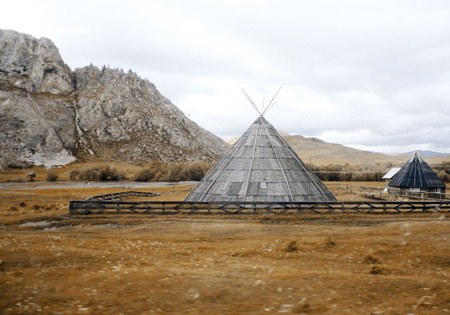
Aqui está o outono:
-
Passo 4. Depois do outono, claro, o inverno está chegando. Mas o que está faltando aqui? A neve. Daremos às montanhas uma aparência gelada aplicando uma textura de gelo com ajuda de plugin AKVIS Decorator.
Primeiro use o Pincel de seleção
 para selecionar as montanhas.
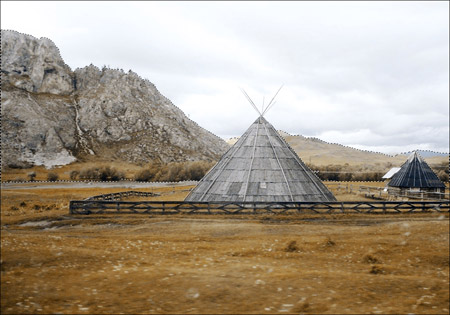
Chame o plugin AKVIS Decorator (Effects -> AKVIS -> Decorator). Na biblioteca de texturas vamos encontrar uma textura adequada e ajustar-la ao nosso gosto. Por exemplo:
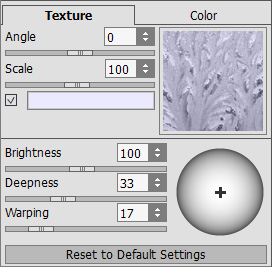
Inicie o processo de aplicação da textura pressionando o botão
 . O resultado será mostrado na aba Antes.
Para aceitar o resultado e retornar ao editor de fotos, pressione o botão
.
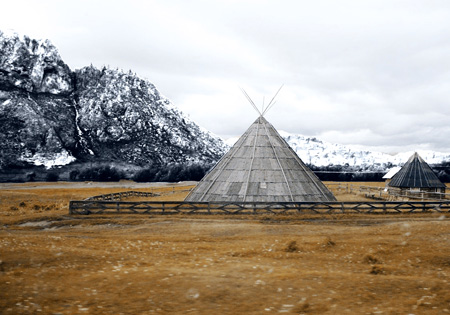
As montanhas estão cobertas de geada.
-
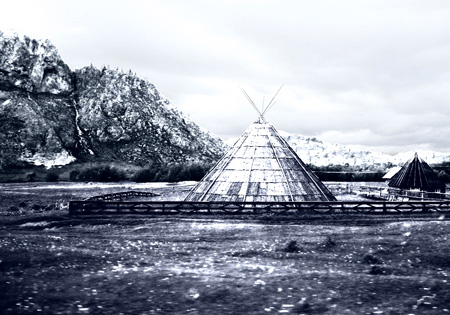
Passo 5. Vamos continuar. Agora, selecione o chão e a casa.
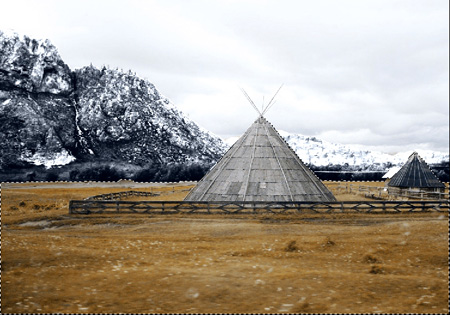
Mais uma vez chamaremos o plugin AKVIS Decorator. Desta vez nós escolhemos uma textura diferente e ajustamos os parâmetros.
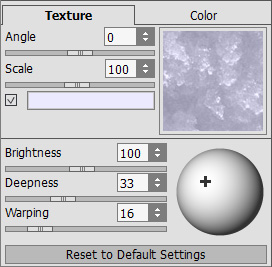
Inicie o processo de aplicação da textura. Aplique o resultado e volte ao editor de fotos.
-
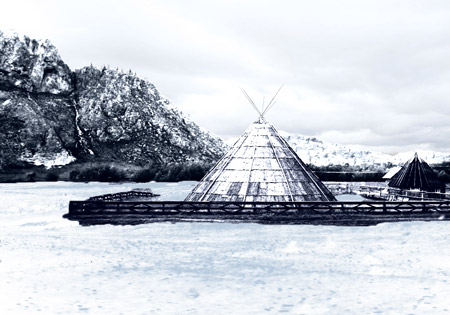
Passo 6. Vamos tentar cobrir a grama com a neve. Selecionamos a área desejada com o Pincel de seleção como antes. Então no menu principal do editor, clicamos Image -> Adjustment -> Curves e na janela que aparece, escolhemos a predefinição High Key.
Clique no OK para aplicar o efeito.
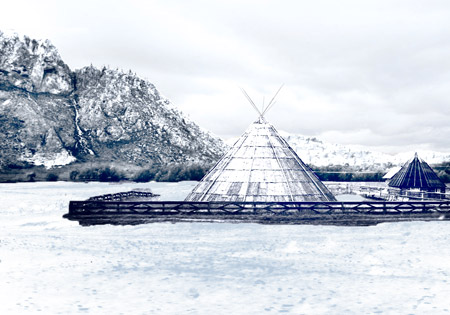
- Passo 7. Voltemos para as montanhas. Vamos iluminar-los, bem como a casa e a cerca, reduzindo o contraste e fazendo uma excelente paisagem realista. Para fazer isso, usamos a ferramenta Lighten
 no AliveColors.
Alguns passos simples e temos o inverno:
ArtSuite v. 21.1 - Teste gratuito 10 dias
