Berlin Cathedral: Creating a Retro Postcard from a Digital Photo


AKVIS ニュースの購読を申し込むには, 電子メールアドレスを入力してください。
 
 
  プログラム     ダウンロード     サイバーショップ     チュートリアル     サポート     会社情報      お客様の部屋
en  fr  de  es  pt  it  jp  ru    
 

チュートリアル: AKVIS ArtSuite

Berlin Cathedral


あいにく, このページは英語にだけ使用可能です。日本語のバージョンは遠からず出ります。
Attention! You can get a free licence for an AKVIS program by translating texts from English to Japanese.
Please contact us at team@akvis.com.

The author of this tutorial is Valentina Aynagos.


Berlin is one of the most exciting Europe metropolises. I'm never bored of walking on the streets of this city, where modern and high-tech architectural buildings are neighbors with impressive XIX century cathedrals and palaces representing the glory of the imperial Prussia.

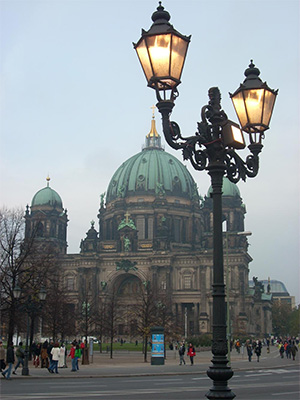
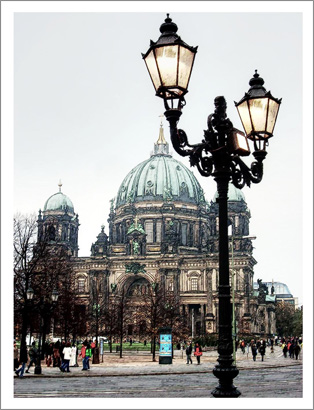
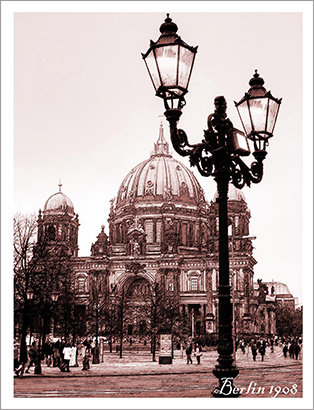
I took this photo of the Berlin Cathedral on a gloomy November day. I found the composition good enough to make a postcard out of it to share with my friends back at home. This cathedral was built in 1894, so I wondered how it could look on postcards at the end of the XIX century. So I also created a "retro" version of my postcard.

I used Adobe Photoshop and the plugin versions of AKVIS Sketch and AKVIS ArtSuite (by the way, they make part of the Artistic Bundle).

    Original image Result
    Original image Result

  • Step 1. Open the photo in your photo editor.
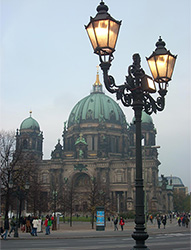
    Source photo
    Photo of the Berlin Cathedral
  • Step 2. My digital camera is rather simple and the photos do not always come out well. So I adjusted it with the command Image -> Adjustment -> Curves. If you have a good photo you do not need to do this step.
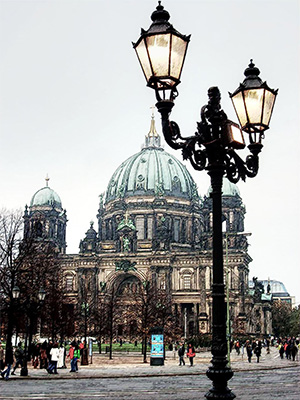
  • Step 3. Then I called the AKVIS Sketch plugin: Filter -> AKVIS -> Sketch.
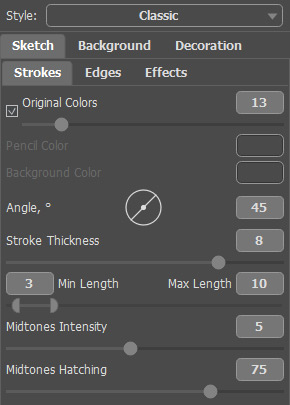
  • Step 4. I adjusted the parameters as follows:
    Settings
    Settings

    and clicked on the button to process the whole image, then clicked on the button to apply the result and close the plugin.

    Sketch
    The resulted pencil sketch from the photo
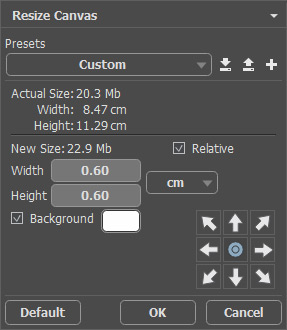
  • Step 5. I increased the size of the canvas on 0,6 cm with the command Image -> Canvas Size to add a simple frame to the image, so that it looks like a postcard.
    Canvas size dialog box
    Canvas size dialog box

    Here is the result:

    Increase canvas
    Put the sketch image into a frame
  • Step 6. I wanted to create a retro version of my postcard, say, Berlin in 1908, for example. For this purpose I used AKVIS ArtSuite: Filter -> AKVIS -> ArtSuite.

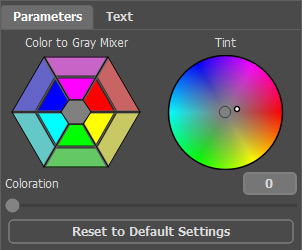
    I selected Effects in the drop-down menu and the effect Black and White. Then I moved the point on the circle to the right to add a red cast to the photo to imitate the sepia technique. I also slightly moved the red control on Color to Gray Mixer to lighten the tones.

      Hint: Use the Autorun-mode in the program Preferences (this mode is active by default) to observe the changes at once. It will save you time when picking out the tone. Otherwise you will have to press each time.

    Sepia effect
    Imitation of sepia technique
  • Step 7. Press the button to apply the result and close the plugin.

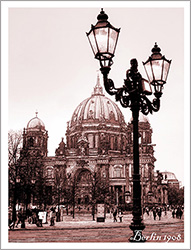
I also added an inscription "Berlin 1908". Well, the photo was taken some 100 years later, but I hope, the Berliners will forgive me this little liberty.

    Old postcard
    Old postcard
 
操作方法 操作方法
   — ワークスペース — ワークスペース
   — 操作方法 — 操作方法
   — 環境設定  — 環境設定
効果 効果
   — 白黒 — 白黒
   — カラーシフト — カラーシフト
   — チャンネルミキサー — チャンネルミキサー
   — テクスチャ — テクスチャ
   — グラマー エフェクト — グラマー エフェクト
   — 2つの基本 — 2つの基本
フレーム フレーム
   — クラシック フレーム — クラシック フレーム
   — パターン フレーム — パターン フレーム
   — ストローク — ストローク
   — スクラッチ — スクラッチ
   — ページカール — ページカール
   — 正方形フレーム — 正方形フレーム
   — ラグフレーム — ラグフレーム
   — スプレーフレーム — スプレーフレーム
   — 芸術的なフレーム — 芸術的なフレーム
   — 芸術的切り取り — 芸術的切り取り
   — 霜フレーム — 霜フレーム
   — 手作りフレーム — 手作りフレーム
操作例 操作例


ページの先頭へ


   プライバシー | サイトマップ | Web サイトの検索    
   連絡先 | Twitter | Facebook | YouTube Channel    
| English  |Français  |Deutsch  |Español  |Português  |Italiano  | 日本語  |Pусский  | © 2004-2012 AKVIS. All rights reserved.