Prowling Tiger
The author of the example is Sanjeev Saha, New Delhi, INDIA.
Though tigers are hunting in the daytime, they are a so-called symbol of the night. The tiger's movements are slow and cautious, its approach strikes fear in any living being. We'll try to create a framed photo of a tiger prowling in the night using AKVIS ArtSuite.
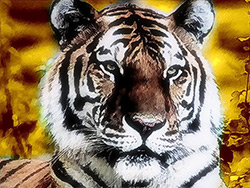
Original image
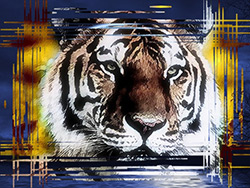
Result
First we will add a photo frame to a picture of a tiger.
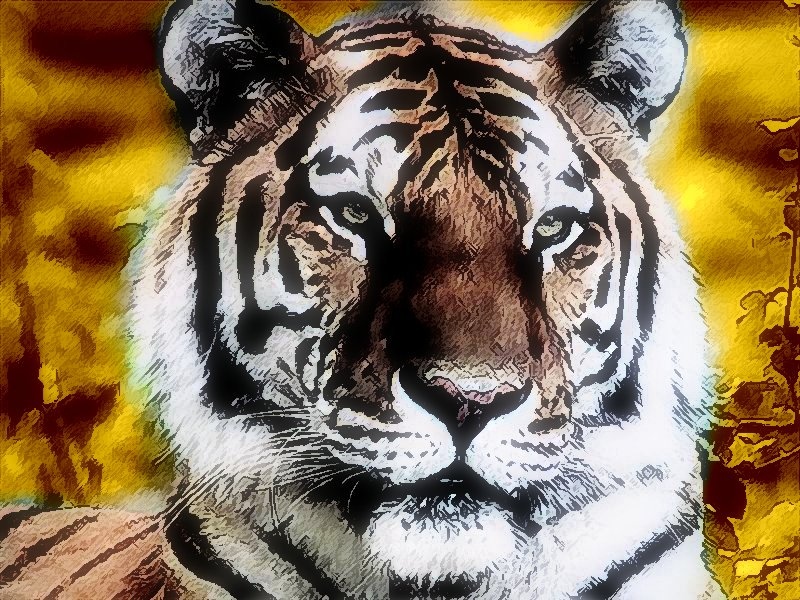
Click the image to open its larger copy in a new window
- Step 1. Open an image with the tiger in Jasc Paint Shop 7.
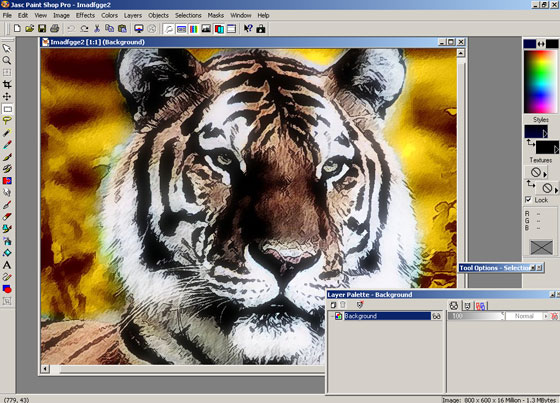
- Step 2. Then promote it to a layer by going to layer palette.
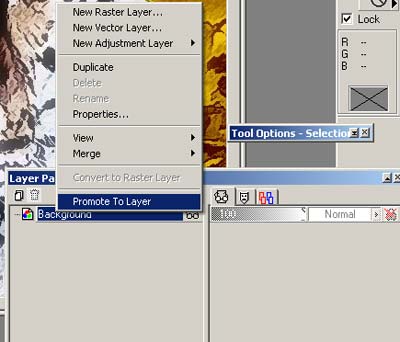
Now we can work with the image.
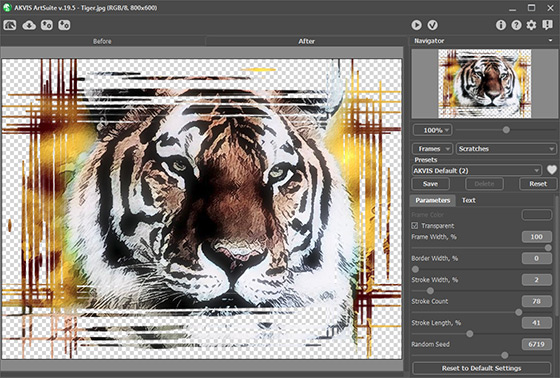
- Step 3. Call AKVIS ArtSuite by going to Effects -> Plugin Filters -> AKVIS -> ArtSuite. Select a Scratches by going to the drop down menu.
- Step 4. Activate the Transparent check-box. Set Frame Width to 100%, Border Width to 0%, Stroke Width to 2%, Stroke Count to 78%, Stroke Length to 41% and Random Speed to 6719.
The result will be shown in the After tab.
- Step 5. Press the
 button to apply the result and close the plugin window.
See the image in the Paint Shop Pro's workspace with a transparent background.
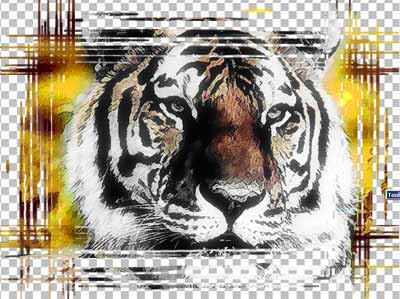
- Step 6. Then I searched Google for a background image. Open this night landscape image in the photo editor.
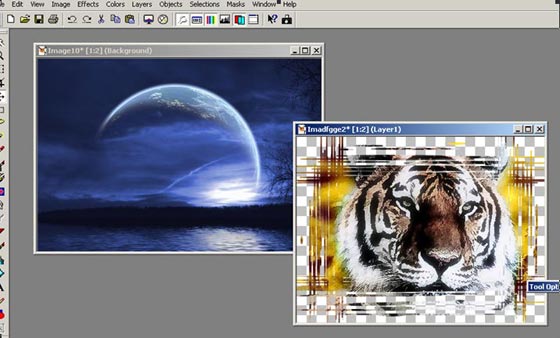
- Step 7. Now copy the image with the tiger. From the main menu of the photo editor choose Selections -> Select All. Then choose Edit -> Copy again from the main menu.
- Step 8. Left-mouse click on the image with the background. We'll continue our work with this image.
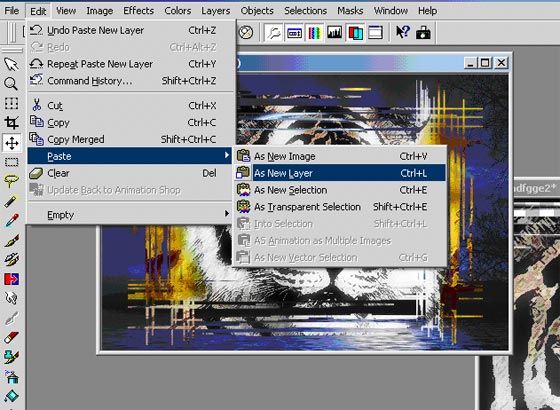
- Step 9. Paste the tiger image to the night lanscape as a new layer. Choose Edit -> Paste -> As New Layer from the maim menu of the photo editor.
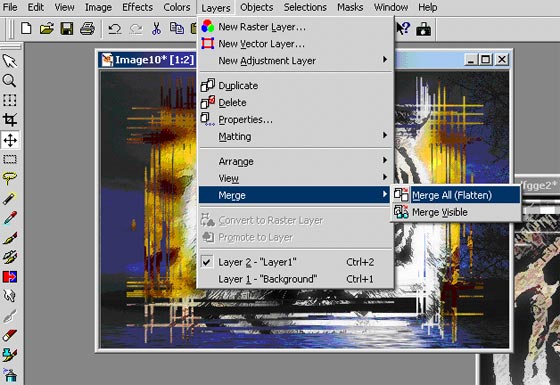
- Step 10. Then merge all layers.
Call from the main menu of the photo editor Layers -> Merge -> Merge All.
The result is shown below.
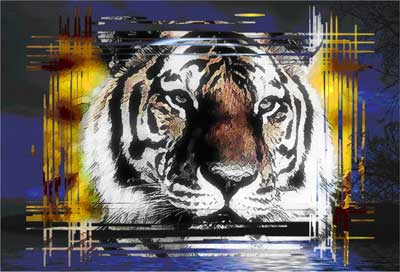
Click the image to open its larger copy in a new window
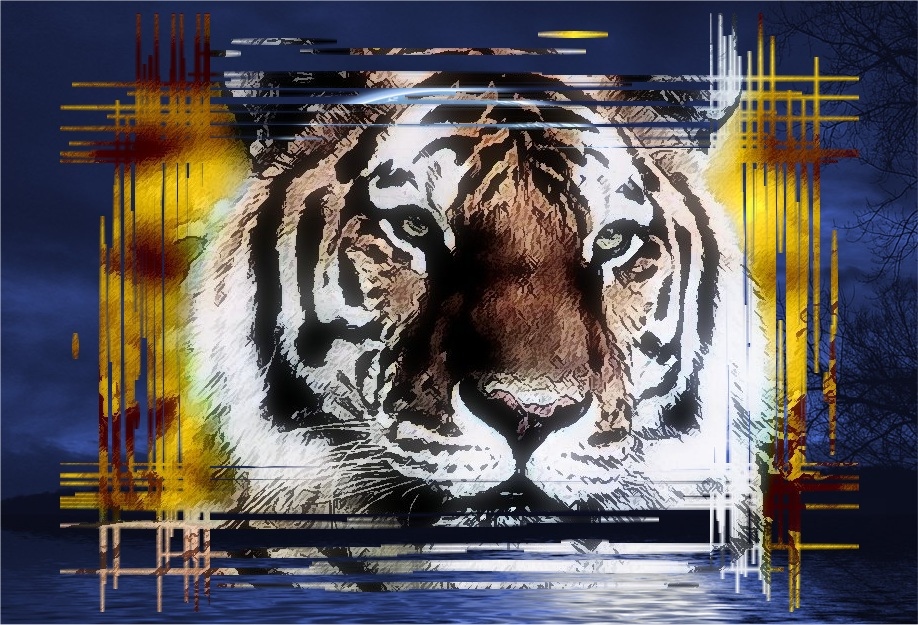
You can get various photo frames using AKVIS ArtSuite. For example, if you do not activate the Transparent check-box, you can use a color for the background. In this case you won't need to convert the base image to a layer.
Here is the Scratches frame with lilac as Frame Color:
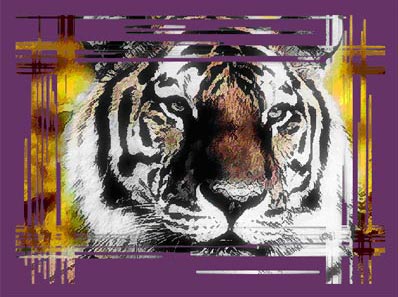
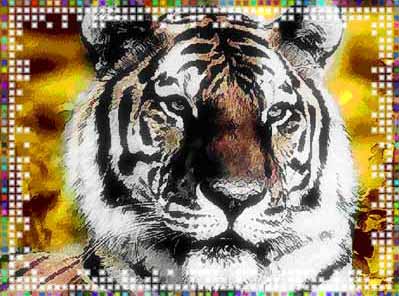
The same thing can be performed with Stroke, Page curl, Square, Ragged, Spray and Artistic. You can create a transparent frame and lay a background image under it; or you can add a color frame using the Color pallete.
The Squares frame:
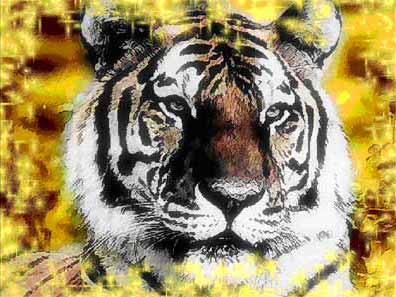
The Spray frame:
ArtSuite v. 21.1 - 10日間の評価期間
