Designing a Personal Photo Calendar with AKVIS ArtSuite


Please enter your email to be kept posted on updates and discounts:
 
 
  Products     Download     Online Store     Tutorial     Support     Company      Customer Room
en  fr  de  es  pt  it  jp  ru    
 

Tutorial: AKVIS ArtSuite

Magic Winter: Make a Calendar


Would you like to make an original photo calendar? Just take any digital photo and follow this tutorial to create a calendar using AKVIS ArtSuite.
Original image Result

The program is available as an independent program (standalone) and as a plug-in to a photo editor.

We’ll work with the plug-in version of ArtSuite in Adobe Photoshop.

  • Step 1. Open an image in Adobe Photoshop.
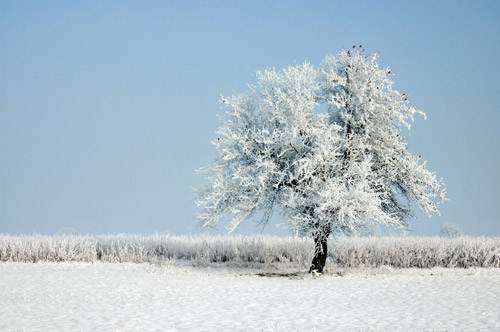
    Winter scenery
  • Step 2. Call AKVIS ArtSuite plugin from the main menu of the photo editor Filter -> AKVIS -> ArtSuite.
  • Step 3. Choose the Artistic Crop effect from the drop-down menu Frames in the Settings Panel.
  • Step 4. Here is the image processed with the default settings.
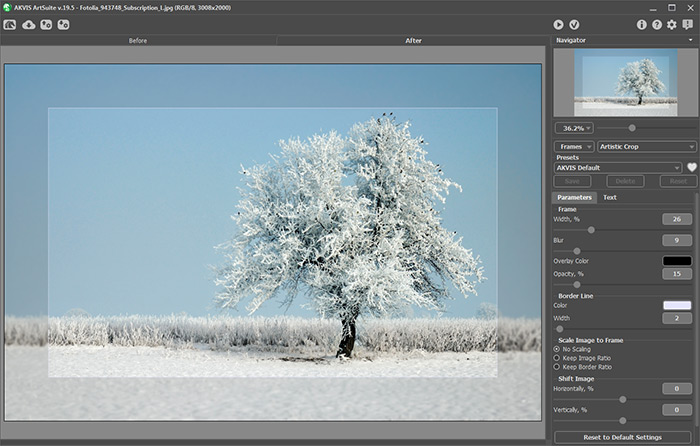
    Default settings of the Artistic Crop frame
  • Step 5. Adjust the settings for the frame:

    Increase the value of the Frame Width parameter from 26% to 37% and move the image right and downwards using the parameters in the Shift Image group: Horizontally = 70%, Vertically = -55%. Now we have a free space for the inscription.

    Set the value of the Blur parameter to 20 and choose an appropriate Overlay Color for the frame. Increase the value of the Opacity parameter.

    Adjust the Border Line parameters: choose an appropriate Color and reduce the value of Width to 20. Select the Keep Image Ratio option.

    The result is shown on the picture below.
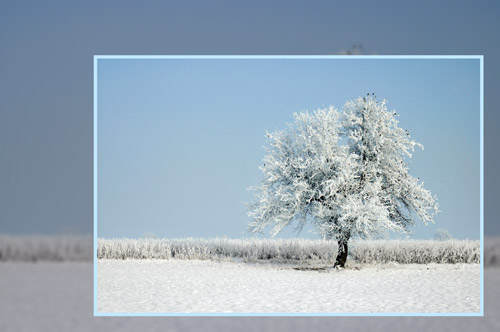
    Frame with the new settings
  • Step 6. Press the button to accept the result and close the plugin window.
  • Step 7. Now we'll add the inscription. It's an winter scenery, therefore the calendar will be for January.

    Choose the Horizontal Type tool from the Toolbar of your photo editor and type the year and the month. Then activate the Vertical Type tool to type the dates and the days of the week.

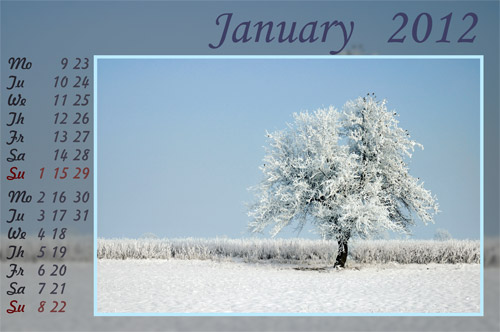
    Here we have a new photo calendar:

    Calendar

    You can use your family photos to make a personalized calendar.

 
How It Works How It Works
   — Workspace — Workspace
   — How To Use The Program — How To Use The Program
   — Preferences — Preferences
Effects Effects
   — Black & White — Black & White
   — Shift Colors — Shift Colors
   — Channel Mixer — Channel Mixer
   — Texture — Texture
   — Glamour — Glamour
   — Two Keys — Two Keys
Frames Frames
   — Classic — Classic
   — Pattern — Pattern
   — Strokes — Strokes
   — Scratches — Scratches
   — Page Curl — Page Curl
   — Squares — Squares
   — Ragged — Ragged
   — Spray — Spray
   — Artistic Frame — Artistic Frame
   — Artistic Crop — Artistic Crop
   — Frost — Frost
   — Hand Painted Frame — Hand Painted Frame
Examples Examples
   — Berlin Cathedral Postcard — Berlin Cathedral Postcard
   — Change Seasons — Change Seasons
   — Create Your Own Art Gallery — Create Your Own Art Gallery
   — Make a Calendar  — Make a Calendar
   — Prowling Tiger — Prowling Tiger
   — Frog Prince House — Frog Prince House
   — Summer Dreams (Advanced Tutorial) — Summer Dreams (Advanced Tutorial)
   — Relaxing at the River — Relaxing at the River
   — Happy New Year! Year of the Tiger! — Happy New Year! Year of the Tiger!
   — Handmade Wedding Invitation — Handmade Wedding Invitation
   — Making Your Own Frames — Making Your Own Frames
   — Retro Style Portrait — Retro Style Portrait
   — Changeable Fruit - Shift Colors — Changeable Fruit - Shift Colors
   — Valentine's Day: Capturing a Memory — Valentine's Day: Capturing a Memory


back to top


   Privacy Policy | Site Map | Search at AKVIS    
   Contact Us | Twitter | Facebook | YouTube Channel    
| English  |Français  |Deutsch  |Español  |Português  |Italiano  |日本語  |Pусский  | © 2004-2012 AKVIS. All rights reserved.