A Girl and a Dream: A Romantic Mood Without Photoshop
The author of this example is Anastasia, from St. Petersburg, Russia.
Some people do not have access to complex graphic editors (professional tools) when working on a creative project. This example is unique in that AKVIS Sketch is used with the graphics editor Paint, one of the standard applications of Windows. The author has had a strong interest in beauty, especially in photography and drawing, since birth, but has started to use Photoshop only recently. Anastasia (St. Petersburg, Russia) shows how to create a nice image even if you have not yet mastered Photoshop.
- Step 1. Open Windows Paint (Start -> All Programs -> Accessories -> Paint). Choose a photo to edit by either pressing Crtl + O, or open a file from the drop-down menu by clicking on File -> Open.
- Step 2. Selecting part of the image in Paint. First select the Magnifier tool
 and increase the scale of the image to 400%. Next choose the Eraser tool
  and after reducing it to the smallest size, remove the background around the girl in the photo, pixel by pixel. Then reduce the scale of the image with the Magnifier tool to 100% and select the Eraser again. This time increase the size of the eraser and erase the remainder of the background.
- Step 3. Save the file by choosing Save As.. from the menu (File -> Save As..). Save the file as girl.jpg.
- Step 4. Start AKVIS Sketch by either double-clicking on it's icon on the Desktop or click on the Start button and navigate the menus to AKVIS -> Sketch.
- Step 5. Open the file girl.jpg by pressing the button
 and navigating to the folder where you saved it.
- Step 6. To create a sketch of this image, choose the values for the various parameters below:
Coloration = 17;
Angle = 40;
Size = 4;
Min Length/Max Length = 3-6;
Midtones Intensity = 5;
Midtones Hatching = 22;
Sharpen = 73.
- Step 7. Press the button
 , to convert the image of the girl to a pencil sketch, based on the parameters above.
- Step 8. Saving the image. In order to save the image, press the button
 and then Save As... Name the file girl-sketch.jpg and choose the format (jpg, bmp, or png).
- Step 9. Open another image in Paint (see Step 5). This image will serve as the background and in this case is a photo of a beautiful landscape with a car.
- Step 10. To have an element of the photo stand out from the background, the author chose to leave the car as it is.
Before this would require the use of layers but new features introduced in AKVIS Sketch v. 7.0 permit the manipulation of more than one element of a photo simultaneously. To do this, first activate the Background tab. Then choose the mode Sketch & Photo from the drop-down menu.
After switching to this mode, new tools become available. They enable you to select which areas of a photo you want AKVIS Sketch to affect and which areas you want to remain untouched.
 Use this tool (red pencil) to draw around the car, so that it will not be affected.
 Use this tool (blue pencil) to draw around the lines of the red pencil, so that the area around the car will be affected by AKVIS Sketch.
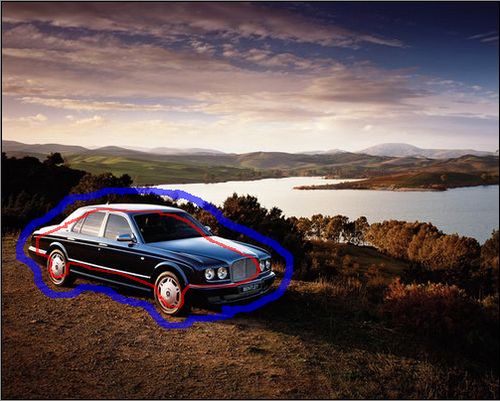
Indicate the effect and no-effect areas in Sketch - Step 11. Start the process by pressing the button . The program will transform the image based on the selections made in Step 6.
- Step 12. Save the image as background-sketch.jpg (See Step 8).
- Step 13. Close AKVIS Sketch by pressing the button
 .
. - Step 14
Place the girl on the background image. Open both girl-sketch.jpg and background-sketch.jpg in Paint (see Step 1). Select the image of the girl with the Select tool
 and press Ctrl + C, to copy it to the buffer. In the Toolbox select Draw Opaque and then press Ctrl + V.
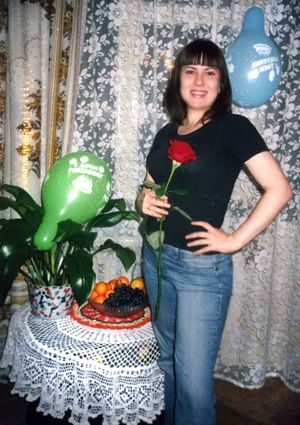
A source photo
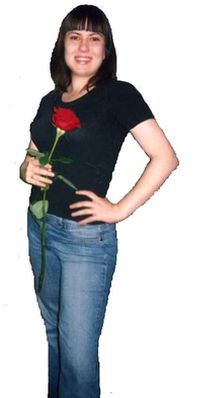
Girl selected from the image

The resulted pencil sketch from the photo
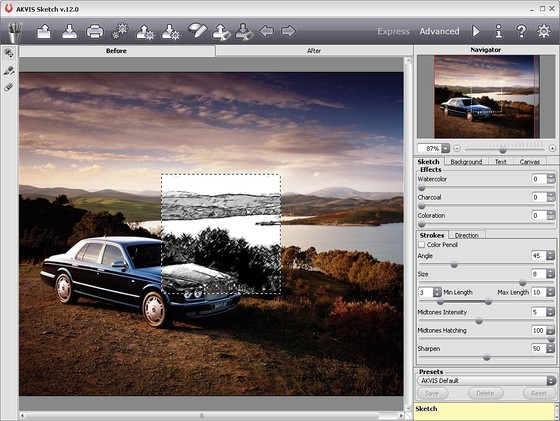
The background image
Great Result!
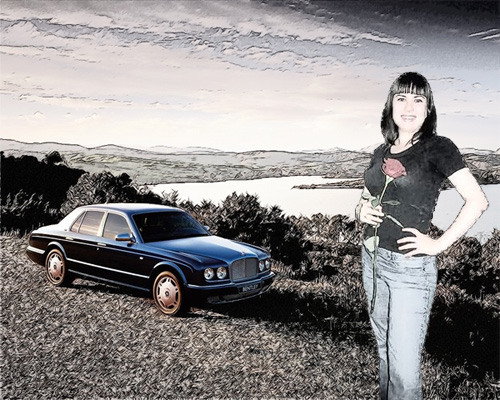
Collage: photo and pencil sketch
Sketch v. 28.1 - 10-giorni di prova gratuita
