Create a Wedding Collage with AKVIS Chameleon


Tragen Sie Ihre E-Mail ein, um den AKVIS-Newsletter zu abonnieren.
 
 
  Produkte     Download     Online Store     Tutorial     Support     Impressum      Kundenbereich
en  fr  de  es  pt  it  jp  ru    
 

Tutorial: AKVIS Chameleon

A Wedding Photo Collage


Entschuldigung. Jetzt ist die Information nur auf Englisch vorhanden. Die deutsche Version wird bald veröffentlicht werden.

The author of the example is David Kelly.

When I first read AKVIS' description of Chameleon, i.e. "Chameleon is an efficient tool for photo collage creation" my initial thought was that this Paint Shop Pro, Photoshop compatible plug-in would have limited practical use and didn't seem to fit into any "photo-fixer" category. However, there's more to digital image-editing than just repairing damaged photographs, and after establishing exactly what AKVIS were claiming for Chameleon and its various working modes I decided to find out if creating an eye-catching photo collage was really as easy as their website claimed.

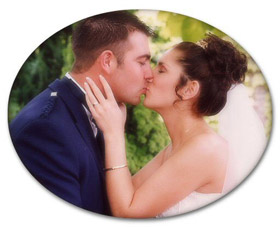
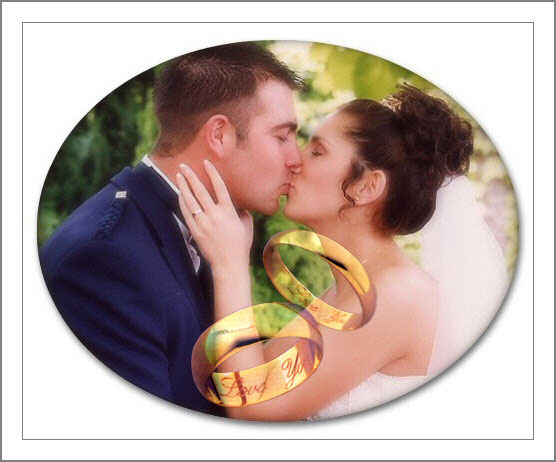
We shall see. Let's create a collage using a wedding photo and the image of two wedding rings. We would like to make the collage in which the wedding rings do not distract from the bride and groom, but instead emphasize the romance and beauty of that special moment.

Wedding PhotoWedding Photo

AKVIS Chameleon has four operating modes for making collages.

In this example the author used Blend mode.

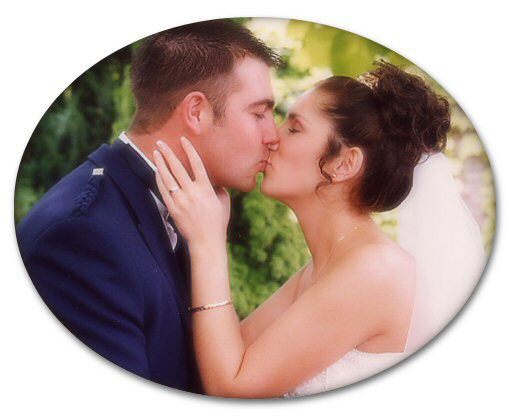
The original photo used in the collage is shown below. We will use Paint Shop Pro 9 to make the collage.

Wedding Photograph
How The Photo Collage Was Created
  • Step 1. The original photograph was loaded into Paint Shop Pro 9.
  • Step 2. Create a new 92dpi, 360 x 290 pixel-sized image with a white background. Its size or colour isn't critical. It just has to be large enough to take the new "his and her" gold wedding rings image.
  • Step 3. Add a new raster layer (blend mode normal) to the new image.
  • Step 4. Use PSP9's Picture Tube tool to place a new image consisting of two previously created "his and her" gold wedding rings of the correct size on to the new raster layer. Note; as an alternative to a Picture Tube image a selected object from an existing image or photo could have been used and resized as required.
  • Step 5. Copy the wedding rings image to the clipboard, using the command Effects -> Plugins -> AKVIS -> Chameleon - Grab Fragment.
  • Step 6. Return to the wedding photo.
  • Step 7. Call the AKVIS Chameleon plug-in by choosing Plug-ins -> AKVIS -> Chameleon - Make Collage from the Effects menu.
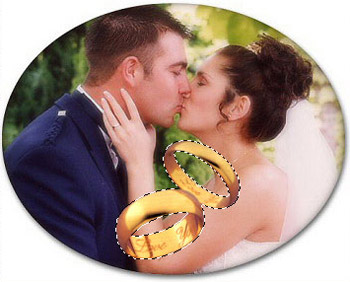
  • Step 8. Use the Transform tool to move the rings to the bottom of the photograph.
    Place Rings
  • Step 9. Choose Blend mode from the list of modes.
  • Step 10. Start processing the collage by pressing .
  • Step 11. Press to apply the result and close the plug-in.

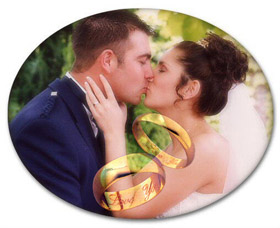
The collage is ready. As you can see the AKVIS Chameleon plug-in worked just as described. The rings are transparent, and through them shines the image of the newlyweds, while the inscription "I Love You" can still be read.


Wedding Photo Collage


Funktionsweise Funktionsweise
   — Arbeitsbereich — Arbeitsbereich
   — Arbeitsweise — Arbeitsweise
   — Optionen — Optionen
Montage-Modus Montage-Modus
   — Fotojagd — Fotojagd
   — Serenade für die Möwe — Serenade für die Möwe
   — Frohe Ostern! — Frohe Ostern!
Chamäleon-Modus Chamäleon-Modus
   — Sonnenuntergangsbild mit Yachten — Sonnenuntergangsbild mit Yachten
   — Neue Augen einsetzen — Neue Augen einsetzen
   — Tätowierung anprobieren — Tätowierung anprobieren
   — Der Affe und eine Maske — Der Affe und eine Maske
   — Briefmarke — Briefmarke
   — Etikett für Limonade — Etikett für Limonade
   — Chamäleon im Feuer — Chamäleon im Feuer
   — Der Fliegende Holländer — Der Fliegende Holländer
   — Elefant in der Savanne — Elefant in der Savanne
   — Alte Ruinen — Alte Ruinen
   — Schwanensee — Schwanensee
   — Ansicht der Erde — Ansicht der Erde
   — Collage mit einem Mädchen — Collage mit einem Mädchen
   — Friedenstaube — Friedenstaube
   — Fotocollage mit einem Mädchen — Fotocollage mit einem Mädchen
   — Eine Glückwunschkarte — Eine Glückwunschkarte
   — Ein Bild gewinnt an Dramatik — Ein Bild gewinnt an Dramatik
   — Ein Alltagsbild wird zum Schnappschuss — Ein Alltagsbild wird zum Schnappschuss
Mischen Modus Mischen Modus
   — Holzmalerei — Holzmalerei
   — Erstellung einer Glückwunschkarte — Erstellung einer Glückwunschkarte
   — Glückwunschkarte für den Valentinstag — Glückwunschkarte für den Valentinstag
   — Herbstbild — Herbstbild
   — Der Schmetterling an der Mauer — Der Schmetterling an der Mauer
   — Phantastische Fotocollage — Phantastische Fotocollage
   — Brennendes Foto eines Mädchens — Brennendes Foto eines Mädchens
   — Die Eule im Wald — Die Eule im Wald
   — Reife Kirschen — Reife Kirschen
   — Philosophische Fotocollage — Philosophische Fotocollage
   — Desktop-Tapete mit Leopard — Desktop-Tapete mit Leopard
   — Neufundländer aus dem Meer — Neufundländer aus dem Meer
Emersion-Modus Emersion-Modus
   — Für Graffiti-Fans — Für Graffiti-Fans


nach oben


   Datenschutzhinweis | Sitemap | Suchwort eingeben    
   Kontakt | Twitter | Facebook | YouTube Channel    
| English  |Français  | Deutsch  |Español  |Português  |Italiano  |日本語  |Pусский  | © 2004-2012 AKVIS. Alle Rechte vorbehalten.