Graphic software for Windows Mac graphic software  
AKVIS ニュースの購読を申し込むには, 電子メールアドレスを入力してください。
 
  
  プログラム     ダウンロード     サイバーショップ     チュートリアル     サポート     会社情報
en  fr  de  es  pt  it  jp  ru    
 

チュートリアル: AKVIS Chameleon

A Wedding Photo Collage


The author of the example is David Kelly.

When I first read AKVIS' description of Chameleon, i.e. "Chameleon is an efficient tool for photo collage creation" my initial thought was that this Paint Shop Pro, Photoshop compatible plug-in would have limited practical use and didn't seem to fit into any "photo-fixer" category. However, there's more to digital image-editing than just repairing damaged photographs, and after establishing exactly what AKVIS were claiming for Chameleon and its two different working modes, Standard and Snapshot, I decided to find out if creating an eye-catching photo collage was really as easy as their website claimed.


DISCOVERING ITS POTENTIAL

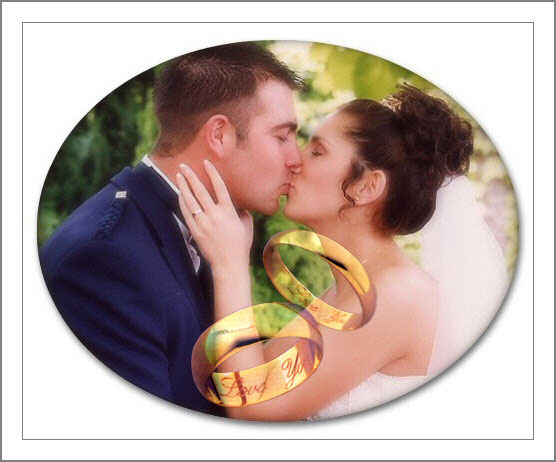
To discover its potential Chameleon was used in conjunction with Paint Shop Pro 9 to create a photo collage consisting of an existing soft-focus colour wedding photograph and a second image containing two "his and her" gold wedding rings. The plan was to add the wedding rings image to the original photo in such a way that it wouldn't detract from the mood of the original, and also hopefully add to its appeal. Was it a success? Read on to find out.


CHAMELEON'S TWO MODES

As stated above Chameleon offers two working modes, Standard and Snapshot. Based on AKVIS' claims for the latter, i.e. "In Snapshot mode, the program doesn't only smooth the borders of the inserted object and adjusts its colour range, but it also makes the object semi-transparent, so that the texture and the relief of the primary image can be seen through," was the reason for choosing it to create the wedding photo collage.


THE ORIGINAL WEDDING PHOTOGRAPH

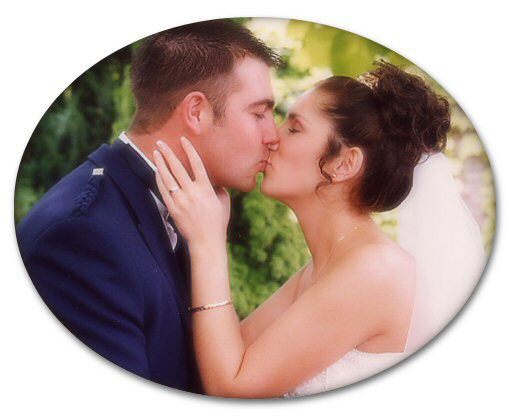
The photograph shown below is the original soft-focus wedding photograph.

wedding photograph

HOW THE PHOTO COLLAGE WAS CREATED

  • Step 1. The original photograph was loaded into Paint Shop Pro 9.
  • Step 2. A new 92dpi, 360 x 290 pixel-sized image with a white background was created. Its size or colour wasn't critical. It just had to be large enough to take the new "his and her" gold wedding rings image.
  • Step 3. A new raster layer (blend mode normal) was added to the new image.
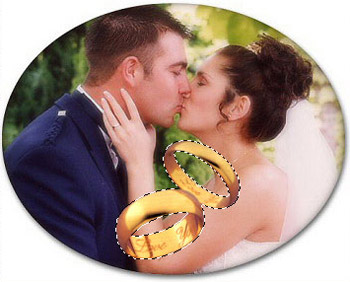
  • Step 4. PSP9's Picture Tube tool was then used to place a new image consisting of two previously created "his and her" gold wedding rings of the correct size on to the new raster layer. Note; as an alternative to a Picture Tube image a selected object from an existing image or photo could have been used and resized as required.
  • Step 5. The wedding rings image was then copied, CTRL+C.
  • Step 6. The original wedding photograph was made the active image.
  • Step 7. Chameleon's "Take Snapshot" command, called from the PSP9 Effects, Plug-in section was then used to take a snapshot of the original photograph.
    Take a snapshot of the layer with the wedding photo
  • Step 8. The "his and her" wedding rings image previously copied in Step 05 was then pasted into the original wedding photo as a new selection, CTRL + E. At this point the wedding rings image remained firmly attached to the mouse cursor enabling it to be easily placed at the correct position on the underlying image. After clicking the left mouse button the wedding rings image was transformed into a new floating selection, which could still be moved by selecting PSP9's Move Tool then left or right click dragging.
  • Step 9. After confirming that the wedding rings image was correctly positioned the two existing layers, i.e. the original photo and the floating selection wedding rings image were then merged (flattened) by calling up, Layers - Merge - Merge All (Flatten). The wedding rings image remained selected.
    paste the rings and merge the layers
  • Step 10. Chameleon's "Use Snapshot" command was then called from PSP9's Effects, Plug-in section.
    Call Chameleon
  • Step 11. Finally the wedding rings image was deselected, CTRL+D.


THE COMPLETED PHOTO COLLAGE

As can be seen from the completed photo shown below Chameleon does exactly what AKVIS claim. Not only has the appearance of the two gold wedding rings changed from solid to semi-transparent, the effect is so subtle that you can still read each ring's "Love You" inscription. Clever!

wedding photo collage


CONCLUSION

As Chameleon's two modes of photo collage creation, Snapshot and Standard can also be used to produce results similar to AKVIS Stamp plug-in cloning tool this dual capability makes it an even more useful and interesting image-editing tool. As Chameleon is arguably more of a creative imaging tool than a repair/restore type how it's used will probably only be restricted by the end-user's own creativity and imagination.

Although similar photo collage effects can be achieved using copying and pasting in conjunction with adjustable layers from within the host program, in this case Paint Shop Pro 9, the results are not nearly as intuitive as those achieved with Chameleon. This creative and fun-to-use plug-in would be a useful addition to any compatible image-editing program.


ワークスペース ワークスペース
操作方法 操作方法
モンタージュ モンタージュ
   — フォトハンティング — フォトハンティング
カメレオン カメレオン
   — 航海-夕暮れをこえて — 航海-夕暮れをこえて
   — 少女の新しい目 — 少女の新しい目
   — フライング ダッチ — フライング ダッチ
   — 花と猫 — 花と猫
   — サバンナの象 — サバンナの象
   — 遺跡の復元 — 遺跡の復元
   — 白鳥の湖 — 白鳥の湖
混合モード 混合モード
   — ウッドペインティング — ウッドペインティング
   — ポストカードの作成 — ポストカードの作成
   — 燃え上がる少女の写真 — 燃え上がる少女の写真
エマーション エマーション


   プライバシー | サイトマップ | Web サイトの検索 | English  | Français  | Deutsch  | Español  | Português  | Italiano  | 日本語  | Pусский  | © 2004-2008, AKVIS Software Inc. All rights reserved.