Orange-tree
When you take a photo at a short distance the objects brought into focus are clear while other details are washed out and dark. Apply AKVIS Enhancer to correct such photos.
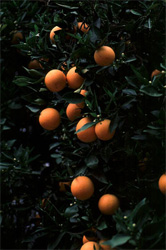
Before
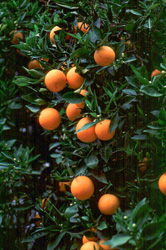
After
-
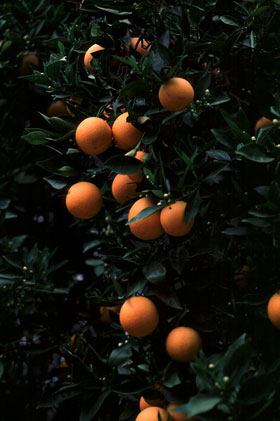
Step 1. Open the photo in AKVIS Enhancer. We will enhance the photo of an orange-tree taken at a short distance. The photo is dark, the contrast is poor and therefore the leaves and fruit in the background are hardly visible.
-
Step 2. Working in Improve Detail mode, improve detail on the photo and increase the overall lightness of the image.
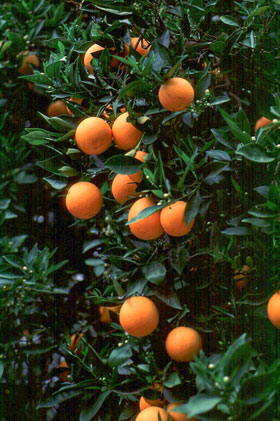
The photo has been improved. The level of detail has increased, the image has more contrast, and you can see even the smallest leaves of the orange-tree!
Enhancer v. 17.8 - Free 10-day Trial
