Comparison of AKVIS Enhancer Modes: Improve Detail, Prepress, Tone Correction


Please enter your email to be kept posted on updates and discounts:
 
 
  Products     Download     Online Store     Tutorial     Support     Company      Customer Room
en  fr  de  es  pt  it  jp  ru    
 

Tutorial: AKVIS Enhancer

Comparison of Modes


All modes in AKVIS Enhancer are designed to improve images. All modes work with areas in light and shadow, to reveal previously obscure details.

"Then why do we need all these modes and why should we not just choose one and use it?" you ask.

Answer: the main goal is the same - correction, but the methods used and the results are quite different.
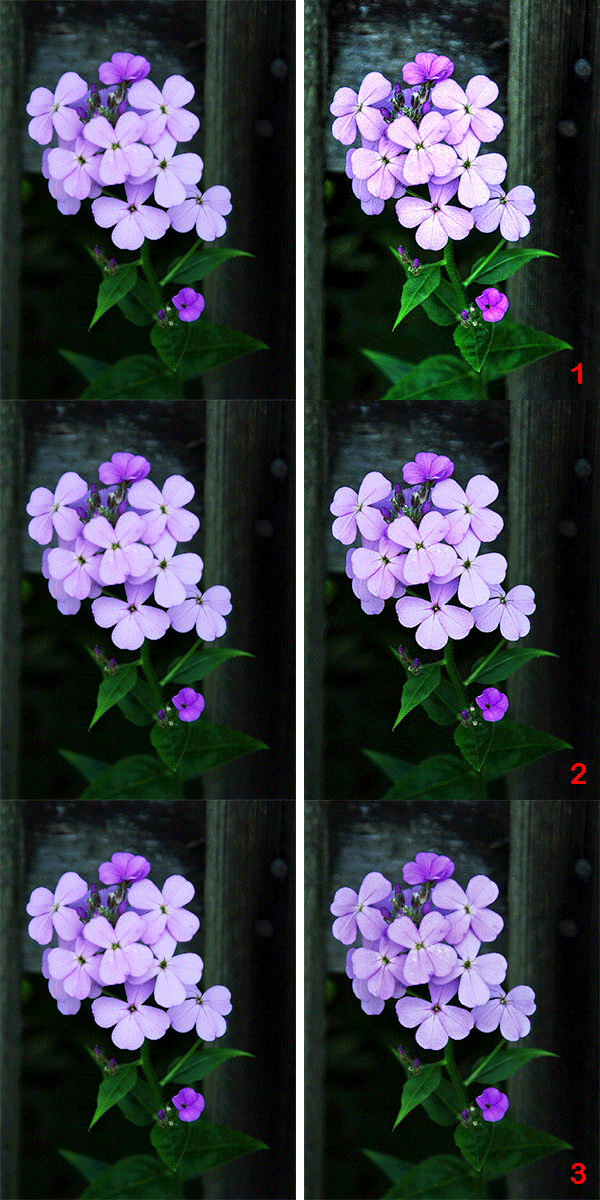
The Original Image and Results After Processing in Improve Detail, Prepress and Tone Correction Modes
Original Image Result:
1 - Improve Detail mode
2 - Prepress Mode
3 - Tone Correction Mode


Compare the results of the same image processed in different modes to see the difference:

Original Image of a flower
Original Image
Click on the image to view a larger version in a separate window
 

Improve Detail mode strengthens the difference between pixels to reveal additional details hidden in an image. Details are its strong point. However, in revealing details it can also strengthen digital noise which is often present in photos.
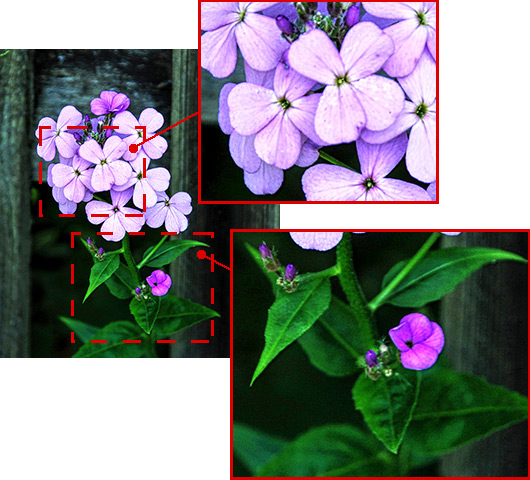
Correction with Improve Detail mode
Result With "Improve Detail" Mode
Click on the image to view a larger version in a separate window
 

Prepress mode increases the sharpness of borders and the contrast of the image, revealing objects. This mode is helpful when you want to adjust photos before printing or publishing in Web.
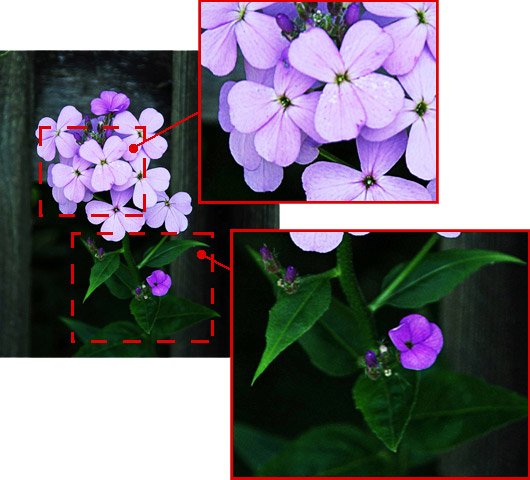
Correction with Prepress mode
Result With "Prepress" Mode
Click on the image to view a larger version in a separate window
 

Tone Correction mode improves an image through correction of the brightness of the certain colors in the light and dark areas. Processing is not just performed in light and shadow, but also in the tints, that lets improving the image within the specified color range. Due to this it may lead to a lack of depth in an image compared to Improve Detail mode. It is best to use when making tone correction in certain areas of an image.
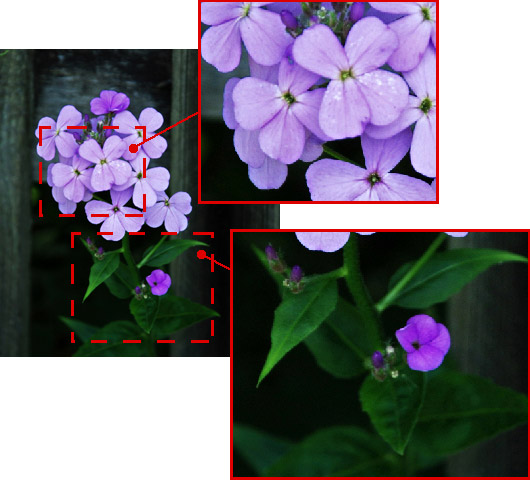
Correction with Tone Correction mode
Result With "Tone Correction" Mode
Click on the image to view a larger version in a separate window


Resume:

In Improve Detail mode the entire image was processed. Details were revealed well on the stems and leaves, but the flower petals came out too bright.
In Prepress mode the flower became sharper and more visible on the background.
In Tone Correction mode color restriction has been set. The color lilac was chosen (the predominant color of the petals) and only areas with this color were processed. Other areas (the stem, leaves, and the background) were left unchanged.

These results show that when comparing AKVIS Enhancer modes, one is not always superior to the other. Different photos require different approaches at correction, so it is not possible to predict beforehand which mode would be more effective. In many cases the modes complement one another. Applying changes with both modes to an images can improve the result. If you use all three modes on an image, we recommend using Improve Detail mode first, saving the image, then restarting in Tone Correction mode. We recommend to use Prepress mode for the final touches.

 
How It Works How It Works
   — Workspace — Workspace
   — Working With The Program — Working With The Program
   — Improve Detail — Improve Detail
   — Prepress Processing — Prepress Processing
   — Tone Correction — Tone Correction
   — Comparison of Modes — Comparison of Modes
   — Post Processing — Post Processing
   — Batch Processing — Batch Processing
   — Preferences — Preferences
Examples Examples
   — In the Street — In the Street
   — A Child in the Garden — A Child in the Garden
   — Neuschwanstein Castle — Neuschwanstein Castle
   — See the Lorry in Detail — See the Lorry in Detail
   — Ancient Town — Ancient Town
   — Increase the Clearness of a Photo — Increase the Clearness of a Photo
   — Dark Picture of a Church — Dark Picture of a Church
   — Tennis-Court — Tennis-Court
   — Backlight Photo — Backlight Photo
   — Archery — Archery
   — Orange Tree — Orange Tree
   — Technical Illustration — Technical Illustration
   — Remove Smog from the Photo — Remove Smog from the Photo
   — Town at Night — Town at Night
   — Underexposed Photo — Underexposed Photo
   — A Kid with a Rattle — A Kid with a Rattle
   — Poet and Doves — Poet and Doves
   — A Black Cat in a Dark Room — A Black Cat in a Dark Room
   — African Kids — African Kids
   — Christmas Market — Christmas Market
   — Exposure Correction — Exposure Correction
   — Correction of a Dark Photo — Correction of a Dark Photo
   — Khan Palace Photo — Khan Palace Photo
   — Photo Correction: Lightening — Photo Correction: Lightening
   — Show Details in Shadows — Show Details in Shadows
   — The Golden Pavilion — The Golden Pavilion
   — An Ominous Way: Strengthen the Effect  — An Ominous Way: Strengthen the Effect
   — Crystal Clear: Prepress Mode — Crystal Clear: Prepress Mode
   — Fresh Strawberries: Tone Correction — Fresh Strawberries: Tone Correction
   — Perfect Lighting: Bringing Out Detail — Perfect Lighting: Bringing Out Detail


back to top


   Privacy Policy | Site Map | Search at AKVIS    
   Contact Us | Twitter | Facebook | YouTube Channel    
| English  |Français  |Deutsch  |Español  |Português  |Italiano  |日本語  |Pусский  | © 2004-2012 AKVIS. All rights reserved.
