Correction of a Dark Picture
Jean-Claude Grégoire offers us a tutorial on how to improve a photo with uneven exposure.
For this tutorial I used Adobe Photoshop and theAKVIS Enhancer and AKVIS Noise Buster plug-ins.
Even in very bad cases, the AKVIS Enhancer and AKVIS Noise Buster plug-ins can help you to salvage underexposed pictures. In my collection, I have some seriously underexposed photos which, in the past, I tried to salvage with Adobe Photoshop. This was always a long and difficult work and I often needed to use several adjustment layers, or to go into another color mode, or both, without getting a satisfactory result each time. Now that I've discovered the AKVIS Enhancer and AKVIS Noise Buster plug-ins, I've decided to try my luck again with some of those bad pictures : I really was very impressed, because in a few minutes I often got better results than in hours of working with Photoshop alone.
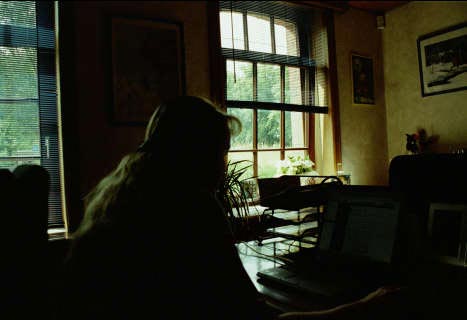
So I decided to share my experience by writing a short tutorial for which I chose an underexposed picture taken last year by one of my grand daughters. She photographied her mother working at home with her laptop. Unfortunately, the flash didn't work and everybody thought the photo was good for the trash can.
- Step 1. I got the negative and scanned it. Actually, it was a very bad case and when processing the picture in Adobe Photoshop I couldn't get a fully acceptable result, even with the help of several adjustment layers and masks.
- Step 2. I load the photo in Adobe Photoshop - its size is 1868 * 1280 pixels and the resolution is 300 ppi. I call the AKVIS Enhancer plug-in (main menu: choose "Filter > AKVIS > Enhancer").
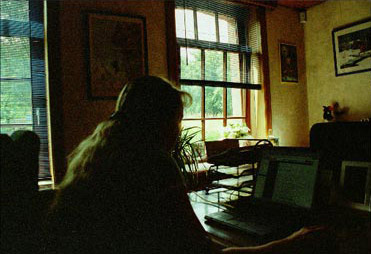
- Step 3. I get a new window with the default settings of the plug-in and I already can see an improved image.
but I decide to go further and choose the following settings:
- Shadows: 100;
- Highlights: 0;
- Level of detail: 0;
- Lightness: 100.
- Step 4. I click on the apply button
in the Tool bar, what applies the correction to the image and closes the plug-in.
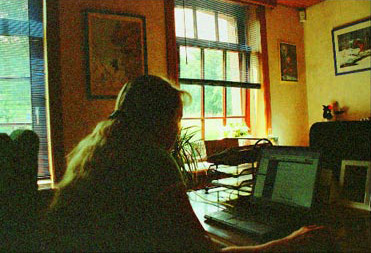
The image is better than the original, but as I am a perfectionist I'm not entirely satisfied with it because, there is too much noise in the darker parts of the picture.
- Step 5. It's now necessary to reduce this noise. There are several ways of doing it, e.g. with the Photoshop's Noise Filters (see "Appendix" below). But I've found an easier and better way: the AKVIS Noise Buster plug-in. So I call this AKVIS Noise Buster plug-in (main menu: choose "Filter > AKVIS > Noise Buster").
- Step 6. I start with trying the automatic filtering by clicking on the button Automatic Filtering.
I immediatly see that the noise isn't reduced enough in the preview area (square selection in the middle of the AKVIS window).
But if I move the red square in the small window (left click and drag) and the preview area in the main one ("click-and-drag" too), I can see that the correction is excellent in the window that looks onto the garden
but not on the woman's head.
If I play with the Smooth Level slider under Luminance Noise and put it onto the maximum, I see that the image remains excellent on the garden and is already better, but not yet perfect, on the woman's head.
Here I have to put the "Noise Level" slider to 100% to get a good image, but then the garden becomes too blurred.
The conclusion is that it isn't possible to get a good correction for the whole image in one step only.
- Step 7. Thus I decide to begin with the Automatic Filtering of the whole image, by clicking again on the Automatic Filtering button, and then successively on the "Run"
and the "Apply" buttons.
- Step 8. I examine the result and find that it's only necessary to rework on some areas of the image:
these ones which still have too much noise. Therefore I need to isolate them from the other ones, so that I can work on them separately.
For isolating the good and the bad parts of the image, I'll begin with selecting the good areas (i.e. the lightest ones). The easiest way to proceed is editing the image in Quick Mask Mode by clicking on the button Edit in Quick Mask.
- Step 9. I open a new window ("Quick Mask Options") where I choose the way the mask will work: "Selected Areas" and the opacity 100%. Here I've clicked in the color square for getting the color "RGB 255-0-255" (it's always a good idea to change this color for one which contrasts very much with the overall tonality of the picture).
- Step 10. I feel that the lighter areas are easier to select and I paint them over with the pencil and the brush tools - but it can be the opposite with other pictures.
- Step 11. I click on the Edit in Standard Mode button on the left of the Quick Mask Mode and I save the selection (main menu: Select > Save Selection or the shortcut ALT+S+S), giving it an evocative name, e.g. "light areas".
- Step 12. As I need a selection of the darker areas of the photo, I press Ctrl+Shift+I for inverting the selection and I save it with an evocative name: "dark areas".
- Step 13. I once again click on the Quick Mask Mode Button and get the mask you can see on the photo below. So I can return to the Standard Mode again for the next step.
- Step 14. I don't quit the selection and press Ctrl+J on the keyboard. This action makes a copy of the image, limited to the selection, on a new layer. I name this new layer "dark areas".
- Step 15. I activate this "dark areas" layer and I call the AKVIS Noise Buster plug-in again. I press the button Automatic Filtering and then play with the sliders until I find good settings for the painting on the wall, above the woman's head.
- Step 16. Then I successively click on both Run and Apply buttons as in step 7 above.
The result is better for the bad parts of the image in general and has not affected the garden and other good parts of the image
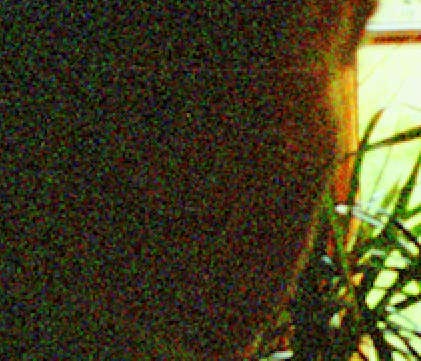
But if I zoom on this image, I see that the darker areas are not yet enough corrected: there are still some "clouds" left, which are particularly visible on the woman's head.
- Step 17. So I make a new selection of these darker areas in Quick Mask Mode - with the brush and the pencil tools - and I save it under another name, e.g. "dark areas #2".
- Step 18. I don't quit the selection, activate the corrected layer "dark areas" and press Ctrl+J on the keyboard. This action makes a copy of the darker areas of the image, limited to the selection, on a new layer, which I call "worst areas" .
- Step 19. I activate this "worst areas" layer and I call the AKVIS Noise Buster plug-in once again. I press the button Automatic Filtering and then play with the sliders until I find good settings for the head of the woman.
Then I successively click on both Run and Apply buttons, etc. (as described in step 7, above). The "clouds" in the darker areas have come out.
- Step 20. I activate all the layers again and can see that the result is very good.
- Step 21. I flatten the image and save it. Maybe it's not a "chef d'oeuvre", but nevertheless it's a very good picture!
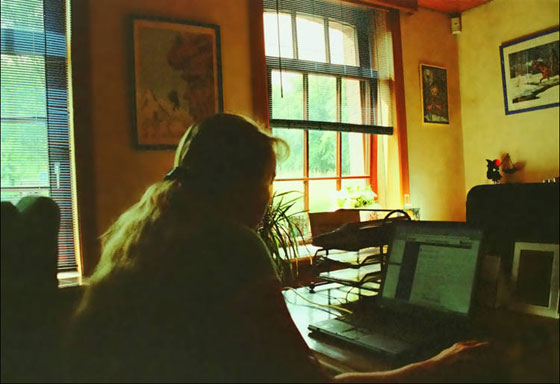
- Step 22. Now I can print it on very good Glossy Picture Paper for inkjet prints - the printed image size is 6.227 * 4.267 inches or 15.82 * 10.84 cm. If I print the image on the same paper before the application of the AKVIS Noise Buster plug-in, I clearly see the difference (for better seeing the difference, save this picture [right click] on your hard disk, then look at it in a very dark room).
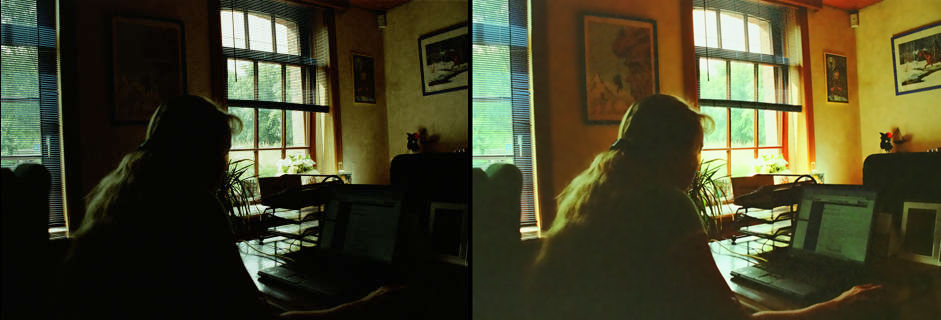
- Step 23. Fig. 31 shows the difference before and after processing - as described above - with the AKVIS Enhancer and the AKVIS Noise Buster plug-ins.
Appendix
Before getting the AKVIS Noise Buster plug-in, I had tried to get rid of the noise I got on step 3 above, with the help of the Photoshop noise filters alone. I'd got the best results by applicating successively the filter Noise > Median on both layers "dark areas" and "worst areas", with the Radius "4 pixels" and "12 pixels" respectively.
Fig. 32 is a zoom which clearly shows that I've got a better result with the AKVIS Noise Buster plug-in, which is easier to work with, than with the Photoshop's noise filters (Photoshop's Median on the left side, Noise Buster on the right one).
| |
|