Post Processing
Use one of the modes in AKVIS Enhancer to improve a photo. For further image correction you can use the Post Processing tab. It is available only in the standalone edition because any image editor offers these features, so there is no reason to use this section in the plugin.
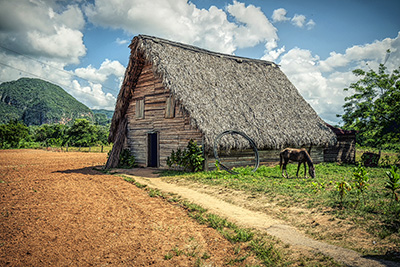
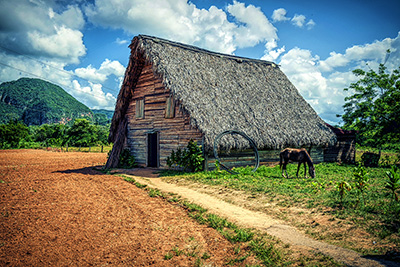
The Post Processing tab contains a Histogram and four parameters: Brightness, Contrast, Gamma and Saturation.
A Histogram is a graph that shows the tonal range of an image. On the horizontal line the brightness values are set - from the darkest to the lightest. The vertical line sets the number of pixels having this lightness value.
Below the histogram there are three sliders that can be moved to change the image contrast.
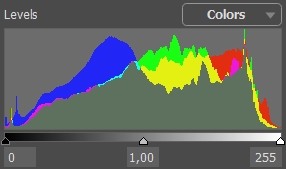
The extreme point on the right end represents pixels having the maximum brightness (white points). If the histogram does not have such pixels, the image does not contain any white points. If we move the white slider to the left, the point against which the slider is located will assume the maximum brightness (255) and the pixels having this value will become white. The brightness of other pixels will be re-calculated accordingly. The image will get lighter.
The extreme point on the left end represents pixels having the minimum brightness (black points). If the histogram does not start at the left end, the image does not have any black pixels (brightness = 0). If you move the black slider to the right, the point against which the slider is located will assume the minimum brightness value. As a result this tone will become black, while other pixels will be re-calculated accordingly. The image will get darker.
The middle slider defines the tone of the image that will have the brightness of 128 (middle-gray tones). If you move the slider to the left, the mid-gray tones get lighter; if you move the slider to the right, the mid-gray tones get darker.
Near the histogram there is a drop-down list with image channels (RGB, Red, Green, Blue, Colors, Luminosity). It is possible to adjust every channel separately or correct a combined channel.
The Post Processing tab also contains parameters that correct the brightness and contrast of the image, make gamma-corrections and change the saturation of the image.
- The Brightness parameter is used to change the image brightness. It accepts values between -100 and 100 with the default value of 0. The higher is the value of the parameter, the lighter all pixels of the image are, and vice versa.
- The Contrast parameter is used to increase (if the value is over 0) or reduce (if the value is under 0) the difference between bright and dark parts of the image. The parameter accepts values between -100 and 100 with the default value set to 0.
- The Gamma parameter is used to change the overall contrast of the image by increasing or reducing mid-tones and gray mid-tones. The parameter accepts values between 50 and 250 with the default value set to 100.
- The Saturation parameter is used to change the intensity of colors on the image. The parameter accepts values between -100 (gray color) and +100 (saturated colors). By default the value is set to 0.
As you adjust the settings in this tab, the processing is started automatically. The result is shown in the After tab.
Enhancer v. 17.8 - Free 10-day Trial
