Batch Processing Photos With AKVIS Enhancer


Please enter your email to be kept posted on updates and discounts:
 
 
  Products     Download     Online Store     Tutorial     Support     Company      Customer Room
en  fr  de  es  pt  it  jp  ru    
 

Tutorial: AKVIS Enhancer

Batch Processing


AKVIS Enhancer supports batch processing that lets you automatically process a series of images.

Batch processing is available for all modes of the program. It is useful when dealing with a lot of photos taken under the same conditions with identical camera settings. It saves you time and effort.
Using batch processing is simple. Find the instructions below how to work with standalone version. If you use the plugin, click here.

We have a series of photos taken in one of the most magnificent palaces of France - Versailles. All photos came out too dark.

  • Step 1. Start the standalone version of AKVIS Enhancer and open one of the photos.
  • Step 2. Select a mode (in this case Improve Detail) and adjust the parameters for this image.

    Since these settings should be applied to all photos in the series, they should be saved as a preset.

    AKVIS Enhancer's Workspace with the Chosen Parameters
  • Step 3. Click on the button in the Control Panel to open the Batch Processing dialog window.
    Batch Processing Window in AKVIS Enhancer

    Here you can adjust the options to process the images with one of the presets of the selected mode.

    In the Source Folder field choose the folder which contains the photos to be processed.

    In the Target Folder choose the folder where the processed photos will be saved.

    You can check Include All Subfolders to process all images in all subfolders of the selected folder (keeping the structure).

    Next, select your Preset, and choose the format and image quality of the saved files in the Save As list.

    Press Start to begin batch processing of the photos.

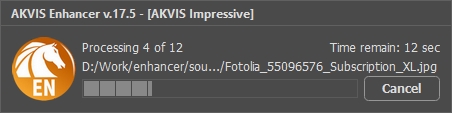
    Batch Processing Series of Photos


It's also possible to use batch processing with the Enhancer plug-in. If you've never used this feature before it is simple to learn. Just create an Action in Adobe Photoshop and apply the plug-in with the same settings to a folder full of images.

The batch processing with the plugin is useful when, in addition to photo correction, you also want, for example, to convert all the photos to the same size.

 
How It Works How It Works
   — Workspace — Workspace
   — Working With The Program — Working With The Program
   — Improve Detail — Improve Detail
   — Prepress Processing — Prepress Processing
   — Tone Correction — Tone Correction
   — Comparison of Modes — Comparison of Modes
   — Post Processing — Post Processing
   — Batch Processing — Batch Processing
   — Preferences — Preferences
Examples Examples
   — In the Street — In the Street
   — A Child in the Garden — A Child in the Garden
   — Neuschwanstein Castle — Neuschwanstein Castle
   — See the Lorry in Detail — See the Lorry in Detail
   — Ancient Town — Ancient Town
   — Increase the Clearness of a Photo — Increase the Clearness of a Photo
   — Dark Picture of a Church — Dark Picture of a Church
   — Tennis-Court — Tennis-Court
   — Backlight Photo — Backlight Photo
   — Archery — Archery
   — Orange Tree — Orange Tree
   — Technical Illustration — Technical Illustration
   — Remove Smog from the Photo — Remove Smog from the Photo
   — Town at Night — Town at Night
   — Underexposed Photo — Underexposed Photo
   — A Kid with a Rattle — A Kid with a Rattle
   — Poet and Doves — Poet and Doves
   — A Black Cat in a Dark Room — A Black Cat in a Dark Room
   — African Kids — African Kids
   — Christmas Market — Christmas Market
   — Exposure Correction — Exposure Correction
   — Correction of a Dark Photo — Correction of a Dark Photo
   — Khan Palace Photo — Khan Palace Photo
   — Photo Correction: Lightening — Photo Correction: Lightening
   — Show Details in Shadows — Show Details in Shadows
   — The Golden Pavilion — The Golden Pavilion
   — An Ominous Way: Strengthen the Effect  — An Ominous Way: Strengthen the Effect
   — Crystal Clear: Prepress Mode — Crystal Clear: Prepress Mode
   — Fresh Strawberries: Tone Correction — Fresh Strawberries: Tone Correction
   — Perfect Lighting: Bringing Out Detail — Perfect Lighting: Bringing Out Detail


back to top


   Privacy Policy | Site Map | Search at AKVIS    
   Contact Us | Twitter | Facebook | YouTube Channel    
| English  |Français  |Deutsch  |Español  |Português  |Italiano  |日本語  |Pусский  | © 2004-2012 AKVIS. All rights reserved.
