Lightening a Dark Photo
The author of the example is Muhammad Faroooq Khan.
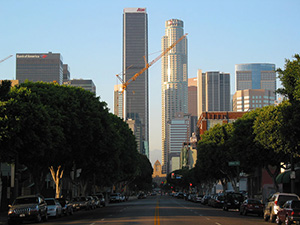
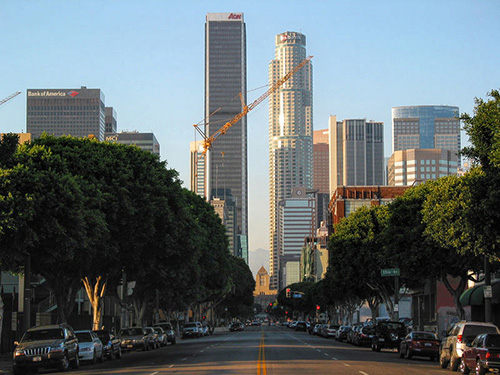
Original Image
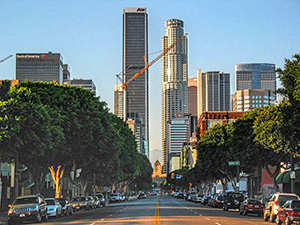
Result
He wrote:
"My name is Muhammad Faroooq Khan and I am a student of the University of Lahore where I study Electrical Engineering. I am also interested in Graphics Designing. So I found this useful AKVIS Enhancer Filter on web. It is something very different and extraordinary. AKVIS Enhancer filter is one of the most powerful and helpful tools to fix dark photos.
I used a dark photo of a street to show how the tool works."
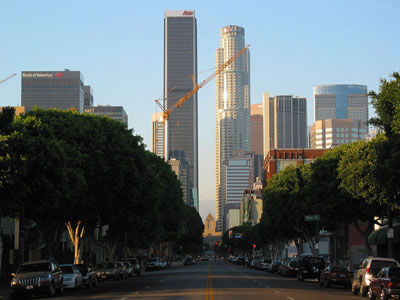
It was not easy to correct this underexposed picture in Adobe Photoshop. Muhammad tried to use Levels/Curves commands but it didn’t work perfectly.
As you can see the color of the trees is faded out and buildings look lighter than in the original.
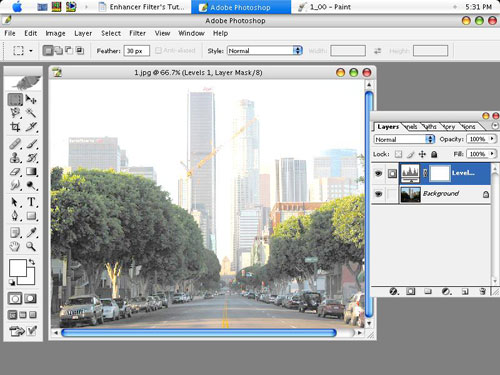
So he decided to apply the AKVIS Enhancer filter.
-
Step 1. Call the command Filter -> AKVIS -> Enhancer.
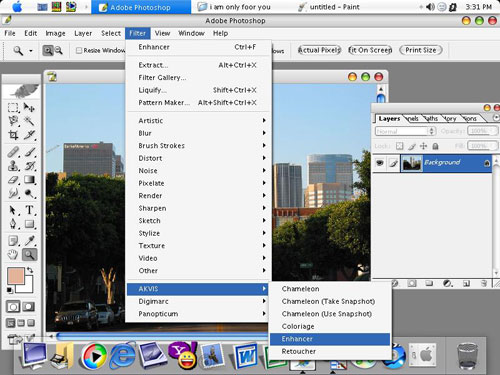
As you call the plugin it processes the original image at default parameters.
-
Step 2. At default values the details in shadows are still hardly visible. The author adjusted the parameters to reveal detail in dark areas. Now the image looks much clearer than before.
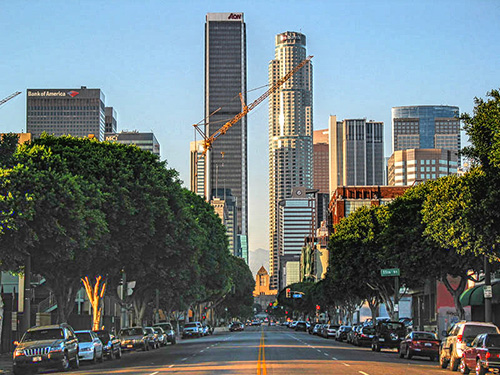
- Step 3. Apply the result.
Enhancer v. 17.8 - Free 10-day Trial
