Improve Detail Mode
In Improve Detail mode, the program brings out details in an image, in both shadows and highlights.
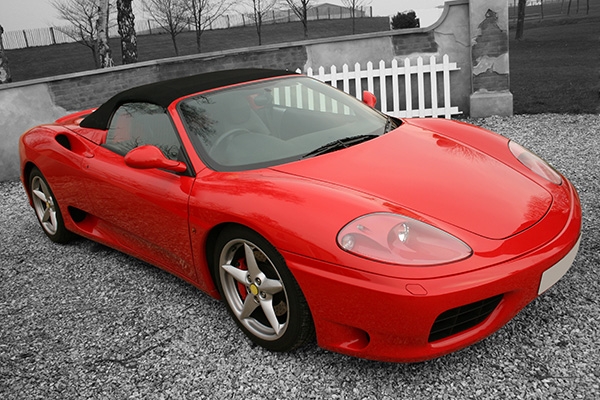
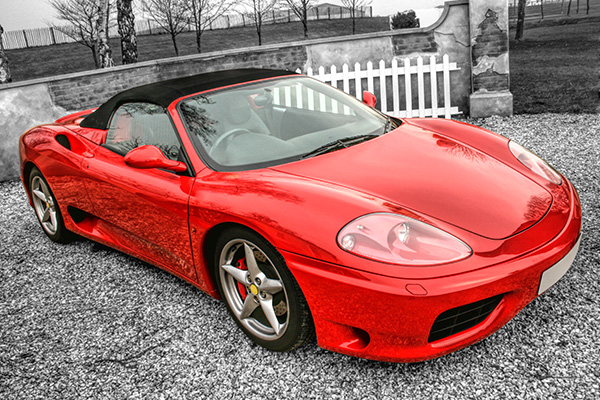
Follow the instructions below to process the image in Improve Detail mode:
Adjust the value of the Preview parameter.
The Preview parameter is an auxiliary tool, it does not influence the real size of the image. The original image will stay the same and all details of the original image will be kept. This parameter speeds up the pre-processing stage when one tries different settings to obtain the best result.
When the HQ option is selected, the processing parameters are applied to the image in its original size. The processing time will increase but the preview quality will be as high as possible. If you select the Fast option, the preview size is smaller than the original image by 8 times. The processing time will decrease accordingly, but the result will be approximate. For intermediate values, the preview size is 2 and 4 times smaller than the original image.
Attention! Once you have adjusted the parameters, it is recommended to try the HQ processing to make sure that the best settings are chosen.
Adjust the image correction parameters. All changes are applied automatically.
Shadows (0-500). The parameter strengthens shadows in the image. Increasing the value makes dark areas even darker.
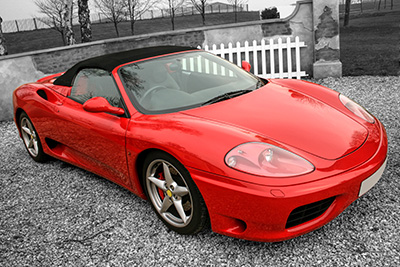
Shadows = 50
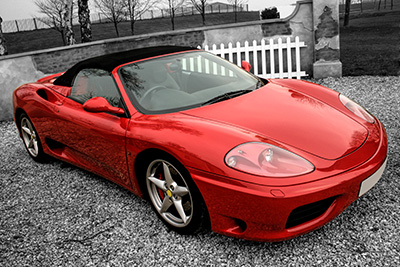
Shadows = 400
Highlights (0-500). The parameter lightens the image. Increasing the value makes light areas even lighter.
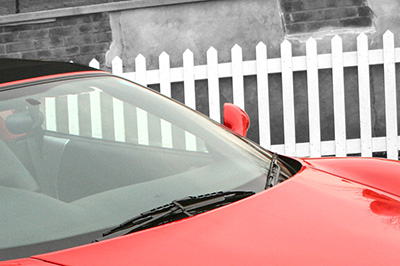
Highlights = 50
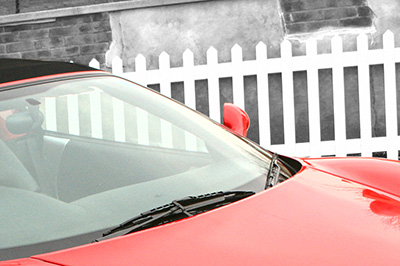
Highlights = 400
Saturation (-50..50). The parameter changes the color intensity of the image.
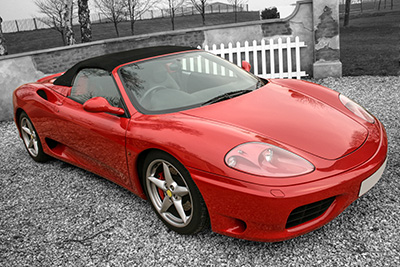
Saturation = -25
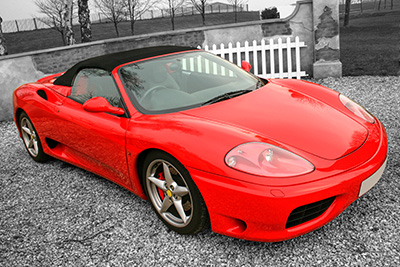
Saturation = 25
Gradient Contrast (0-50). The parameter helps to mildly increase the contrast in gradient areas making the image more prominent and expressive.
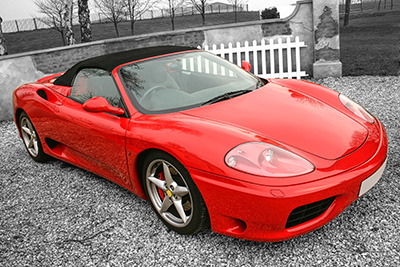
Gradient Contrast = 10
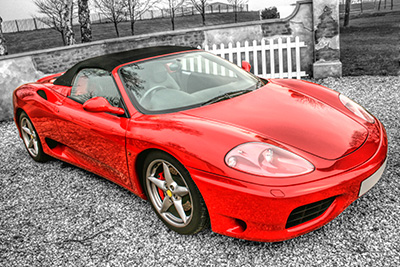
Gradient Contrast = 50
Level of Detail (0-50). The parameter defines the amount of detail. The higher the value, the sharper the outlines, and the more details are revealed in the image.
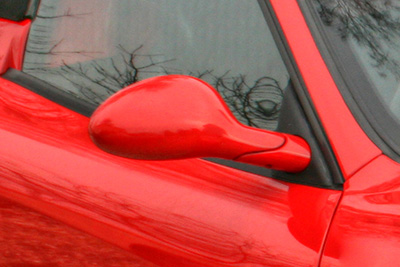
Level of Detail = 5
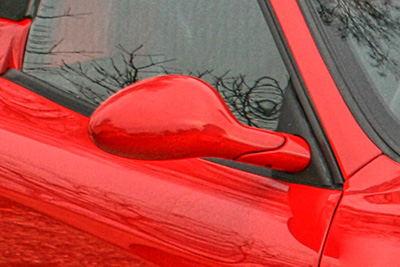
Level of Detail = 45
Threshold (1-10). The parameter defines which parts will be intensified when increasing the level of detail. At low values the program reveals all details in the image, at high values small details will not be changed.
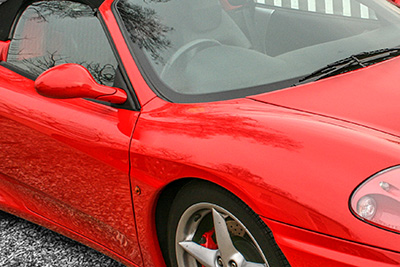
Threshold = 2
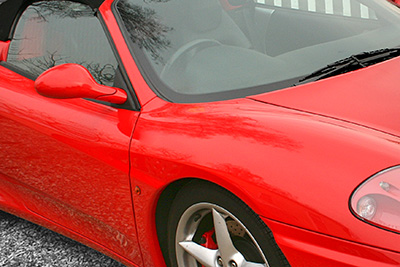
Threshold = 10
Lightness (0-20). The parameter helps to illuminate dark areas. As you increase its value, the image becomes lighter.
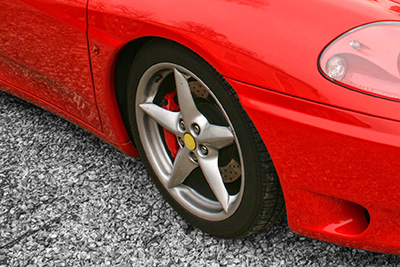
Lightness = 5
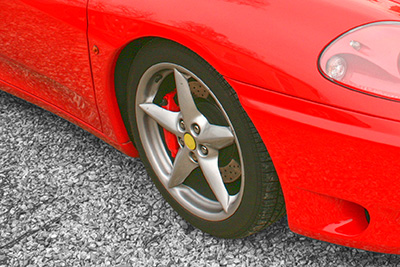
Lightness = 20
Enhancer v. 17.8 - Free 10-day Trial
