How to Use The Program
AKVIS Enhancer improves details on your pictures, fixes dark photos, adjusts tones, contrast, and brightness in images. It offers an individual approach to every part of the photo. The software can work independently as a standalone program as well as a plug-in to a photo editor.
Follow the instructions below:
- Step 1. Open an image.
- If you work with the standalone edition:
The dialog box Select File to Open appears if you double-click on the empty workspace of the program or if you click
 . Use the hot-keys: Ctrl+O on Windows, ⌘+O on Mac. You can also drag the required image into the workspace of the program.
The standalone program supports JPEG, TIFF, BMP, PNG, WEBP, and RAW file formats.- If you work with the plug-in:
Open an image in your photo editor by calling the command File -> Open.
Call the plugin from the menu of the editor:
in AliveColors - Effects -> AKVIS -> Enhancer;
in Adobe Photoshop and Photoshop Elements - Filter –> AKVIS –> Enhancer;
in Corel PaintShop Pro - Effects –> Plugins -> AKVIS –> Enhancer;
in Corel Photo-Paint - Effects -> AKVIS -> Enhancer.
Original Image - Step 2. Select the processing Mode in the drop-down menu in the Settings Panel.
- Improve Detail mode helps to bring out details on an image. The program strengthens the difference between adjacent pixels having different color gradations and reveals details not only in shadows but even in overexposed and mid tone areas.
- Prepress mode lets you adjust photos before printing or publishing in Web. The program increases the sharpness of borders and the contrast of the image.
- Tone Correction mode is used for color adjustment. The program corrects brightness in the light and dark areas. As a result, the overall impression of the image improves considerably. Changes can be made to the entire image or to a part of the image depending on the selected colors.
You can find a comparison of the modes here.
- Step 3. Adjust the parameters of the chosen Mode in the Settings Panel.
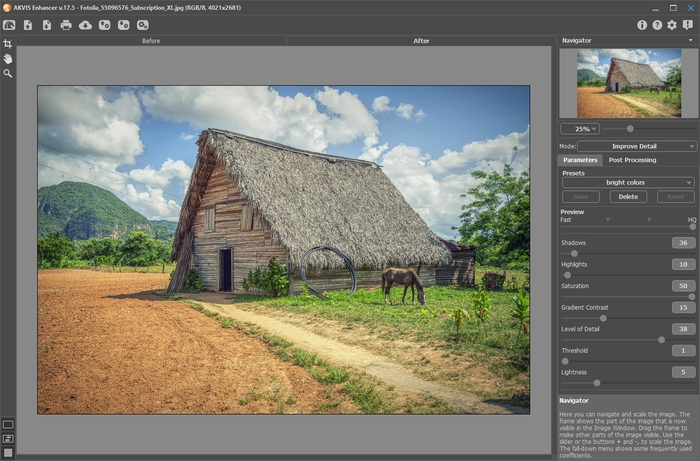
- Step 4. If you like the new settings of the parameters, you can save them as a preset and use them later. To save the settings, enter a name for the preset in the Presets field and press the button Save.
When moving a cursor over a preset in the drop-down list, the quick result appears in the Preset Preview window.
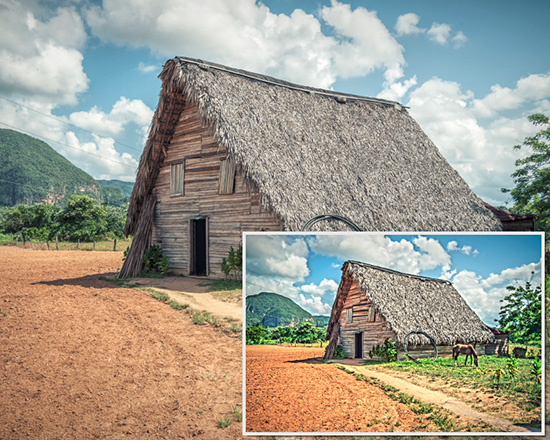
To process the image with a certain preset, select this preset from the list. In Improve Detail mode, the image will be automatically processed with the preset’s settings; in Prepress and Tone Correction modes, click
 to run image processing.
Next time you launch the program, these settings will be used by default. If you change the parameters you can return to the initial settings of the selected preset by clicking Reset.
To delete a preset, select it from the list and click the Delete button.
- Step 5. If needed, in the standalone version, you can correct the image further using the settings in the Post Processing tab.
- Step 6. In the standalone version, you can also print your result using
 .
.
- Step 7. Save the result:
- If you work with the standalone program:
Click the button
 to open the Save As dialog box. You can use the hot-keys: Ctrl+S on Windows, ⌘+S on Mac. Enter a name for the file, choose the format (TIFF, JPEG, BMP, WEBP or PNG) and indicate the target folder.
- If you work with the plugin:
Press the button
 to apply the result and close the plugin window. The AKVIS Enhancer plugin will close and the picture will appear in the workspace of the photo editor.
Call the Save As dialog box using the command File -> Save As, enter a name for the file, choose the format and indicate the target folder.
Enhancer v. 17.8 - Free 10-day Trial
