Graphic software for Windows Mac graphic software
Please enter your email to be kept posted on updates and discounts:
 
  
  Products     Download     Online Store     Tutorial     Support     Company
en  fr  de  es  pt  it  jp  ru    
 

Tutorial: AKVIS ArtWork

Imitate Painting on a Canvas


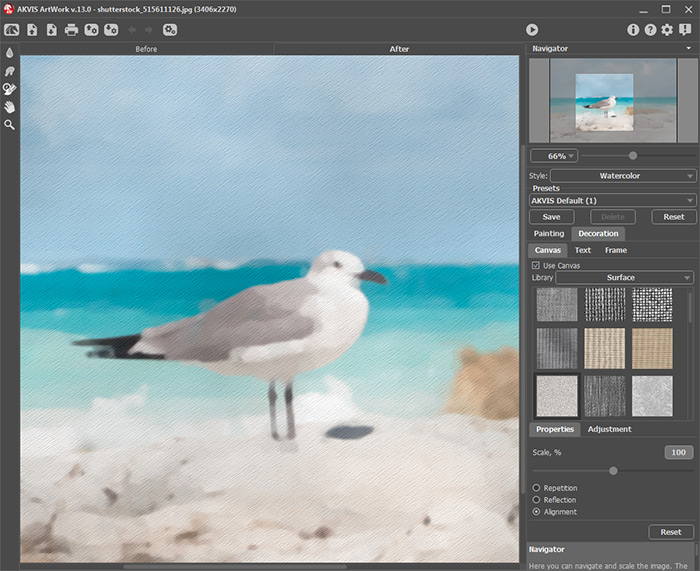
AKVIS ArtWork does not only offer photo-to-paint conversion, but it also lets you imitate painting on a canvas or any other uneven surface, such as corrugated paper, brick wall, metallic or ceramic coating, etc.

To use this option, adjust the settings in the Canvas tab.

By default the parameters of the tab are disabled and the picture comes out as if drawn on plain paper. To activate the parameters of the Canvas tab, select the check-box Use Canvas.

    The check-box "Use Canvas" is disabled The check-box "Use Canvas" is enabled
    The check-box "Use Canvas" is disabled The check-box "Use Canvas" is enabled


The canvas is generated by reproduction of the chosen texture. These are the following parameters of texture generation and application:

Adjustment of Texture Properties:

  • Texture. Select a texture from the Texture Library. To open the Texture Library, double click with the left mouse button on the square box with a sample texture.

    Sample texture

    Select a texture with a double-click of the mouse.

    It is possible to use your own texture. For this purpose create and save a pattern into a folder on your computer. The pattern can be square or rectangular and must be saved as a JPEG, BMP, TIFF or PNG file.

    To load a texture into AKVIS ArtWork, open the Texture Library , click on and select a texture in the Select user texture dialog box.

    To return to the Canvas tab without selecting any texture click on .

  • Scale. This parameter sets the size of the repetitive pattern. By default the Scale is set to 100%. The higher the value of the parameter, the larger is the pattern.
      Low scale
      Scale = 70%
      High scale
      Scale = 150%
  • These are the following options that define the way the canvas is generated:

      Repetition. When this option is selected, the canvas is generated by simple repetition of the given pattern.

      Repetition of the given pattern
      Repetition

      Reflection. When this option is selected, the canvas is generated by repetition of the given pattern. The difference from the Repetition mode is that the ends of the patterns are joined at mirror reflection.

      Reflection of the given pattern
      Reflection

      Alignment. This option helps when the initial texture has an uneven pattern. If we apply the texture as it is, we will see texture joins. To avoid it, we should activate the option Texture Alignment.

      Alignment of the given pattern
      Alignment

Adjust the parameters of texture application:

  • Light Source. Use the dagger on the ball to set the probable light source during the shooting. The position of the light source influences the texture wrapping. To change the position of the light source, left-click on the required point of the ball.
    Position of the light source
  • Brightness. This parameter changes the texture's brightness. The values of the parameter vary between 0 and 150. The higher the value of the parameter, the lighter is the texture. As a result, the output image gets lighter.
      Less Brightness
      Brightness = 20
      More Brightness
      Brightness = 70
  • Embossment. This parameter affects the embossment of the texture. The values of the parameter vary between 0 and 150. At 0, the texture is flat. As you increase the value of the parameter, the texture gets more prominent.
      Low embossing
      Embossment = 20
      High embossing
      Embossment = 50
  • Reveal Texture. This parameter defines to what extent the texture is shown through the image. The values of the parameter vary between 0 and 40. The higher the value, the more distinct is the texture and the less visible is the original image. The higher value of the parameter also increases the influence of the Brightness parameter and the texture contrast.
      Low Reveal Texture
      Reveal Texture = 20
      High Reveal Texture
      Reveal Texture = 36
  • Distortion. This parameter defines the clearness of the resulting image. The values of the parameter vary between 0 and 50. The higher the value of the parameter, the more distorted and blurred is the image.
      Low Distortion
      Distortion = 0
      High Distortion
      Distortion = 20


How It Works How It Works
   — Workspace — Workspace
   — How To Use The Program — How To Use The Program
   — Oil Painting from Photo — Oil Painting from Photo
   — Comics from Photo — Comics from Photo
   — Pen & Ink — Pen & Ink
   — Add Text to a Painting — Add Text to a Painting
   — Painting on a Canvas — Painting on a Canvas
   — Working with the Presets — Working with the Presets
   — Preferences — Preferences
Examples Examples
   — Harmony — Harmony
   — City Canal View — City Canal View
   — Greetings from Canary Islands — Greetings from Canary Islands
   — Summer Coloured Green — Summer Coloured Green
   — Casandra's Portrait — Casandra's Portrait
   — ArtWork for Art Students — ArtWork for Art Students
   — Day At The Beach — Day At The Beach
   — Sketch and Comics: Effect Combination — Sketch and Comics: Effect Combination
   — ArtWork Gallery — ArtWork Gallery
   — Emergency Cow — Emergency Cow
   — Animated Comic of a Cat — Animated Comic of a Cat
   — Orchid: an Oil Painting of Flowers — Orchid: an Oil Painting of Flowers


   Privacy Policy | Site Map | Search | English  |Français  |Deutsch  |Español  |Português  |Italiano  |日本語  |Pусский  | © 2004-2009, AKVIS Software Inc. All rights reserved.