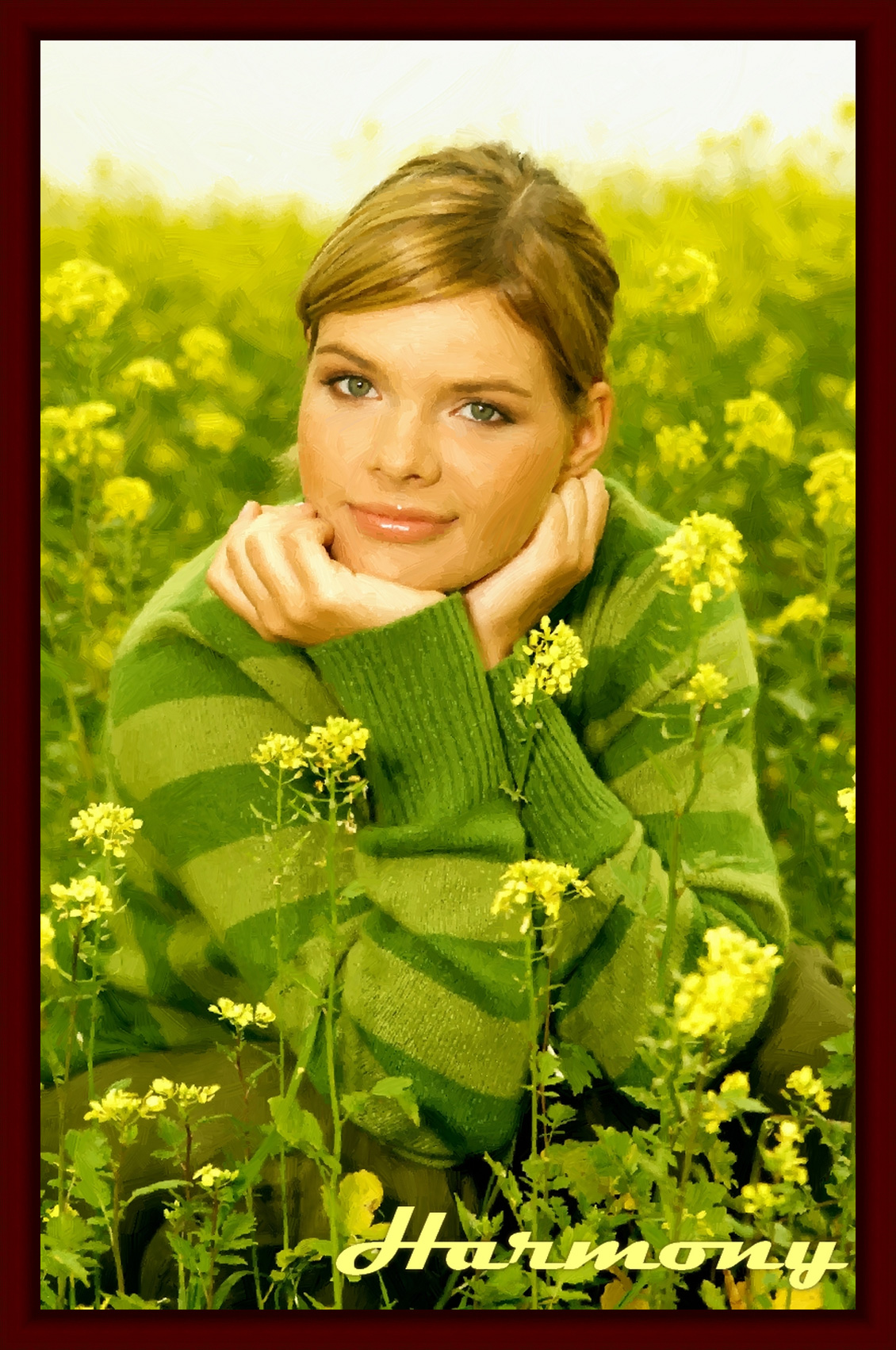
Harmony: an Oil Painting Portrait
The program AKVIS ArtWork is designed to imitate different painting techniques. In this tutorial we will convert a photo of a girl into an oil painting.


Note: We use the ArtWork plugin in this tutorial, but you can take the standalone edition and use the same parameters to achive this result.
Please follow these steps:
- Step 1. Open an image in your photo editor (if you use the plug-in) by calling the command File -> Open.

Original image - Step 2. Call the plugin version of AKVIS ArtWork. In AliveColors select the menu item Effects -> AKVIS -> ArtWork; in Adobe Photoshop select the menu item Filter -> AKVIS -> ArtWork; in PaintShop Pro select the menu item in Effects –> Plugins -> AKVIS –> ArtWork; in Corel Photo-Paint select the menu item Effects -> AKVIS -> ArtWork.
A sample of the image processed with the current preset will be shown in the quick preview area. The default values usually offer a good result, but you can adjust them to fine tune the result.
- Step 3. Adjust the parameters of the Oil style.
Simplicity = 3 (a value higher than 3 will smooth away the stripes on the sweater).
To make the strokes more expressive increase their length, width and curvature:
Stroke Curvature = 71;
Max Stroke Length = 37;
Stroke Thickness = 6.
Default settings
Large strokesFor the strokes to be apparent, increase the value of the parameter Stroke Density, it will increase the number of strokes. If a random stroke is out of place (for example, across the nose), and the Stroke Direction
 is not available, you can change the value of Stroke Density until you get the best version.
Stroke Density = 86;
Stroke Intensity = 5;
Microdetails = 15.The image will look better if we make the colors brighter:
Saturation = 25.
- Step 4. Click on
 to process the image with the new settings. The result will be shown on the After tab.

Oil Painting - Step 5. Add an inscription on the Text tab. Put the image into a frame and the painting is ready.
- Step 6. Click on
 to apply the result of conversion and close the plugin's window.

Oil Painting in a Photo Frame
(click on the image to see a larger copy)
ArtWork v. 15.1 - Free 10-day Trial
