Graphic software for Windows Mac graphic software
Please enter your email to be kept posted on updates and discounts:
 
  
  Products     Download     Online Store     Tutorial     Support     Company
en  fr  de  es  pt  it  jp  ru    
 

Tutorial: AKVIS ArtWork

Miniature Painting


The author of this tutorial is Nancy Knadler.


A unique quality of this tutorial, is that the image used was not a photograph, but a color drawing, which was transformed into an oil painting. With AKVIS ArtWork you can experiment with various styles and achieve an amazing result!
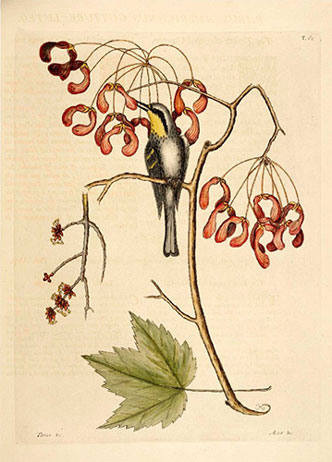
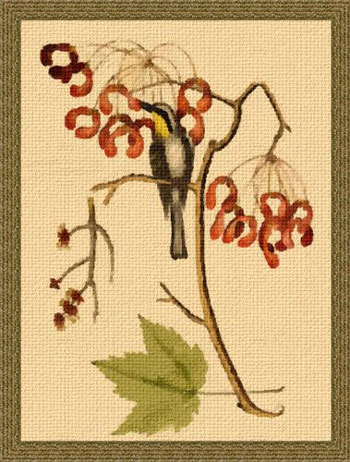
    Color drawing Miniature painting

Follow these steps:

  • Step 1. Open an image in Adobe Photoshop, or an image editor of your choice with the command File -> Open.
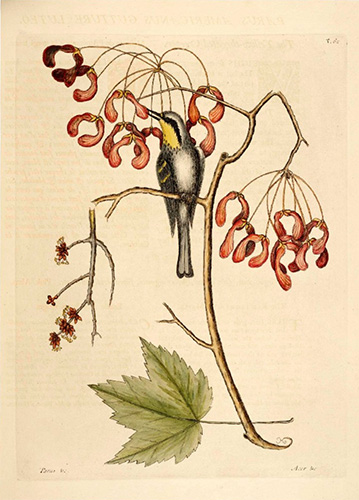
    Original image
    Original image
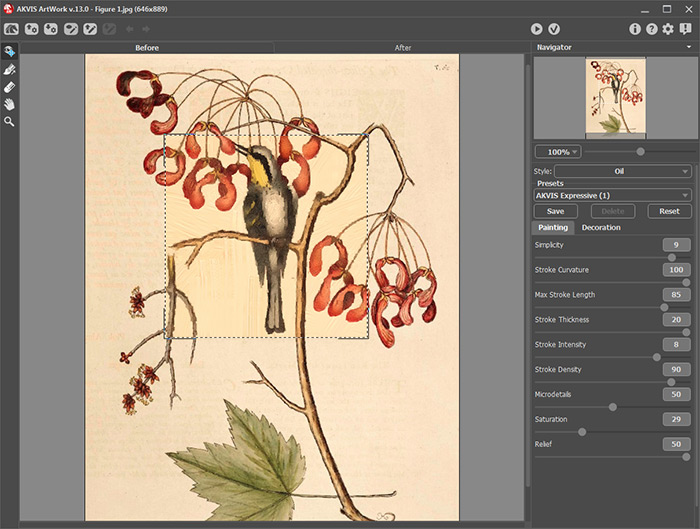
  • Step 2. In Photoshop, call the AKVIS plug-in by going to the Filter menu and choosing Filter –> AKVIS –> ArtWork. The image opens up in the ArtWork window.
  • Use Oil style and after experimenting set the following parameters:

    Simplicity = 9;
    Stroke Curvature = 100;
    Max Stroke Length = 85;
    Stroke Thickness = 20;
    Stroke Intensity = 8;
    Stroke Density = 90;
    Microdetails = 49;
    Saturation = 29;
    Relief = 50.

    Press to process the image.

    Oil painting
    Oil painting
  • Step 3. The author writes, that she was happy with the look of the image but decided to add a texture. Click on the Canvas tab and choose a texture using the following parameters:
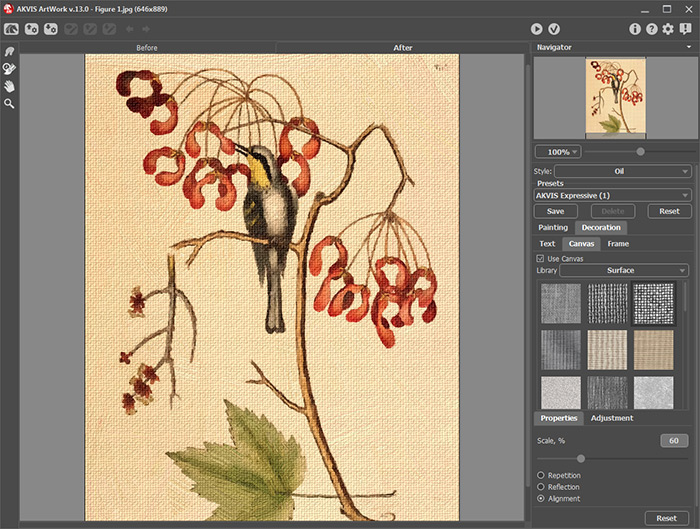
    Scale = 100;
    Reflection checked;
    Brightness = 30;
    Embossment = 25;
    Reveal Texture = 30;
    Distortion = 0.

  • Press to process the image. The picture painted on canvas looks more expressive:

    Oil painting with canvas
    Oil painting with canvas

    Press to apply the changes and go back to Photoshop.

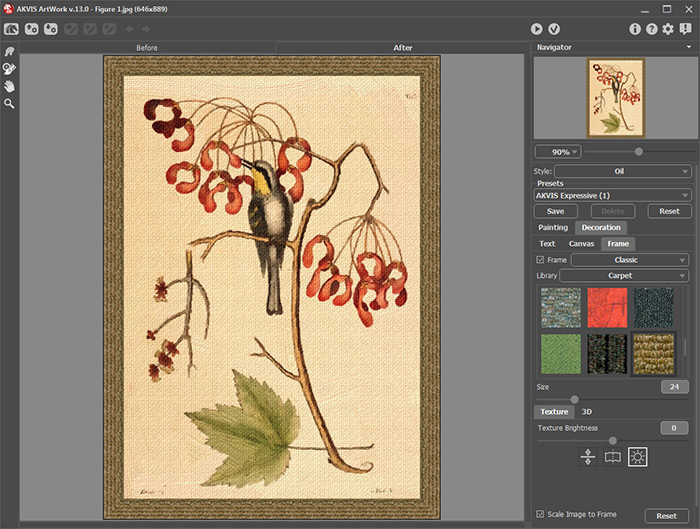
  • Step 4. Finally, author decided to add a frame by going to Filter menu again and calling up another AKVIS plugin AKVIS ArtSuite: Filter -> AKVIS -> ArtSuite.
    Framed painting in AKVIS ArtSuite
    Framed painting

    In ArtSuite, click the Frames drop down menu, choose the Classic Frame style and choose a textured frame that matches the color scheme of image with the following parameters:

    Frame Width = 24%;
    Texture Brightness = 100%;
    Checked Scale Image to Frame;
    Checked Average Brightness.

    Run the process , apply the frame and go back to Photoshop where you can save a new improved image.
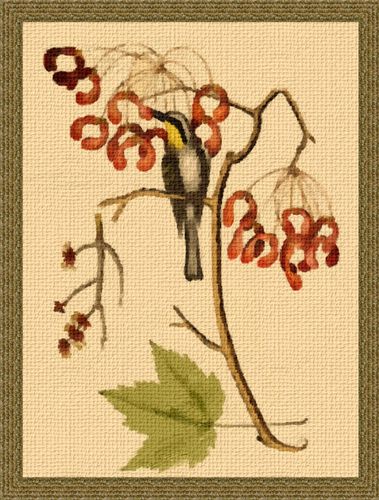
    Miniature Painting
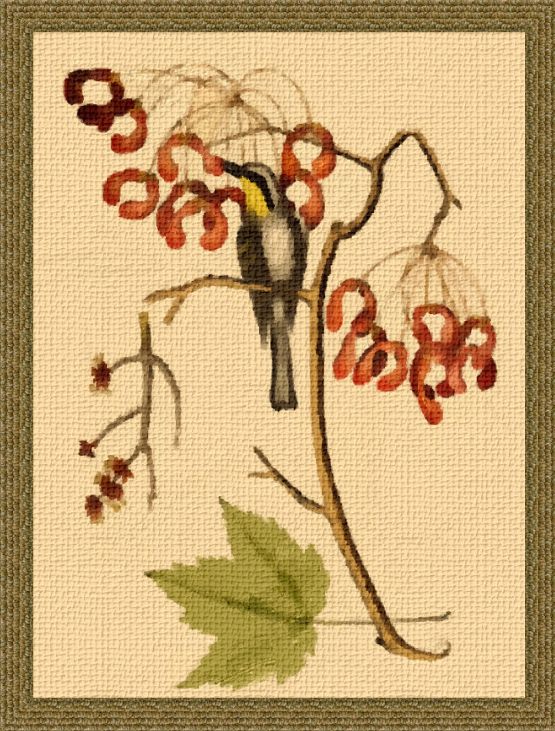
    Miniature with Bird (click to enlarge)


How It Works How It Works
   — Workspace — Workspace
   — How To Use The Program — How To Use The Program
   — Oil Painting from Photo — Oil Painting from Photo
   — Comics from Photo — Comics from Photo
   — Pen & Ink — Pen & Ink
   — Add Text to a Painting — Add Text to a Painting
   — Painting on a Canvas — Painting on a Canvas
   — Working with the Presets — Working with the Presets
   — Preferences — Preferences
Examples Examples
   — Harmony — Harmony
   — City Canal View — City Canal View
   — Greetings from Canary Islands — Greetings from Canary Islands
   — Summer Coloured Green — Summer Coloured Green
   — Casandra's Portrait — Casandra's Portrait
   — ArtWork for Art Students — ArtWork for Art Students
   — Day At The Beach — Day At The Beach
   — Sketch and Comics: Effect Combination — Sketch and Comics: Effect Combination
   — ArtWork Gallery — ArtWork Gallery
   — Emergency Cow — Emergency Cow
   — Animated Comic of a Cat — Animated Comic of a Cat
   — Orchid: an Oil Painting of Flowers — Orchid: an Oil Painting of Flowers
   — Miniature Painting — Miniature Painting
   — Still Life With Peaches — Still Life With Peaches
   — From Flawed Photo To Work Of Art — From Flawed Photo To Work Of Art


   Privacy Policy | Site Map | Search    
   Contact Us | Twitter | Facebook   
| English  |Français  |Deutsch  |Español  |Português  |Italiano  |日本語  |Pусский  | © 2004-2010 AKVIS.com. All rights reserved.