Oil Painting
The Oil Painting effect converts your photographs into oil paintings. The program lays brush strokes naturally using the original photo as a reference. Even with the default settings you can achieve a realistic result coming very close to hand-painted works. Tweak the options, and you can research a variety of oil painting styles.
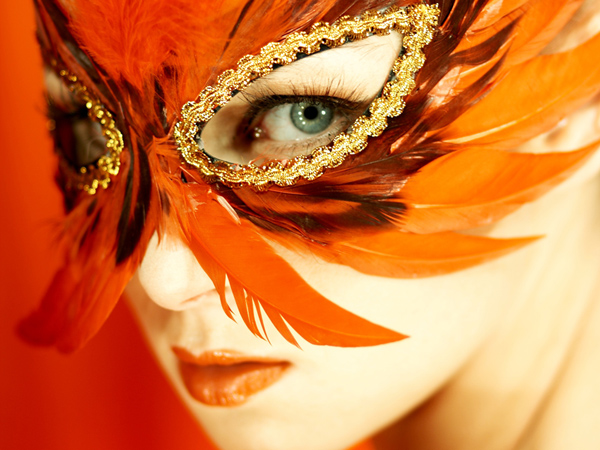
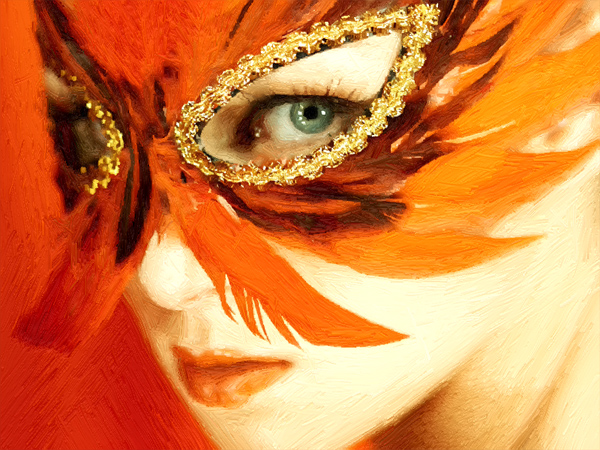
On the Painting tab of the Settings Panel you can adjust the parameters that define conversion of a photo into an oil painting.
Stroke Parameters:
Simplicity (0-10). This parameter defines to what extent the image will be simplified. The higher the value of the parameter, the rougher are the strokes and the less details are kept. A high value of the parameter provides for more resemblance to a painting.
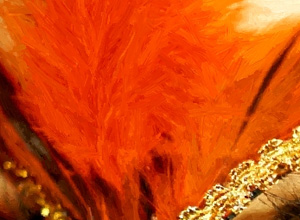
Simplicity = 1
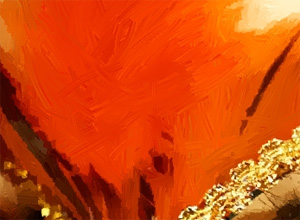
Simplicity = 8
Stroke Curvature (0-100). This parameter sets the stroke form – from almost straight lines (value = 0) to curved (value higher than 0). The complexity and curvature of the strokes depend on the parameter's value.
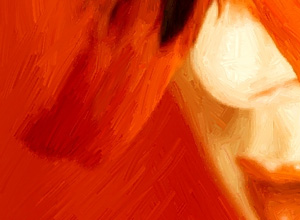
Stroke Curvature = 10
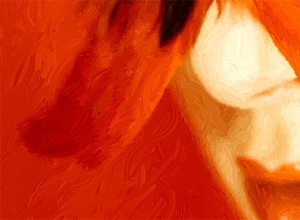
Stroke Curvature = 70
Max Stroke Length (1-100). This parameter sets the maximum length that a stroke can have.
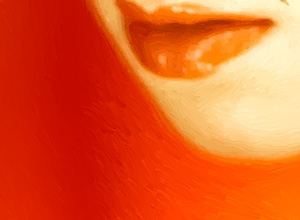
Max Stroke Length = 10
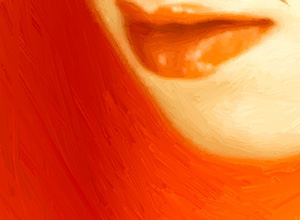
Max Stroke Length = 90
Stroke Thickness (1-20). The width of the strokes.
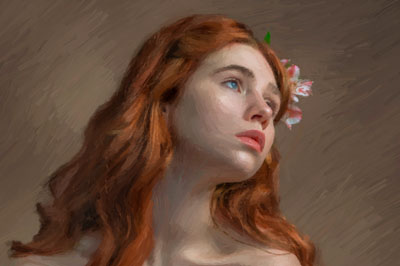
Stroke Thickness = 5
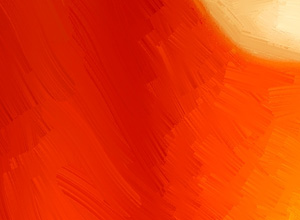
Stroke Thickness = 18
Stroke Intensity (0-10). The higher the values of this parameter, the more distinct and discernible are the strokes.
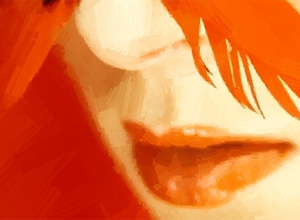
Stroke Intensity = 2
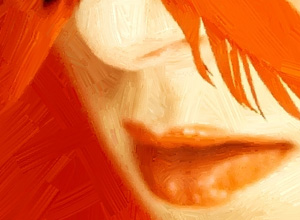
Stroke Intensity = 8
Stroke Density (1-100). This parameter increases the number of long strokes and changes their position on the image.
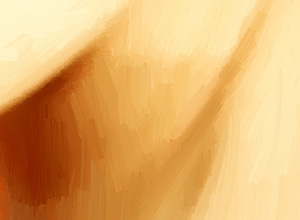
Stroke Density = 20
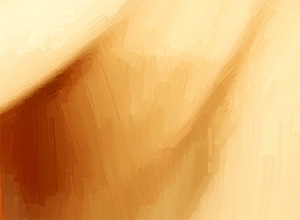
Stroke Density = 85
Microdetails (0-100). This parameter strengthens/weakens the clearness of thin strokes, thus correcting the level of detail on the image.
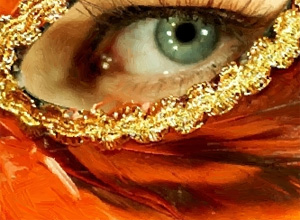
Microdetails = 10
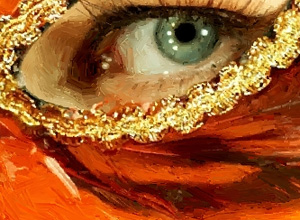
Microdetails = 85
Additional Effects:
Saturation (0-100). Toning the image with brighter colors.
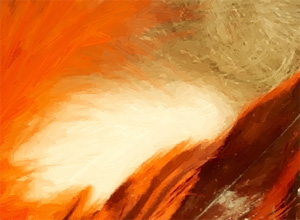
Saturation = 10
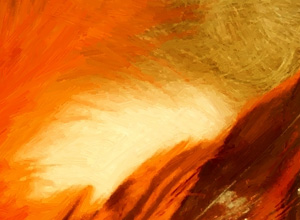
Saturation = 65
Relief (0-50). This parameter gives volume to the strokes, which results in a relief surface.
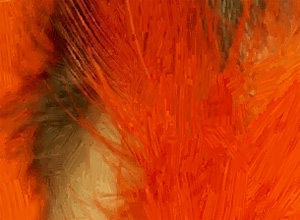
Without relief
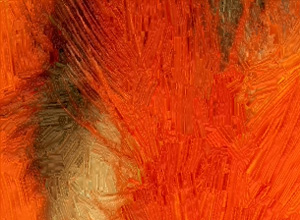
Relief = 50
Additional Tools:
On the Before tab:
Stroke Direction tool  . The tool gives you full control over the strokes. Use this special brush to define the guiding lines, and the program will convert the image into a painting directing the strokes to follow the drawn guiding lines. With this technique you can achieve truly realistic paintings with human hair, patterns and textures going in the right direction.
On the After tab:
Smudge  . The tool lets manually editing the processed image by removing paint irregularities.
History Brush tool  . The tool fades the effect and restores the image, partially or fully, to its original state.
Attention! If you switch to the Before tab and run the processing  again, the changes made with the post-processing tools will be lost!
Note: These tools are only available for the Home Deluxe and Business licenses.
ArtWork v. 15.1 - Free 10-day Trial
