Program Preferences
The button  opens the Preferences dialog box. It looks like this:
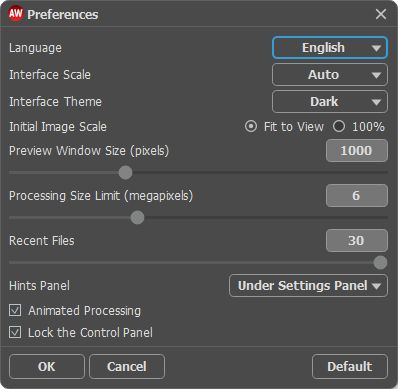
- Language. Change the program language by selecting another from the drop-down list.
- Interface Scale. Choose the size of the interface elements. When it is set to Auto, the program workspace will automatically scale to fit the screen resolution.
- Interface Theme. Select the style of the program interface: Light, Gray or Dark.
- Initial Image Scale. This parameter defines the way the image is scaled in the window after opening. The parameter can take one of two values:
- image scaling Fit to View. The scale adjusts so that the image will be completely visible in the Image Window;
- if the option 100% is checked, image doesn't scale. Generally, when the scale = 100%, only part of the image will be visible.
- Preview Window Size. Choose the desired value for the size of the quick preview area. It can have values from 400 х 400 to 2,400 х 2,400 pixels. By default the parameter’s value = 1000, that is the preview area has a proportion 1000 х 1000 px.
- Processing Size Limit. Image processing is a very time-consuming operation. This parameter accelerates image processing by temporary reducing the size of the image to be processed. When the file size (in megapixels) does not exceed the defined value, the image is processed in the usual way. If the loaded file is larger, the program will reduce the image, process it and enlarge it again to the initial size.
- Recent Files (available only in the standalone version). The number of recent documents. The list of the recent files, sorted by time, become visible by right mouse clicking on
 . Maximum: 30 files.
- Hints Panel. When you hover over parameters and buttons with the cursor you can see a brief description of them in the Hints field. You can choose how the hints will be shown:
- Under Settings Panel. Select this to show hints at the bottom of the right part, under the settings;
- Under Image Window. It shows the hints in the main window, under the image. This mode is useful if there is not enough space by height to display this field under the settings;
- Hide. Use this option if you do not need the hints. - Animated Processing. This option lets you observe the photo-to-painting conversion in real time. It makes the process more entertaining but takes more time to complete. You can uncheck the option to improve image processing speed. In this case you will see the result only after processing is finished.
- Lock the Control Panel check-box. It disables the possibility to hide/show the top panel. If the check-box is enabled the panel is always visible. Uncheck the option to unlock the panel, and you will be able to hide/show it by clicking on the small triangle button (in the middle of the panel). The minimized panel will be shown when moving the cursor over it.
To save changes made in the Preferences window press OK.
If you need, click on the button Default to return to the default settings.
ArtWork v. 15.1 - Free 10-day Trial
