Working With Presets In AKVIS ArtWork


Please enter your email to be kept posted on updates and discounts:
 
 
  Products     Download     Online Store     Tutorial     Support     Company      Customer Room
en  fr  de  es  pt  it  jp  ru    
 

Tutorial: AKVIS ArtWork

Working With Presets


AKVIS ArtWork lets you save your favorite settings as a preset and use them in the future.

To save your settings as a preset, go to the Presets list, enter a name for your preset, and press the Save button.

    Presets

The next time you start the program it will use the settings of this preset. If you wish to return to the default settings press the Reset button.

To delete a preset, choose it from the drop-down list and press the Delete button.

To process an image using a preset, choose a preset from the list and press .

Attention! The presets save settings only in the Painting, Canvas and Text tabs.


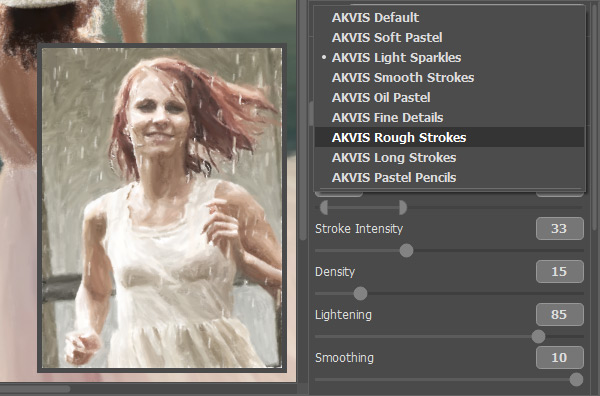
Settings can be changed individually, or a ready preset from AKVIS, which is stored within the program, can be used. Also, the settings of preset can be changed after it is chosen, to achieve the desired result.


You can export/import preset by pressing the and buttons in the Control Panel.

The button exports presets a file with the .artwork extension. Any number of presets can be saved to one file. To export presets follow these steps:

  1. Press the Export Presets button in the Control Panel.
  2. In the User Presets dialog window choose the presets you want to export. Checking Select All will select all the presets in the list. Unchecking it will deselect all presets in the list.
    Choosing Presets To Export To A File
  3. Press the Export button.
  4. In the Export Presets dialog window, enter a name for the file, choose a target folder, and press the Save button.

Attention! The AKVIS presets cannot be saved to a file.


The button imports presets from a file. To import presets from a file follow these steps:

  1. Press the Import Presets button in the Control Panel.
  2. In the Import Presets dialog window choose a file with the .artwork extension and press the Open button.
  3. In the User Presets dialog window select the desired presets from the list. Checking Select All will select all presets in a list. Unchecking it will deselect all the presets in the list.
    Choosing Presets To Import From A File
  4. Check Delete All Before Import, if you want to clear the list of presets in the program before importing others from a file.

    Attention! AKVIS presets cannot be deleted from a list.

  5. If Delete All Before Import is not checked, choose one of the following methods for importing presets:

    Replace - when this option is selected, if the name of a preset in the list matches the name of a preset in the file, then it will be replaced by the preset from the file.

    Rename And Add - when this option is selected, presets from a file with matching names are automatically renamed and added to the list of presets in the program.

    Presets whose names do not match any presets in the program's list will be added to the bottom of the list.

  6. Press the Import button.
 
How It Works How It Works
   — Workspace — Workspace
   — How To Use The Program — How To Use The Program
   — Add Text to a Painting — Add Text to a Painting
   — Painting on a Canvas — Painting on a Canvas
   — Working with the Presets — Working with the Presets
   — Preferences — Preferences
   — Batch Processing — Batch Processing
Styles Styles
   — Oil Painting — Oil Painting
   — Watercolor Painting — Watercolor Painting
   — Comics Effect — Comics Effect
   — Pen & Ink — Pen & Ink
   — Linocut — Linocut
   — Pastel Painting — Pastel Painting
Examples Examples
   — Harmony: Oil Painting Portrait — Harmony: Oil Painting Portrait
   — City Canal View: Oil Landscape — City Canal View: Oil Landscape
   — Animated Comic of a Cat: Video to Cartoon — Animated Comic of a Cat: Video to Cartoon
   — Emergency Cow: Make a Poster — Emergency Cow: Make a Poster
   — Greetings from Canary Islands — Greetings from Canary Islands
   — Summer Coloured Green — Summer Coloured Green
   — Casandra's Portrait — Casandra's Portrait
   — ArtWork for Art Students — ArtWork for Art Students
   — Day At The Beach — Day At The Beach
   — ArtWork Oil Gallery — ArtWork Oil Gallery
   — Orchid: an Oil Painting of Flowers — Orchid: an Oil Painting of Flowers
   — Miniature Painting — Miniature Painting
   — Still Life With Peaches — Still Life With Peaches
   — From Flawed Photo To Work Of Art — From Flawed Photo To Work Of Art
   — Antique Collage: Comics Effect — Antique Collage: Comics Effect
   — Baroque Architecture: Linocut — Baroque Architecture: Linocut
   — Ballet Art: Trying ArtWork Styles — Ballet Art: Trying ArtWork Styles
   — Human Flower: Pen & Ink Drawing — Human Flower: Pen & Ink Drawing
   — Oil Painting With a Hand-Drawn Effect — Oil Painting With a Hand-Drawn Effect
   — A Little Secret: Two ArtWork Styles — A Little Secret: Two ArtWork Styles
   — Mythical Horse: Watercolor Picture — Mythical Horse: Watercolor Picture
   — Forest Nymph — Forest Nymph
   — Ballet Dancers — Ballet Dancers
   — Portrait of a Lady: Modern Art — Portrait of a Lady: Modern Art
   — Sunset on Lake Garda in Pastel — Sunset on Lake Garda in Pastel
   — Creating  a Semi-Processed Image Effect — Creating a Semi-Processed Image Effect
   — A Holiday In Normandy — A Holiday In Normandy
   — Orange Door: a Comic-Like Painting — Orange Door: a Comic-Like Painting


back to top


   Privacy Policy | Site Map | Search at AKVIS    
   Contact Us | Twitter | Facebook | YouTube Channel    
| English  |Français  |Deutsch  |Español  |Português  |Italiano  |日本語  |Pусский  | © 2004-2012 AKVIS. All rights reserved.