Graphic software for Windows Mac graphic software
AKVIS ニュースの購読を申し込むには, 電子メールアドレスを入力してください。
 
  
  プログラム     ダウンロード     サイバーショップ     チュートリアル     サポート     会社情報
en  fr  de  es  pt  it  jp  ru    
 

チュートリアル: AKVIS ArtWork

Working With Presets


あいにく, このページは英語にだけ使用可能です。日本語のバージョンは遠からず出ります。
Attention! You can get a free licence for an AKVIS program by translating texts from English to Japanese.
Please contact us at team@akvis.com.

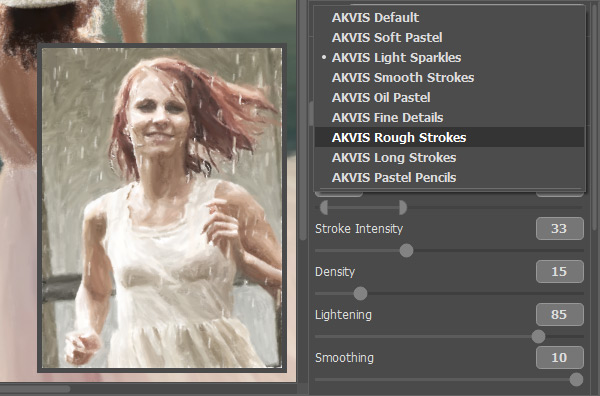
AKVIS ArtWork lets you save your favorite settings as a preset and use them in the future.

To save your settings as a preset, go to the Presets list, enter a name for your preset, and press the Save button.

    Presets

The next time you start the program it will use the settings of this preset. If you wish to return to the default settings press the Reset button.

To delete a preset, choose it from the drop-down list and press the Delete button.

To process an image using a preset, choose a preset from the list and press .

Attention! The presets save settings only in the Painting, Canvas and Text tabs.


Settings can be changed individually, or a ready preset from AKVIS, which is stored within the program, can be used. Also, the settings of preset can be changed after it is chosen, to achieve the desired result.


You can export/import preset by pressing the and buttons in the Control Panel.

The button exports presets a file with the .artwork extension. Any number of presets can be saved to one file. To export presets follow these steps:

  1. Press the Export Presets button in the Control Panel.
  2. In the User Presets dialog window choose the presets you want to export. Checking Select All will select all the presets in the list. Unchecking it will deselect all presets in the list.
    Choosing Presets To Export To A File
  3. Press the Export button.
  4. In the Export Presets dialog window, enter a name for the file, choose a target folder, and press the Save button.

Attention! The AKVIS presets cannot be saved to a file.


The button imports presets from a file. To import presets from a file follow these steps:

  1. Press the Import Presets button in the Control Panel.
  2. In the Import Presets dialog window choose a file with the .artwork extension and press the Open button.
  3. In the User Presets dialog window select the desired presets from the list. Checking Select All will select all presets in a list. Unchecking it will deselect all the presets in the list.
    Choosing Presets To Import From A File
  4. Check Delete All Before Import, if you want to clear the list of presets in the program before importing others from a file.

    Attention! AKVIS presets cannot be deleted from a list.

  5. If Delete All Before Import is not checked, choose one of the following methods for importing presets:

    Replace - when this option is selected, if the name of a preset in the list matches the name of a preset in the file, then it will be replaced by the preset from the file.

    Rename And Add - when this option is selected, presets from a file with matching names are automatically renamed and added to the list of presets in the program.

    Presets whose names do not match any presets in the program's list will be added to the bottom of the list.

  6. Press the Import button.


操作方法 操作方法
   — ワークスペース — ワークスペース
   — 操作方法  — 操作方法
   — Oil Painting — Oil Painting
   — Comics Effect — Comics Effect
   — Pen & Ink — Pen & Ink
   — テキスト — テキスト
   — キャンバス — キャンバス
   — ArtWorkプリセット — ArtWorkプリセット
   — 環境設定 — 環境設定
操作例 操作例
   — Harmony — Harmony
   — City Canal View — City Canal View
   — ArtWork Gallery — ArtWork Gallery


   プライバシー | サイトマップ | Web サイトの検索 | English  |Français  |Deutsch  |Español  |Português  |Italiano  | 日本語  |Pусский  | © 2004-2009, AKVIS Software Inc. All rights reserved.