ワークスペース
AKVISArtWork は、独立したスタンドアロン プログラムとしても、お使いのフォトエディターのプラグインとしても使用できます。
スタンドアロンは独立したプログラムです。通常通りの方法で起動できます。
プラグイン版は、Photoshop 等のフォトエディターのアドオンとして動作します。
プラグイン版を呼び出すには、イメージエディターのフィルターから選択します。
AKVIS Artwork のワークスペースは次のように表示されます。
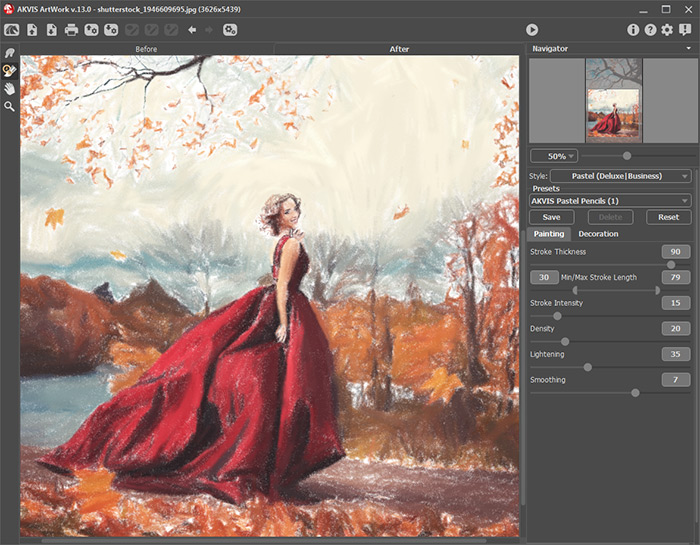
AKVIS Artwork のワークスペース
AKVIS Artwork のウィンドウ左側にはイメージ ウィンドウがあり、[処理前]と[処理後]の 2つのタブで構成されています。[処理前]タブには、元の画像が表示されます。[処理後]タブには、処理後の画像が表示されます。タブを切り替える場合は、タブをクリックします。処理前と処理後の画像を比較したい場合、イメージをクリックしたままの状態にすると、画像が何秒かごとに切り替わります。
ウィンドウ上部には、以下のボタンを含むコントロール パネルがあります。
 : AKVIS Artwork のホームページに移動します。
 : イメージを開きます (スタンドアロン版のみ)。この操作に対するホットキーは、Windows の場合Ctrl+Oキー、Mac の場合?+Oキーを使用します。
このボタンを右クリックすると、最近使用したファイルの一覧が表示されます。表示するファイル数をプログラムの[環境設定]で変更することもできます。
 : 処理したイメージをディスクに保存します (スタンドアロン版のみ)。この操作に対するホットキーは、Windows の場合Ctrl+Sキー、Mac の場合?+Sキーを使用します。
 : イメージを印刷します (スタンドアロン版のみ)。この操作に対するホットキーは、Windows の場合Ctrl+Pキー、Mac の場合?+Pキーを使用します。
 プリセット一覧をインポートします (.artworkファイルから)。
 : プリセットをエクスポートします。プリセットとは、保存されているイメージ処理に使用する各種設定のことです。プリセットは拡張子 .artwork の別ファイルに保存できます (保存可能なプリセット数に制限はありません)。
 : 保存されている誘導ライン (.direction ファイル) を読み込みます。
 : 誘導ラインを .direction 拡張子のファイルに保存します。
 /
/  : 誘導ラインの表示を切り替えます。
 : 各ツールを使って行った最後の操作を取り消します。連続した複数の操作を取り消すことができます。この操作に対するホットキーは、Windows の場合Ctrl+Zキー、Mac の場合?+Zキーを使用します。
 : 最後に取り消した操作をもう一度やり直します。連続した複数の操作をやり直すことが可能です。この操作に対するホットキーは、Windows の場合Ctrl+Yキー、Mac の場合?+Yキーを使用します。
 (スタンドアロン版のみ) : 画像をまとめて自動変換できる バッチ処理ダイアログを開きます。
 : 現在の設定でイメージの処理を実行します。処理後の画像が[処理後]タブに表示されます。
 : 変換結果をイメージに適用し、プログラムを閉じます (プラグイン版のみ)。
 : バージョン情報を表示します。
 : ヘルプファイルを呼び出します。この操作に対するホットキーは、F1キーです。
 : プログラムのオプション設定を変更するための [環境設定]ダイアログボックスを開きます。
 : Artwork に関する最新のニュースを別ウィンドウで表示します。
左側にはツールバーがあり、リノカット以外の次の全ての効果が使用できます。
事前処理ツール ([処理前]タブ):
 : クイック プレビュー ウィンドウのオン/オフ (表示/非表示) を切り替えます。
油絵とパステルでのストロークの方向ツール (Home Deluxe、Business ライセンスでのみ) :
 : ストロークの方向ツールの 誘導ライン描画を有効にします。
 : 誘導ラインをすべて、もしくは部分的に除去するための消しゴムツールを有効にします。
後処理ツール (Home Deluxe、Business の[処理後]タブ):
 : 指先 ツールを有効にし、不自然なペイント部分を手動で取り除くことで、仕上がりをよくできます (油絵、水彩、グワッシュ、パステル技法で利用可能)。
 : ぼかしツールを有効にすると、隣り合うピクセルのカラーコントラストを低くすることでイメージのもつ鮮明さを抑える効果があります (水彩とグワッシュ技法で利用可能)。
 : カラーブラシを有効にすると、 (リノカット、ステンシル、ペン&インク技法で)選択した色で描くことができます。
 : 履歴ブラシ ツールを有効にすると、効果を弱め、画像を部分的もしくは全体的に元の状態にレストアします。
その他のツール:
 : 手のひら ツールを有効にし、画像を動かしてウィンドウに表示されていない部分を表示できます。実際にツールを使用するには、画像上でクリックしたままドラッグして表示画像を動かします。
ツールのアイコン をダブルクリックすると、イメージは、イメージウィンドウに合わせたサイズで表示されます。 : ズーム ツールを有効にし、イメージの表示サイズを変更します。クリックすると、ズームイン (拡大) します。クリックしながらAltキーも押すと、ズームアウトします。Zキーを押すと、クリックなしで、ズーム ツールに切り換えられます。
ツールのアイコン をダブルクリックすると、イメージが 100% の倍率 (実際の大きさ) で表示されます。
イメージをナビゲートしたり、拡大/縮小するには ナビゲーターを使用します。ナビゲーター の赤枠で囲まれた領域は、現在メイン ウィンドウに表示されている領域です。赤枠の外はグレー表示になります。赤枠をドラッグすると画像の表示領域を変更できます。赤枠を移動させるには、マウスをクリックしたままカーソルをドラッグします。
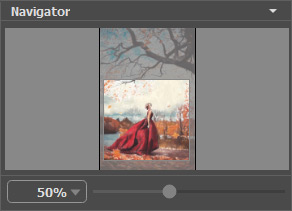
ナビゲーター
メイン ウィンドウで画像をスクロールするには、キーボードのスペースキーを押しながら画像をドラッグします。マウスのスクロールホイールを使うと、イメージは上下に動き、Ctrlキーを押しながらの場合は左右に動き、Altキーを押しながらの場合は拡大/縮小されます。スクロールバーを右クリックすると、クイックナビゲーション メニューが表示されます。
スライダーを使用して、ウィンドウ内のイメージを拡大/縮小できます。スライダーを右に動かすと、イメージは拡大されます。スライダーを左に動かすと、イメージは縮小されます。
さらに、[拡大/縮小]欄に値を入力してイメージを拡大/縮小することもできます。プルダウンメニューには、使用頻度の高い値が表示されます。
画像の拡大/縮小は、ホットキーを使っても行えます。+またはCtrl++キー (Mac の場合は?++キー) で拡大、-またはCtrl+-キー (Mac の場合は?+-キー) で縮小します。
ナビゲーターの下にある設定パネルには、[ペイント]タブと[装飾]タブがあります。
[プリセット]フィールドでは、現在の設定内容をプリセットとして保存できます。保存したプリセットは後で使用できます。現在の設定は保存だけでなく、編集や削除もできます。プログラムの起動時には、最後に使用したプリセットが使用されます。
設定パネルの下には、カーソルをパラメーターやボタンに合わせた場合に ヒントが表示されます。ヒントの表示位置や表示/非表示の設定は、プログラムの環境設定で行うことができます。
ArtWork v. 15.1 - 10日間の評価期間
