Graphic software for Windows Mac graphic software
AKVIS ニュースの購読を申し込むには, 電子メールアドレスを入力してください。
 
  
  プログラム     ダウンロード     サイバーショップ     チュートリアル     サポート     会社情報
en  fr  de  es  pt  it  jp  ru    
 

チュートリアル: AKVIS ArtWork

City Canal View


あいにく, このページは英語にだけ使用可能です。日本語のバージョンは遠からず出ります。
Attention! You can get a free licence for an AKVIS program by translating texts from English to Japanese.
Please contact us at team@akvis.com.

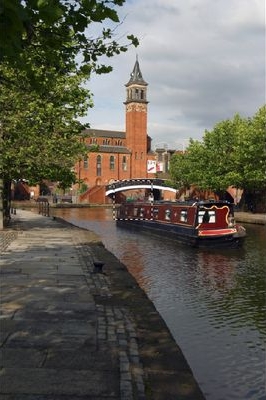
On a nice Summer day I was walking along the city canal when I was overcome with an irresistible itch for painting. I did not have paints and no easel, and, to be quite honest, my landscape studies had never excited my drawing teacher at school. But I had a camera with me, so I took a photo of the view. Then, using the program AKVIS ArtWork, I converted my photo into an oil painting. The result was just the painting I had in my mind.

Those, who do not travel much or do not have many landscape photos in their stocks, can find some wonderful views on the net. One of the most popular services is Fotolia (http://www.fotolia.com/). This service offers piles of photos, well sorted and quick to preview.


I used the Deluxe version of AKVIS ArtWork when creating this tutorial. The Deluxe version (in contrast to Home license) has a Stroke Direction tool. This tool can do wonders. You can download the images in full size to compare the result with and without this feature: a zip-archive with three files 1st-result.jpg, 2nd-result.jpg and 2nd-result-with-canvas.jpg.

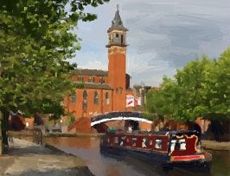
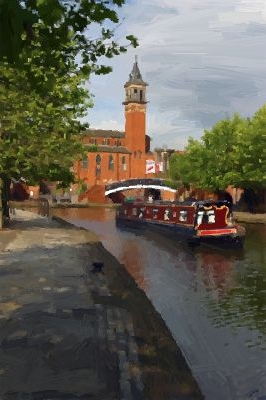
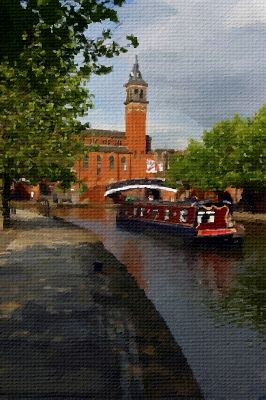
    City Canal View Oil Painting: City Canal

Please follow these steps:

  • Step 1. Open the image in your photo editor (we use the Plugin version of the program).
    View of the City Canal
    Original image
  • Step 2. Call the plugin AKVIS ArtWork. In Adobe Photoshop you can use the menu item Filter –> AKVIS –> ArtWork.

    The image will be loaded into the workspace and, if it is large, scaled to fit the Image window. To avoid a visual distortion effect, it is recommended to set the scale to 100%.

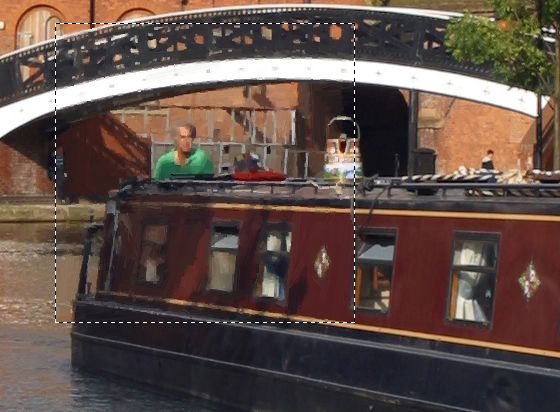
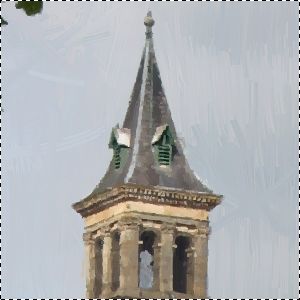
    A fragment of the image
    Fragment of the image (scaled to 100%)
  • Step 3. Adjust the parameters. The changes are automatically applied to the sample in the Preview Window. You can move this window with a double left-click on the required point of the image.

    I would like to paint my landscape in an expressionist manner, in large strokes. Actually most painters do not try to make a photographic reproduction of the reality, they do not reproduce every minor detail. So I increased the value of the Simplicity parameter. This parameter simplifies the image by reducing the level of detail. The strokes are rougher and the image looks more like a painting. You can notice that at Simplicity = 6 the level of detail is quite reasonable.

    Default settings Simplified
    Default settings Simplicity = 6

    To make the image brighter, we increase the value of Saturation to 15.

  • Step 4. Click on to process the whole image with the new settings. Here is the result: 1st result.jpg:

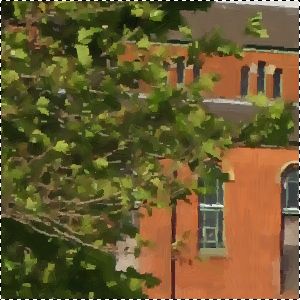
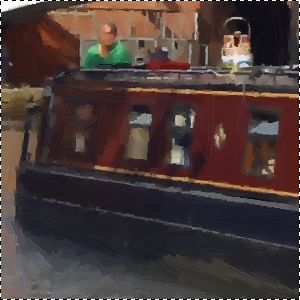
    Leaves Boat
    Leaves (fragment) Boat (fragment)

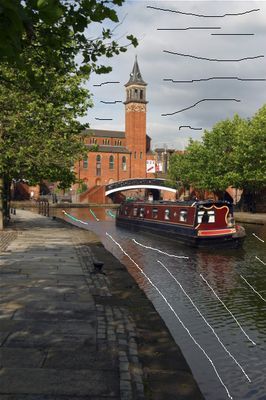
  • Step 5. We are happy with the result. But we can make it yet more realistic (that is more like a painting) if we use the Stroke Direction tool . This tool gives us full control over the strokes as it allows to set the stroke direction. If you examine the image 1st-result.jpg you can notice that the boat, the trees and the building came out well, but the water and the sky are not perfect. The reason is that the strokes are laid randomly, while an artist would use horizontal strokes for the sky and would follow the direction of the river stream when laying the strokes on the water:
    Change direction
    Change the strokes direction
  • Step 6. Click on again. The result is here: 2nd-result.jpg. You can also add a canvas and an inscription to the painting: 2nd-result-with-canvas.jpg).
  • Step 7. Click on to apply the changes and close the AKVIS ArtWork plugin. It took me only 4 minutes to create my modest piece of art. I printed it on good paper and hung it on the wall in the dining-room.

    Oil Painting Oil Painting on canvas
    Oil Painting On canvas


操作方法 操作方法
   — ワークスペース — ワークスペース
   — 操作方法  — 操作方法
   — Oil Painting — Oil Painting
   — Comics Effect — Comics Effect
   — Pen & Ink — Pen & Ink
   — テキスト — テキスト
   — キャンバス — キャンバス
   — ArtWorkプリセット — ArtWorkプリセット
   — 環境設定 — 環境設定
操作例 操作例
   — Harmony — Harmony
   — City Canal View — City Canal View
   — ArtWork Gallery — ArtWork Gallery


   プライバシー | サイトマップ | Web サイトの検索 | English  |Français  |Deutsch  |Español  |Português  |Italiano  | 日本語  |Pусский  | © 2004-2009, AKVIS Software Inc. All rights reserved.