アニメーション化された猫のコマ漫画:ビデオをアニメに変換
このチュートリアルの作成者は、Robert Batesさんです。
このチュートリアルは、AKVIS Sketch を使って、猫のコマ漫画から作成したビデオを作成した例から発想を得ました。
AKVIS ArtWork は、最後に開いた設定を記憶できるようになったので、同じ目的での再利用が可能になります。この機能は、多くのフレームから成るビデオの編集に最適です。バッチ処理 がなければ、各フレームをそれぞれ編集するこの作業は非常に面倒といえます。しかし、このタスクを自動化し、 AKVIS ArtWork を使ってビデオをアニメに変換する方法を紹介します。
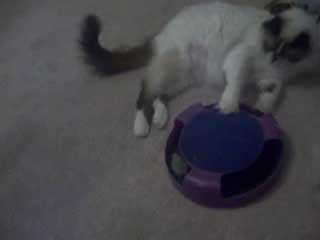 |
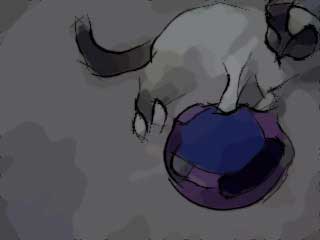 |
| 元のビデオ フレーム | アニメに変換したフレーム |
- ステップ 1: ビデオを VirtualDub で編集するには、まず VirtualDub に対応したフォーマットに変換する必要があります。無料のプログラム Any Video Converter を使って、 AVI ファイルに変換します。
Mac の場合、ビデオをフレームごとに分割して保存できるエディターであれば、どのビデオ エディターでも構いません。
- ステップ 2: AVI ファイルを VirtualDub で開きます ([ファイル] > [ビデオ ファイルを開く]を使用)。開くと、 VirtualDub のワークスペースに、フレームごとに分割されたビデオが表示されます。
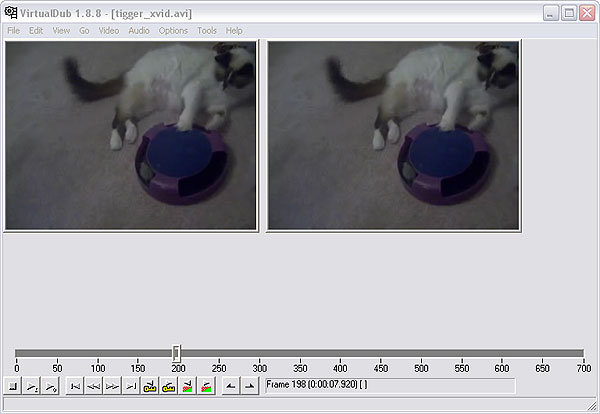
VirtualDub ワークスペース - ステップ 3: Artwork でビデオの作業を行うには、個別のフレームとして保存する必要があります。そのためには、[ファイル] > [エクスポート] > [画像シーケンス]を選択します。ダイアログ ウィンドウが開きます。ファイル名、画像フォーマット (デフォルトでは JPEG)、ファイルの名前を付ける際に使用するシーケンス番号 (連続番号) を入力します。フレームを保存するディレクトリを選択して、 [OK]をクリックします。しばらくすると、ビデオが指定のフォルダーに、個別の画像ファイルとして保存されていることが確認できるでしょう。VirtualDub を閉じます。
- ステップ 4: ビデオ ファイルのソース フォルダー ("Tigger Vid") とターゲット フォルダー ("Tigger Vid Output") を作成します。VirtualDub で保存したフレームをソース フォルダー ("Tigger Vid") にコピーします。
- ステップ 5: これで、 バッチ処理機能を使用してフレームの編集ができるようになります。この機能を使用すると、AKVIS ArtWork の効果を一連の画像に一度に適用できます。
注意: ここでは、プラグイン版と、Photoshop のバッチ処理モードを使用します。
スタンドアロン版 には、バッチ処理機能 があり、Photoshop の操作より使いやすいです。
プラグイン版を使用するのは、画像処理のいくつかのコマンドを使用する場合に便利だからです。[アクション]パレットを Adobe Photoshop で開きます。[Windows] > [アクション]または、Alt+F9キーを押します。
[アクション]パレットの 5つ目のアイコン、[新規アクションの作成]をクリックします。表示されるダイアログボックスに、アクション名を入力します (たとえば、「アニメ」等)。
[Tigger Vid]フォルダーの最初のフレームを開き、2つ目のアイコンである[録画開始]をクリックします。
![[アクション]パレット](/img/examples/artwork/tigger-cartoon/history-jp.jpg "[アクション]パレット")
[アクション]パレット - ステップ 6: (オプション) 画像は、やや濁っています。AKVIS Enhancer を使って修正することができます。AKVIS Enhancer のプラグインは、[フィルター] > [AKVIS] > [Enhancer]の順に選択して開きます。画像に表示されている設定を使用することもできますし、独自の設定を使用することもできます。
AKVIS Enhancer は、最後に使用した設定を記憶してくれますが、プリセットとして設定を保存することをお勧めします。
 をクリックすると、画像は Photoshop に戻ります。
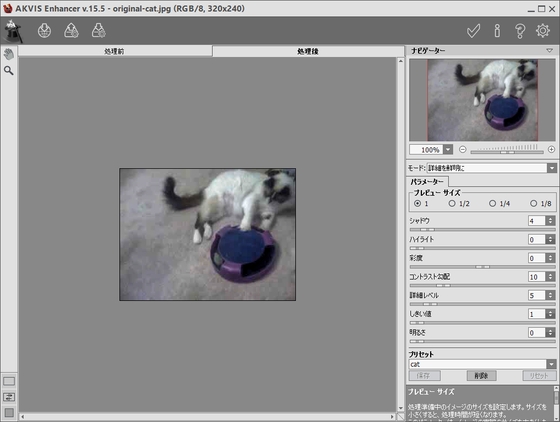
AKVIS Enhancer ワークスペース - ステップ 7: 次に、 AKVIS ArtWork プラグインを [フィルター] > [AKVIS] > [Artwork]で呼び出します。プラグインのワークスペースにフレームが表示されます。技法では、[コミック]を選択し、設定を選択または調整します。
処理の開始には、
 をクリックし、結果に満足な場合は、 をクリックします。Photoshop のワークスペースに戻ります。
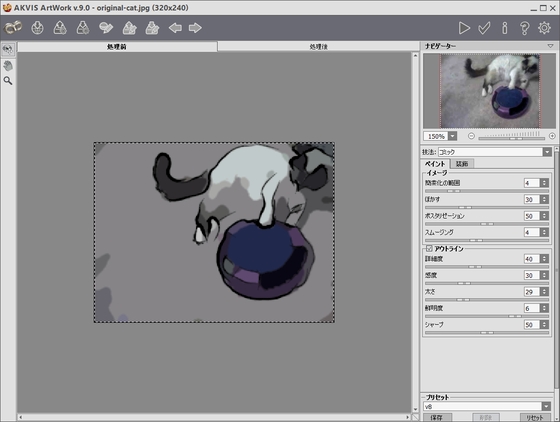
AKVIS ArtWork ワークスペース - ステップ 8: [ファイル]メニューから[名前を付けて保存]を選択し、出力フォルダー (Tigger Vid Output) にファイルを保存します。[アクション]タブの[停止]をクリックします。出力フォルダーに保存したばかりのファイルを削除します。
- ステップ 9: [ファイル] > [自動化] > [バッチ処理]を選択して、バッチ処理ダイアログを開きます。下記に表示されているように設定を変更し、[OK]をクリックすると、バッチ処理が始まります。処理にかかる時間は、フレーム数とコンピューターの処理速度によって異なります。処理完了後に出力フォルダー (Tigger Vid Output) を確認すると、各フレームの修正されたバージョンを確認でき、それらをまた 1つのビデオにまとめる必要があります。
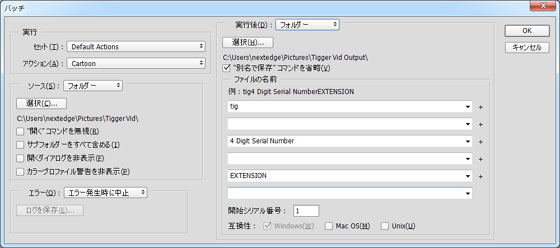
バッチ処理ダイアログ - ステップ 10: Photoshop を閉じて、VirtualDub を開きます。[ファイル] > [ビデオ ファイルを開く]で出力フォルダー (Tigger Vid Output) を探し、最初のファイルを選択します。[ファイルの種類]の横のドロップダウン メニューから [画像シーケンス]を選択します。[開く]をクリックすると、VirtualDub はフォルダー内のフレームを再度まとめて、ビデオを作成します。完了すると、ビデオのプレビューを見ることができます。プレビューで確認したら、動きがスローモーションのようでした。[ビデオ] > [フレームレート] > [フレームレートの変更]を選択します。元のフレームレートが25だったので、その値を入力して、[OK]をクリックします。
- ステップ 11: オリジナルのビデオで使われていたオーディオを再度ビデオに関連付けたい場合は、[オーディオ] > [別のファイルからのオーディオ]を選び、元のビデオ ファイルを探して選択します。しかし、元のビデオのオーディオがあまりクリアではないため、別のソース、音楽を選択することにしました。ダイアログや別のサウンド効果を適用することもできます。
ArtWork v. 15.1 - 10日間の評価期間
