プログラムの使用方法
AKVIS ArtWork は、様々な描画技術を写真に与えるための画像変換ソフトウェアです。AKVIS ArtWork は、独立したスタンドアロンプログラムとしても、また、Photoshop 互換のプラグインとしても機能します。
以下の手順を実行します。
-
ステップ 1:イメージを開きます。
スタンドアロン版で作業する場合:
空のワークスペースをダブルクリックするか、コントロール パネルの
 をクリックすると、[イメージを開く]ダイアログボックスが表示されます。ワークスペースにイメージをドラッグすることもできます。AKVIS ArtWork のスタンドアロン版は、JPEG、 WEBP、RAW、PNG、BMP、TIFF の各ファイル形式をサポートしています。
- プラグイン版で作業する場合:
お使いのフォトエディターでイメージを開くには、[ファイル] > [開く]コマンドを実行するか、ホットキーであるCtrl+Oキー、Mac の場合⌘+Oキーを使用します。
AKVIS Artwork プラグインを
AliveColors では、[効果] > [AKVIS] > [Artwork]、
Adobe Photoshop では、[フィルター]メニュー > [AKVIS] > [Artwork]、
Corel PaintShop Pro では、 [効果] > [プラグイン] > [AKVIS] > [Artwork]、
Corel Photo-Paint では、[効果] > [AKVIS] > [Artwork]をそれぞれ選択して呼び出します。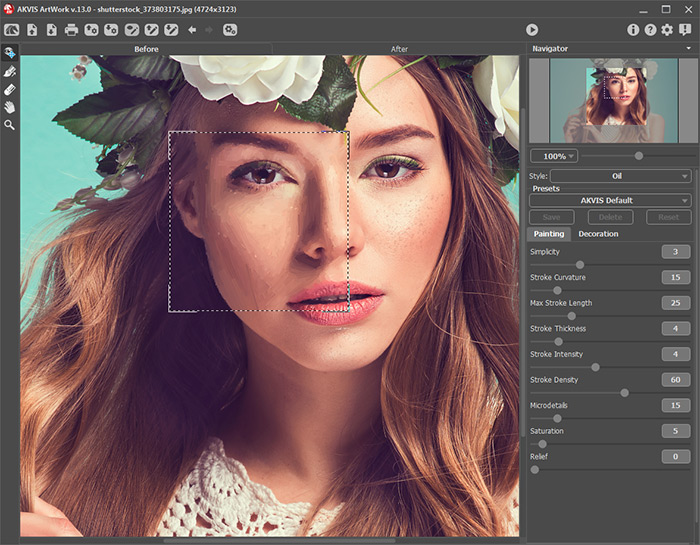
AKVIS ArtWork - ステップ 2:ペイント技法を設定パネルの[技法]ドロップダウン メニューから選択します。
-
ステップ 3:[ペイント]タブで選択したペイント技法に関する設定を行います。
イメージの処理後の結果は、プレビュー ウィンドウ に表示されます。プレビュー ウィンドウは、
 ボタンが押されている場合、[処理前]タブに表示されます。プレビュー ウィンドウとは、点線で囲われた四角の枠で、画像に加えられた変更をすぐに表示します。
注意:アルゴリズムは良い結果を出すためにイメージ全体の処理をするので、リノカット効果ではクイック プレビュー ウィンドウを使用できません。
プレビュー領域を移動させる場合は、点線内を左クリックしたまま、ドラッグして希望の位置に移動させます。または、移動させたい位置をダブルクリックしてプレビュー ウィンドウを移動させることもできます。プレビュー ウィンドウを移動させる度に、自動的にその範囲で処理を実行し、プレビューを表示します。
クイック プレビュー ウィンドウ内の自動変換結果と元の写真を比較するには、画像内でマウスの右か左のどちらかをクリックしたままにします。
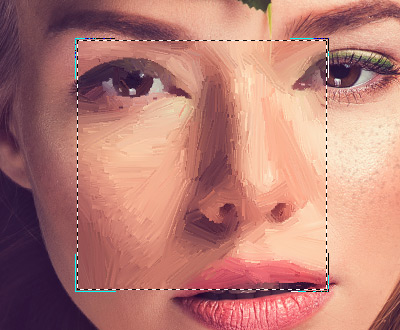
クイック プレビュープレビュー ウィンドウのサイズの変更は、環境設定
 で行うことができます。
-
ステップ 4:
 をクリックして、新しい設定を基に写真を変換します。
処理はリアルタイムで確認できます。写真から絵画への変換を途中で止めて未完成の状態を保存することもできます。処理を中断する場合は、進捗バーの右側の[キャンセル]ボタンをクリックします。
-
ステップ 5:油絵とパステル技法 (Deluxe/Business ライセンスのみ) を利用の場合、付加的なスマートツール、ストロークの方向 ツール
 が利用できます。このツールにより、ストロークを思い通りにコントロールでき、ストロークの方向も変更できます。
このブラシを使って誘導ラインを引くと、その誘導ラインに沿ったストロークを用いたイメージに変換します。この技術により、人間の髪の方向、全体の模様やテキストの方向が正しく修正され、本物の油絵により近い油絵を作り出すことができます。
誘導ラインの編集には、
と  、そして
、そして  と
と  (最後に描いたラインを削除/戻す)のツールを使用します。
- ストロークの方向 :ツールを使って誘導ラインを描くと、それに沿ったストロークを用いてイメージを生成します。クイック プレビューウィンドウ内に変更が表示されます。画像全体の処理を開始するには、 をクリックします。
- 消しゴム :このツールを使用して、描画した誘導ラインを削除します。ツールのサイズは、イメージを右クリックして変更できます。
ヒント:
 ボタンをクリックすると、誘導ラインが .direction 拡張子で保存され、作業を中断した場合でも再度使用できます。
 ボタンをクリックすると、保存されているガイドラインを読み込み、画像のサイズに自動的に適用します。
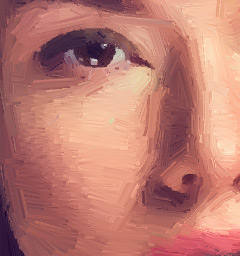
自動変換時のブラシストローク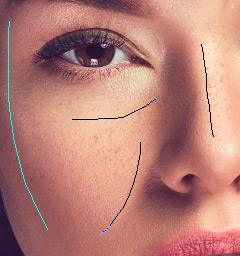
誘導ライン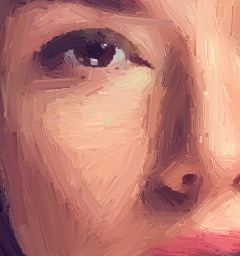
方向の変更 - ストロークの方向
-
ステップ 6:より印象的でリアルな作品にするために、[装飾]オプションの[キャンバス] 、[フレーム]、[テキスト]を使用することもできます。
ヒント:装飾効果の追加順は、タブの位置に対応しています。順番を変更するには、タブをドラッグします。
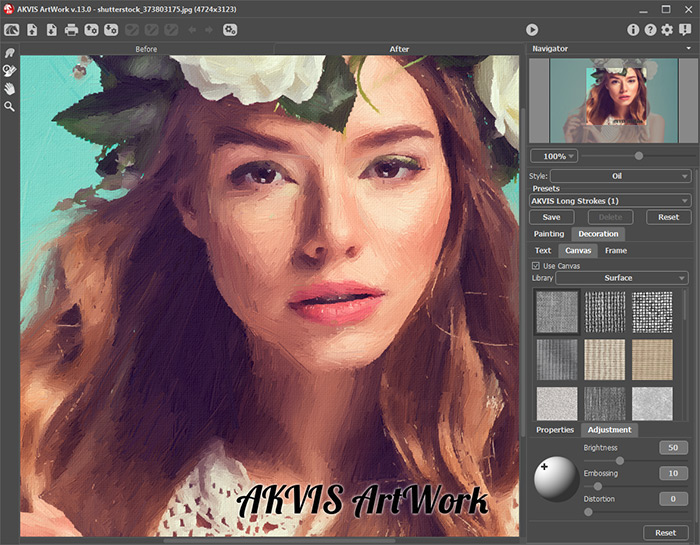
署名入りのキャンバス使用の油絵- ステップ 7:お好みの設定内容をプリセットとして保存し、後で使用することができます。プリセットは全てのタブで共有されます。 ArtWorkプリセットの詳細はこちら。
- ステップ 8:処理結果は、[処理後]タブよりアクセス可能な後処理ツールを使って編集できます ( Home Deluxe/Business ライセンスのみ):
- 指先ツール
 (油絵/水彩画/グワッシュ/パステル技法で利用可能)
- ぼかしツール
 (水彩とグワッシュ技法で利用可能)
- カラーブラシ
 (リノカット、ステンシル、ペン & インク技法で利用可能)
- 履歴ブラシ
 (すべての技法で利用可能)
注意:[処理前]タブに切り替えて、再度実行を行うと、
後処理ツールで行った編集内容が失われてしまいます!
- ステップ 9:スタンドアロン版では、印刷を行うこともでき、その場合は、
 をクリックします。
結果- ステップ 10:処理したイメージを保存します。
スタンドアロン版で作業する場合:
 をクリックすると、[名前をつけて保存]ダイアログボックスが開きます。ファイル名を入力し、ファイルの種類 (TIFF、BMP、JPEG、WEBP、PNG) を選択し、保存先フォルダーを選択します。
- プラグイン版で作業する場合:
 をクリックして結果を適用し、プラグイン ウィンドウを終了します。AKVIS ArtWork プラグインが終了し、画像がフォトエディターのワークスペースに表示されます。
[ファイル] > [名前を付けて保存]コマンドを使用して[名前を付けて保存]ダイアログボックスを開き、ファイル名の入力、ファイルの種類の選択、保存先フォルダーの指定を行います。
ArtWork v. 15.1 - 10日間の評価期間
