Graphic software for Windows Mac graphic software
AKVIS ニュースの購読を申し込むには, 電子メールアドレスを入力してください。
 
  
  プログラム     ダウンロード     サイバーショップ     チュートリアル     サポート     会社情報
en  fr  de  es  pt  it  jp  ru    
 

チュートリアル: AKVIS ArtWork

Harmony: an Oil Painting


あいにく, このページは英語にだけ使用可能です。日本語のバージョンは遠からず出ります。
Attention! You can get a free licence for an AKVIS program by translating texts from English to Japanese.
Please contact us at team@akvis.com.

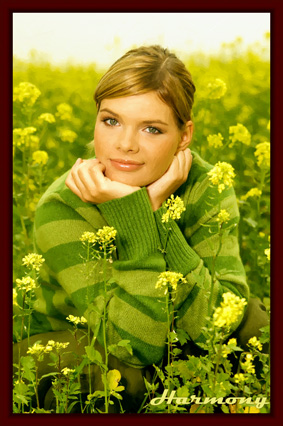
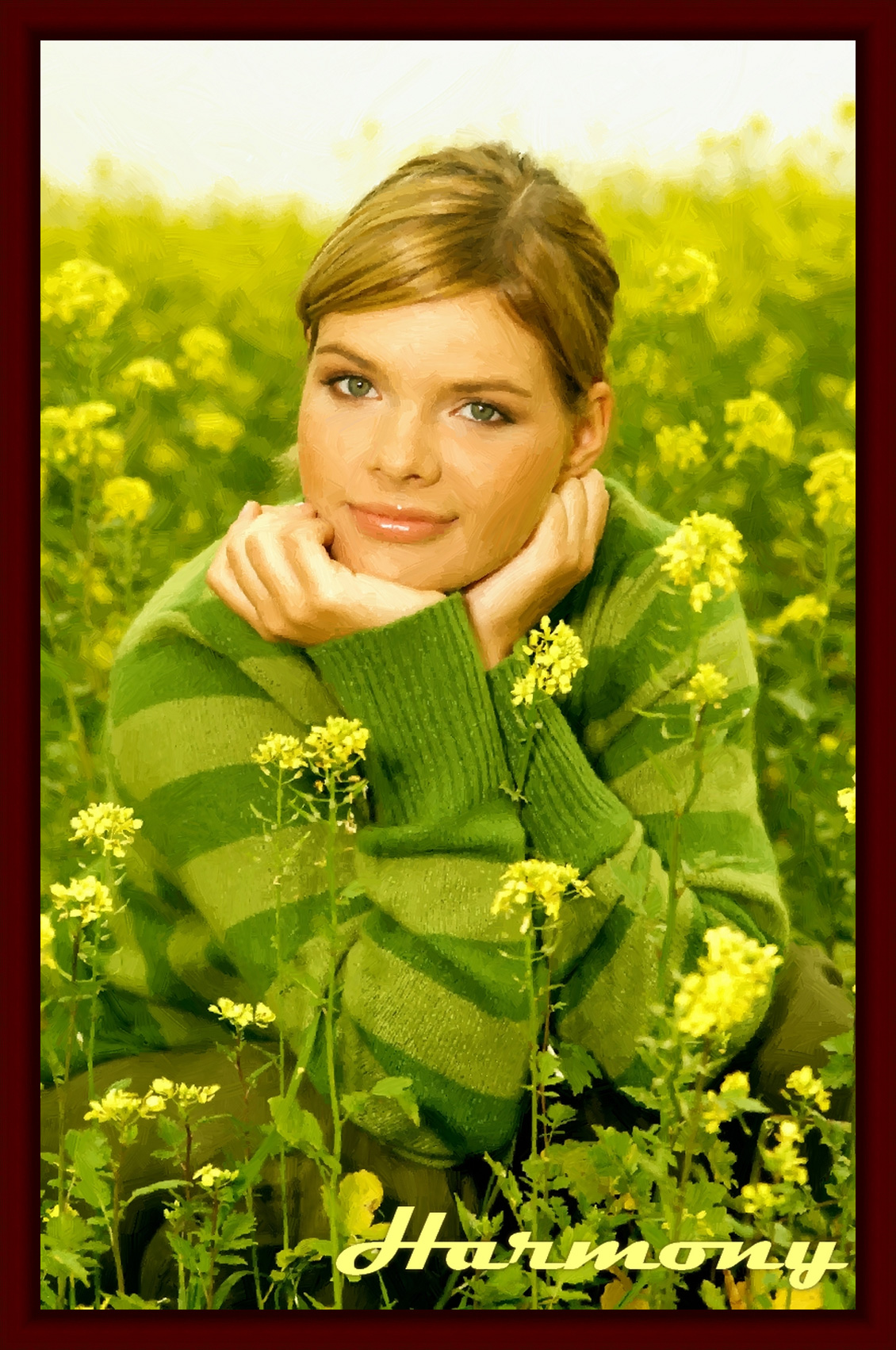
The program AKVIS ArtWork is designed to imitate different painting techniques. The first version of the program offers oil painting. In the next versions the choice of techniques will be expanded. In this tutorial we will convert a photo of a girl into an oil painting.

    Original image Result

Please follow these steps:

  • Step 1. Open an image in your photo editor by calling the command File -> Open.
    Original image
    Original image
  • Step 2. Call the plugin version of AKVIS ArtWork. In Adobe Photoshop select the menu item Filter -> AKVIS -> ArtWork; in Paint Shop Pro select the menu item in Effects –> Plugins -> AKVIS –> ArtWork; in Corel PHOTO-PAINT select the menu item Effects -> AKVIS -> ArtWork.

    A sample of the image processed with the current preset will be shown in the Preview Window. The program uses the settings of AKVIS Default preset or of the last used preset. The default values usually offer a good result, but you can adjust them to fine tune the result.

  • Step 3. Adjust the stroke parameters.

    Simplicity = 3 (a value higher than 3 will smooth away the stripes on the sweater).

    To make the strokes more expressive increase their length, width and curvature:

    Stroke Curvature = 71;
    Max Stroke Length = 37;
    Stroke Thickness = 6.

    Default settings Large strokes
    Default settings Large strokes

    For the strokes to be apparent, increase the value of the parameter Stroke Density, it will increase the number of strokes. If a random stroke is out of place (for example, across the nose), and the Stroke Direction is not available, you can change the value of Stroke Density until you get the best version.

    Stroke Density = 86;
    Stroke Intensity = 5;
    Microdetails = 15.

    The image will look better if we make the colors brighter:

    Saturation = 25.

  • Step 4. Add an inscription on the Text tab.
  • Step 5. Click on to process the image with the new settings. The result will be shown on the After tab.
    Processed image
    Oil Painting
  • Step 6. Click on to apply the result of conversion and close the plugin's window. Now put the image into a frame and the painting is ready.
    Oil Painting
    Oil Painting in a Photo Frame


操作方法 操作方法
   — ワークスペース — ワークスペース
   — 操作方法  — 操作方法
   — Oil Painting — Oil Painting
   — Comics Effect — Comics Effect
   — Pen & Ink — Pen & Ink
   — テキスト — テキスト
   — キャンバス — キャンバス
   — ArtWorkプリセット — ArtWorkプリセット
   — 環境設定 — 環境設定
操作例 操作例
   — Harmony — Harmony
   — City Canal View — City Canal View
   — ArtWork Gallery — ArtWork Gallery


   プライバシー | サイトマップ | Web サイトの検索 | English  |Français  |Deutsch  |Español  |Português  |Italiano  | 日本語  |Pусский  | © 2004-2009, AKVIS Software Inc. All rights reserved.