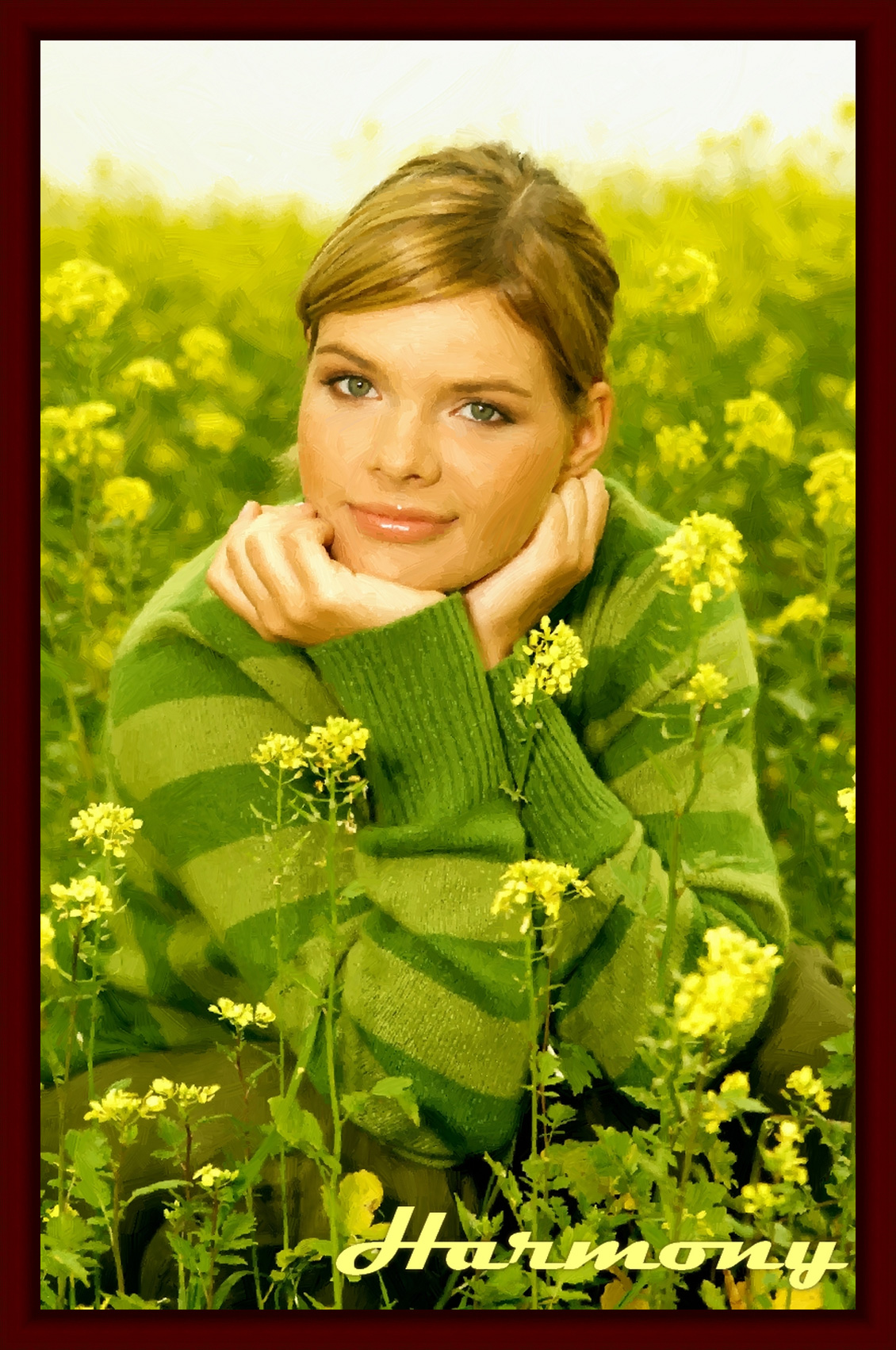
Retrato al óleo
El programa AKVIS ArtWork está diseñada para imitar varias técnicas de pintura. En este tutorial vamos a convertir una foto de una chica en una pintura al óleo.


Siga estos pasos, por favor:
- Paso 1. Abra la imagen en su editor de fotos usando el comando Archivo -> Abrir.

Imagen original - Paso 2. Llame a la versión plugin de AKVIS ArtWork. En AliveColors seleccione el punto del menú Effects -> AKVIS -> ArtWork; en Adobe Photoshop seleccione el punto del menú Filter -> AKVIS -> ArtWork; en PaintShop Pro seleccione el punto del menú Effects –> Plugins -> AKVIS –> ArtWork; en Corel Photo-Paint seleccione Effects -> AKVIS -> ArtWork.
Una vez que el programa está abierto, una parte de la imagen se convierte automáticamente usando los últimos ajustes o los ajustes del preset AKVIS Default (depende de la opción elegida en las Opciones del programa). Esta muestra resultante se mostrará en la Ventana de vista previa en la pestaña Antes.
- Paso 3. Ajuste los parámetros:
Simplicidad = 3 (un valor superior a 3 puede borrar las rayas de la chaqueta).
Para hacer los trazos más expresivos, aumentamos su longitud, anchura y curvatura:
Curvatura de la pincelada = 71;
Longitud máxima de la pincelada = 37;
Espesor de la pincelada = 6.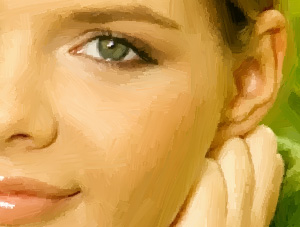
Parámetros por defecto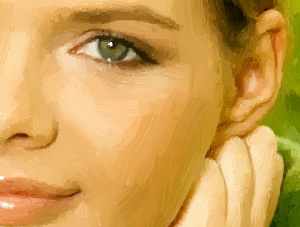
Grandes pinceladasPara que las pinceladas sean distintas, aumentamos el valor del Densidad de Pinceladas, lo que aumentará el número de pinceladas. Si una pincelada aleatoria es más largo que se necesita (por ejemplo, a través de la nariz), y la herramienta Dirección de los Trazos
 no está disponible en su versión, puede cambiar el valor de Densidad de Pinceladas hasta conseguir la mejor versión.
Densidad de pinceladas = 86;
Intensidad de pinceladas = 5;
Microdetalles = 15.La imagen se verá mejor si ponemos los colores más brillantes:
Saturación = 25.
- Paso 4. Presione el botón
 para procesar la imagen con los nuevos parámetros.
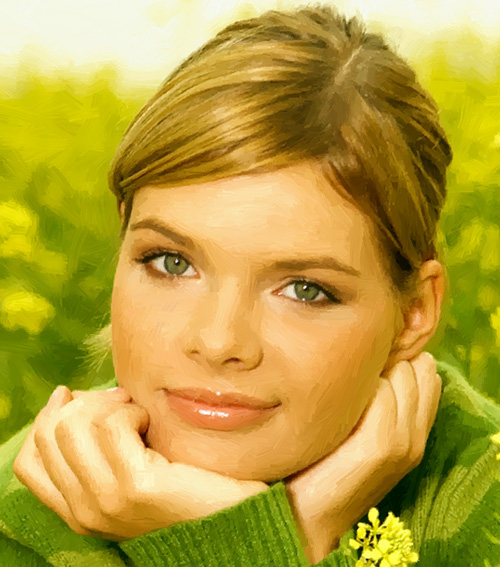
Retrato al óleo - Paso 5. Añade una inscripción en la pestaña Texto. Poner la pintura en un marco.
- Paso 6. Presione el botón
 para aplicar el resultado y cerrar la ventana del plugin. El plugin AKVIS ArtWork se cerrará y la imagen aparecerá en el área de trabajo de su editor de imágenes.
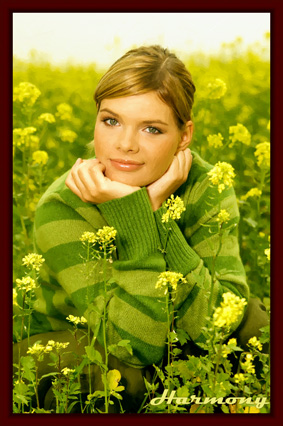
Retrato al óleo en un marco
ArtWork v. 15.1 - Prueba gratuita de 10 días
