Verano color verde: pintura al óleo de paisaje partiendo de una foto
El autor de este tutorial es David Kelly.
Este tutorial muestra que, utilizando el plugin AKVIS ArtWork Home Deluxe y su herramienta Dirección de los trazos (no disponible en la versión Home), es posible crear imágenes con apariencia de pintura al óleo, en que estarán pinceladas realistas y sutiles, y que cuando es necesario, podrán ser hechos de manera que sigan contornos específicos en las imágenes.
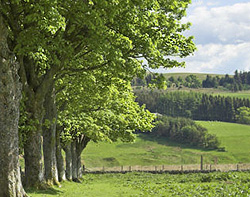
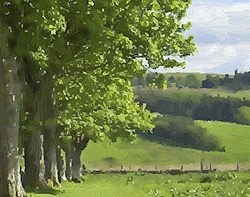
La capacidad de ArtWork Home Deluxe de mover y remodelar píxeles a lo largo de los contornos de las líneas que han sido dibujadas utilizando la herramienta Dirección de los trazos, junto con sus deslizadores de conversión de foto a pintura, permite al usuario en base de imágenes digitales crear pinturas al óleo que muestran pinceladas con dirección adecuada, más realistas. Cuando es necesario crear pinceladas que sigan formas específicas de la imagen, por ejemplo pelo o contornos faciales, surcos de la tierra, líneas de árboles, nubes, arquitectura, etc., el plugin Dirección de los trazos ciertamente hace un buen trabajo.
Por favor, siga los siguientes pasos para crear una pintura al óleo realista, partiendo de una foto:
-
Paso 1. Abra el archivo original en el editor de imagen con el comando Archivo -> Abrir. Esta es una fotografía de un paisaje de una arbolada que muestra una parte del pintoresco Sheriffmuir, Perthshire, Escocia, con sus colinas ondulantes.
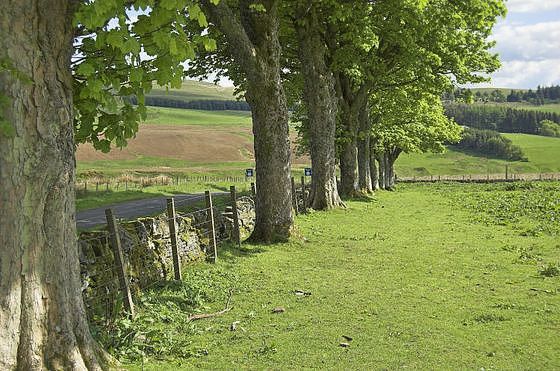
Imagen original: foto de paisaje de arbolada -
Paso 2. Llame el plugin AKVIS ArtWork utilizando el menu Effects -> AKVIS -> ArtWork.
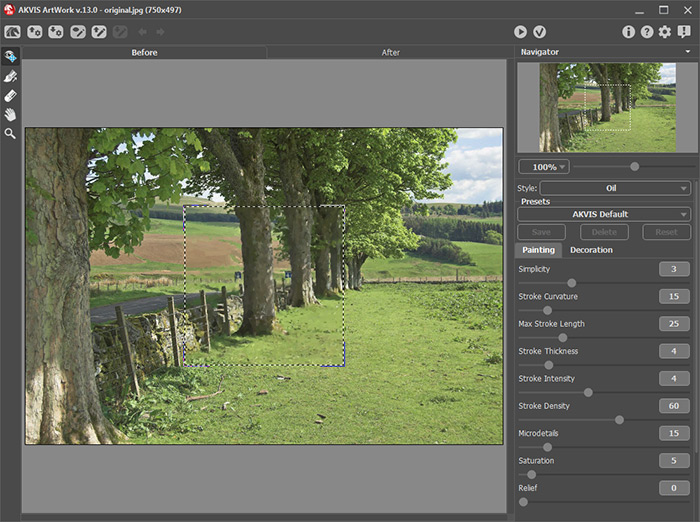
Ventana del plugin AKVIS ArtWork - Paso 3. Seleccione el preset AKVIS Default del plugin. El efecto de esos ajustes se puede ver en Ventana de vista previa del plugin.
-
Paso 4. Haga clic en el botón
 para procesar la imagen utilizando los parámetros de pintura por defecto.
- Paso 5. De clic en la pestaña Antes de la ventana del plugin, para activar la herramienta Dirección de los trazos.
-
Paso 6. De clic en la herramienta Dirección de los trazos
 , luego dibuje las líneas guía del pincel siguiendo contornos específicos de la imagen original.
Normalmente, decisión sobre qué parte de la imagen y en que ángulos dibujar las líneas de dirección del trazo, será determinado por el contenido de la imagen. Sin embargo, como en todo proceso creativo, la colocación de la dirección del trazo de la línea puede ser influenciada por la propia interpretación artística.
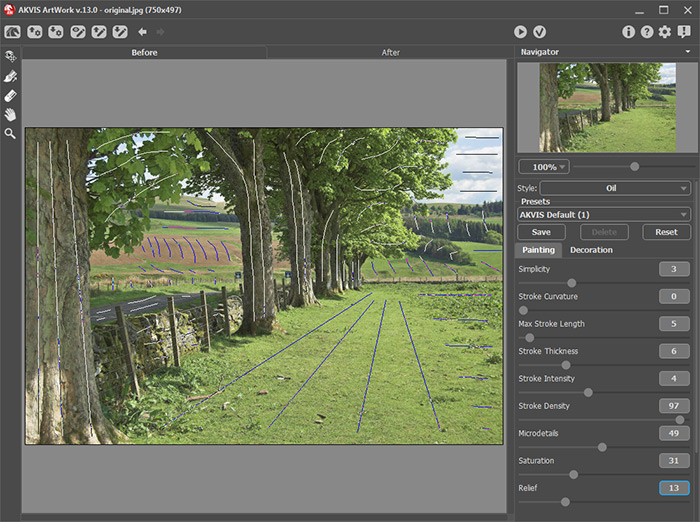
Líneas guía del trazo - Paso 7. Ajuste los parámetros de pintura.
-
Paso 8. Haga clic en el botón para procesar la imagen utilizando los nuevos parámetros de pintura.
- Paso 9. Repita los pasos 7-8 conjunto con el deslizador de escala de la Ventana de navegación para ver los resultados del proceso, hasta que el resultado del efecto de pintura al óleo requerido sea logrado.
- Paso 10. Nombre y guarde los nuevos parámetros de pintura como ajustes de usuario.
-
Paso 11. Haga clic en
 para aplicar los cambios. Esto cierra el plugin AKVIS ArtWork para pasar al espacio de trabajo de AliveColors que contiene la imagen procesada con el efecto de pintura al óleo.
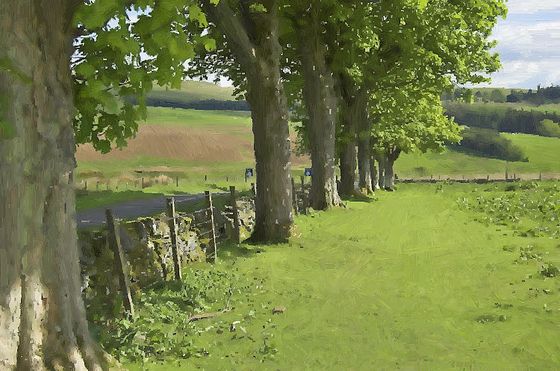
Imagen de pintura al óleo - Paso 12. Renombre y guarde la nueva imagen de pintura al óleo como archivo TIFF. Me tomó solo 4 minutos crear mi modesta pieza de arte. La imprimí en un buen papel y la colgué en la pared de la sala.
Haga clic en las imagines de abajo para ver versiones más grandes. Guárdelas en su ordenador para comparar las delicadas diferencias entre las dos imágenes procesadas con ArtWork, strokes.jpg y nostrokes.jpg. Con la idea de hacer comparaciones más detalladas, necesitará utilizar un programa editor de imágenes que incluya una paleta de Capas. Siga las instrucciones en la sección "Comparar resultados utilizando capas".
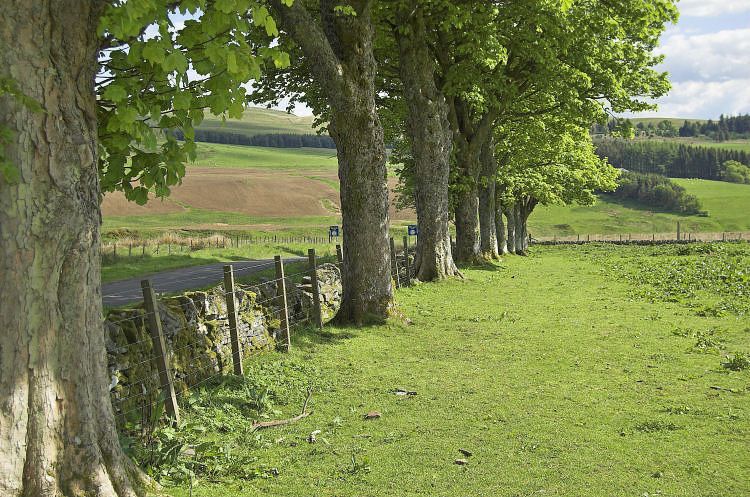
Versión original
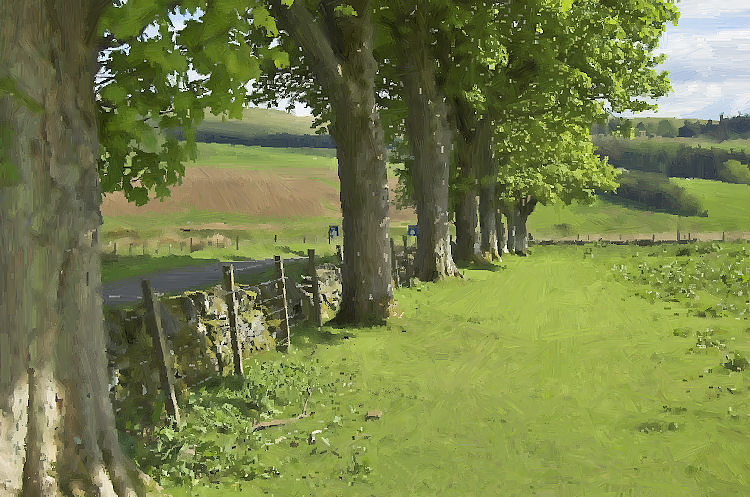
Una version procesada (strokes.jpg)
en la cual la herramienta
“Dirección de los trazos” fue utilizada
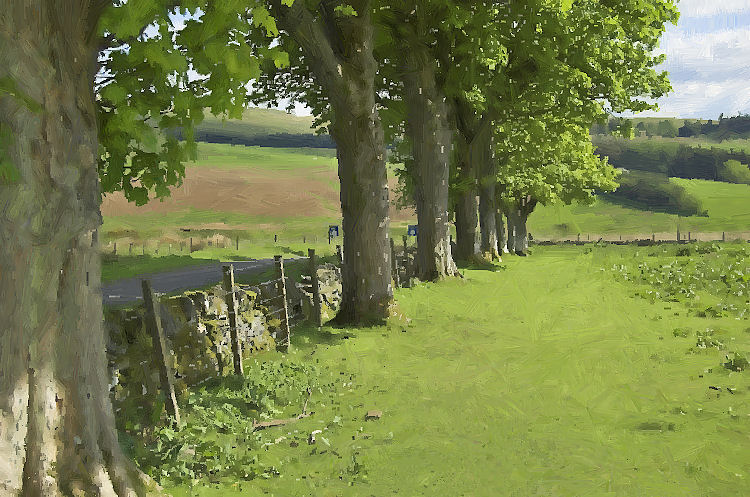
Una segunda versión procesada (nostrokes.jpg)
creada sin utilizar líneas
de dirección de trazos
Comparar resultados utilizando capas
- Descargue ambos archivos de imagen en su programa de edición de imágenes.
- Copie Ctrl+C la versión “trazos”.
- Haga que la imagen “nostrokes” sea la imagen activa.
- Pegue Ctrl+V la imagen copiada previamente “strokes” como una nueva capa encima de la imagen “nostrokes”.
- Haga clic en la parte superior de la capa “strokes” con la Alternancia de visibilidad para esconder/mostrar esta capa (la imagen de trazos).
- Si es necesario, haga zoom para tener una vista más detallada.
Al mostrar/esconder las capas de “trazos” se hace más fácil ver el sutil pero efectivo cambio que la herramienta Dirección de los trazos puede hacer en una imagen procesada con ArtWork.
ArtWork v. 15.1 - Prueba gratuita de 10 días
