La fotografía defectuosa convertida en una obra de arte
El autor de este ejemplo Robert Bates escribe:
Después de leer como se puede utilizar AKVIS ArtWork para convertir en pinturas fotografías viejas y en mal estado que han sido escaneadas, decidí intentarlo con una de mis fotografías.
-
Paso 1. Abra la imagen en su editor de gráficos, en este caso AliveColors.
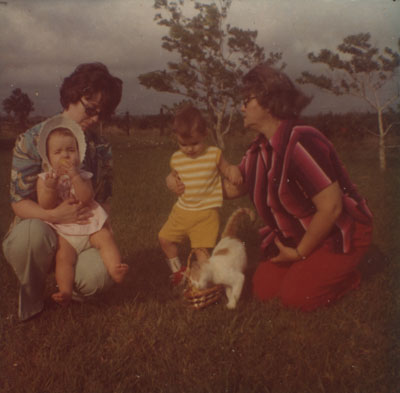
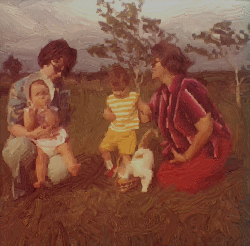
Fotografía originalLa fotografía está en mal estado: es muy oscura, tiene muchas partículas de polvo y otros defectos, y su textura hace que se vea menos nítida. De esta manera, antes de convertirla en una pintura, necesitaré hacer algunas correcciones. Los plugins AKVIS Enhancer y Noise Buster serán útiles.
-
Paso 2. Primero, le añadiremos brillo a la fotografía. Abra el plugin AKVIS Enhancer (Effects –> AKVIS –> Enhancer). El área de trabajo del plugin se abrirá y le mostrará la fotografía.
La imagen está muy oscura. Aumente los parámetros Luces y Luminosidad a la configuración máxima, 100. Presione
 para aceptar los cambios y regresar la fotografía al editor de gráficos.
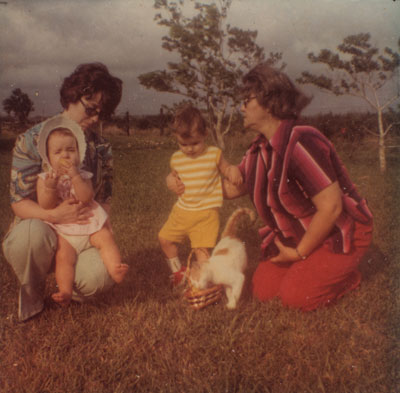
Luego de la aplicación de EnhancerEl resultado ha mejorado, pero la imagen original era tan oscura que sería una buena idea utilizar de nuevo Enhancer. Esta vez, establezca Luces y Luminosidad a 25.
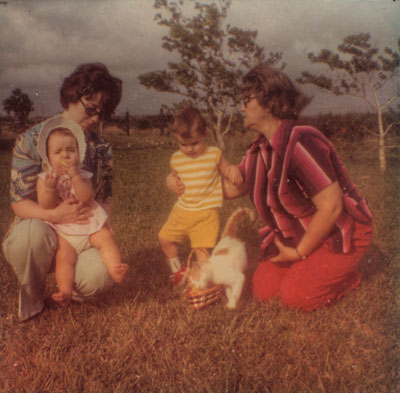
Segunda utilización de EnhancerAhora, la fotografía se ve más brillante y los colores son más vivos.
-
Paso 3. Ahora nos enfocaremos en la textura de la fotografía. Como en muchas fotografías de hoy en día, el papel tiene una textura muy parecida a un panel de abejas. Esto no se ve en la imagen original del álbum, pero en el monitor es muy obvio y distrae. Podemos reducir la textura con AKVIS Noise Buster.
Abra el plugin AKVIS Noise Buster (Effects –> AKVIS –> Noise Buster). El área de trabajo del plugin se abrirá. Cambie la configuración como se ve a continuación.
He aquí un vistazo más de cerca de la configuración:
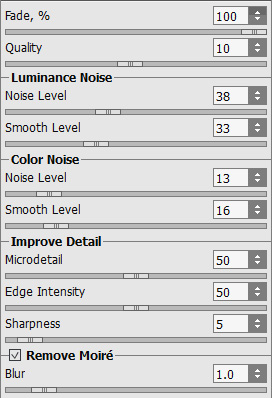
Configuración de Noise BusterEsto debería ser suficiente. No quiero remover demasiados detalles, ya que deseo convertir esta fotografía en una pintura. Aquí usted puede ver la imagen antes y después de la aplicación de Noise Buster.
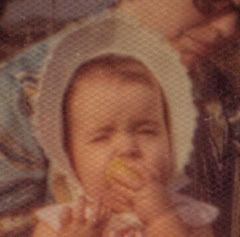
Antes de la aplicación de Noise Buster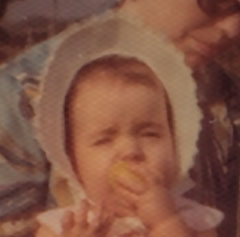
Después de la aplicación de Noise Buster -
Paso 4. Ahora encárguese de los defectos de la fotografía: la imagen está manchada, descolorida y dañada debido a las décadas de exposición a la humedad de Texas.
Seleccione la herramienta Tampón de clonar
 . Para remover las manchas y otros defectos, seleccione el diámetro de la herramienta que para usted trabajará mejor, y seleccione un área cerca de la zona defectuosa con la tecla Alt y luego haga clic con el botón izquierdo en la herramienta sobre el defecto.
Luego de haber hecho un recorrido por la fotografía, encontrará una mancha blanca junto a la pierna derecha de la joven. Después de removerla, verá que la transición entre la pierna y el fondo no es regular. ¿Qué se puede hacer?
Seleccione la herramienta Desenfocar
 . Reduzca el diámetro de la herramienta y aplíquela con el botón izquierdo del mouse, pasando varias veces sobre el defecto. Puede ampliar la imagen para que esto sea más fácil. Ahora la transición es mucho más regular.
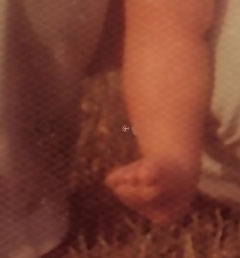
Antes de aplicar la herramienta Desenfocar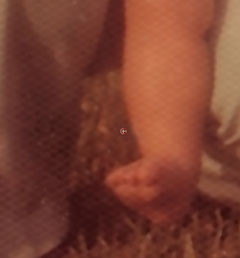
Después de aplicar la herramienta DesenfocarSe han removido los defectos. Ahora sigamos con el siguiente paso: convertir esta fotografía en una pintura.
-
Paso 5. Abra el plugin AKVIS ArtWork (Effects –> AKVIS –> ArtWork). El área de trabajo del plugin se abrirá y le mostrará la fotografía. Una pequeña ventana de vista previa le indicará que aspecto va a tener la imagen con la configuración predetermina.
Después de experimentar, elegí la siguiente configuración…
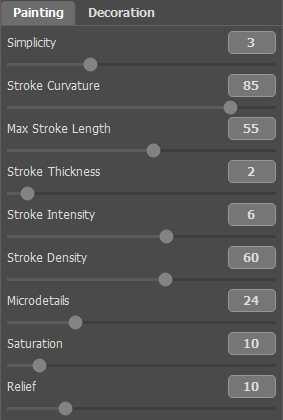
Configuración ArtWork…pero, por supuesto, usted puede elegir su propia configuración. Es la cuestión de preferencia.
Puede cambiar los trazos de pintura con la herramienta Dirección de los trazos
 . Selecciónela y dibuje algunas líneas guía en la fotografía, donde a juicio de usted es necesario cambiar la dirección de los trazos.
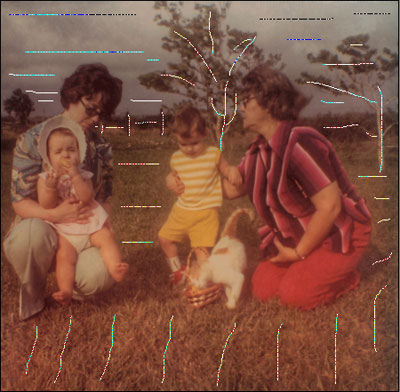
Líneas guíaAhora presione el botón
 para procesar la imagen y, si se encuentra satisfecho con el resultado, presione para aceptar los cambios y regresar la imagen al editor de gráficos.
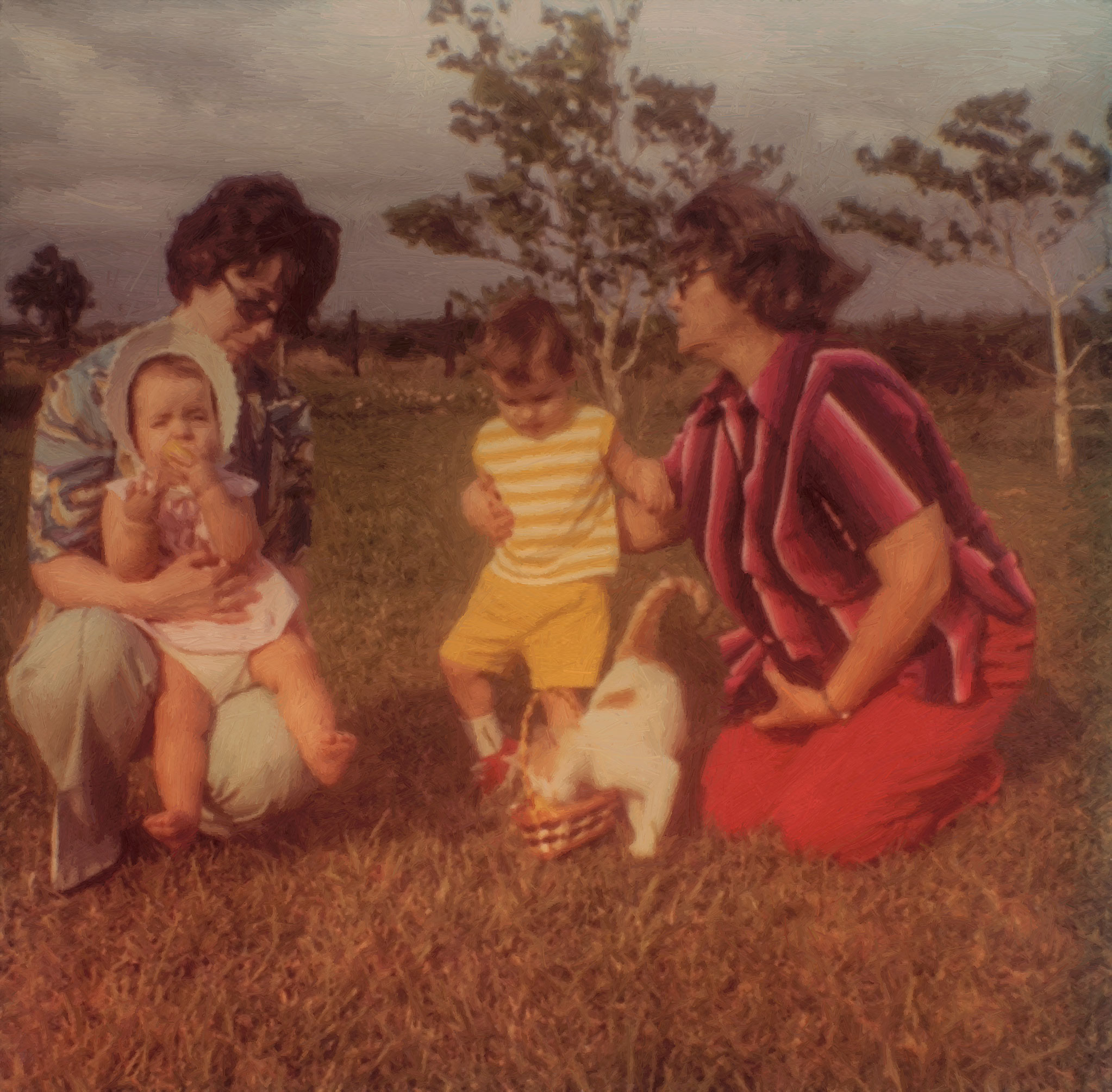
He aquí el resultado: ¡una vieja fotografía convertida en una obra de arte! Puede hacer clic en el resultado para abrir una versión en tamaño completo y ver las pinceladas con mayor detalle.
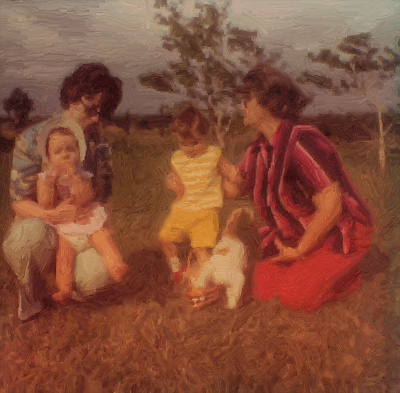
Pintura al óleo
(Haga clic en la imagen para ver una ampliación de la misma)
ArtWork v. 15.1 - Prueba gratuita de 10 días
