De uma foto imperfeita a uma obra de arte
O autor deste tutorial é Robert Bates.
Depois de ler como AKVIS ArtWork pode ser usado para scanear fotos antigas com defeitos em pinturas, decidi experimentá-lo em uma das minhas fotos.
-
Passo 1. Abra a imagem no seu editor gráfico – nesse caso AliveColors.
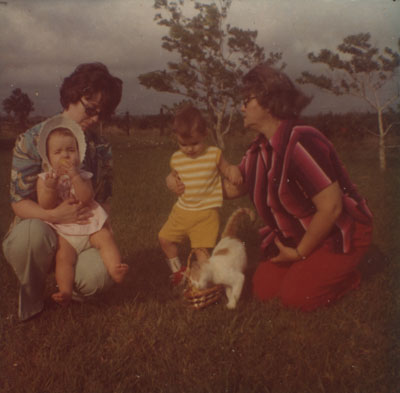
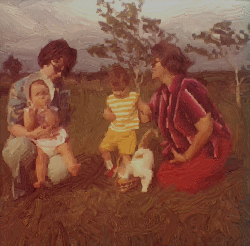
Foto originalA foto está em mau estado. É muito escura, tem muitas partículas de poeira e outros defeitos e tem uma textura que faz a imagem parecer menos nítidas. Então antes que eu possa criar uma pintura dela, vamos precisar fazer algumas correções. Os plugins AKVIS Enhancer e Noise Buster serão utilizados.
-
Passo 2. Vamos primeiro melhorar o brilho da imagem. Abra o plugin AKVIS Enhancer (Effects –> AKVIS –> Enhancer). A área de trabalho do plug-in será aberta, exibindo a foto.
A foto é muito escura, então vamos aumentar os parâmetros Altas luzes e Luminosidade para o ajuste máximo, 100. Pressione
 para aceitar as mudanças e retornar para o editor gráfico.
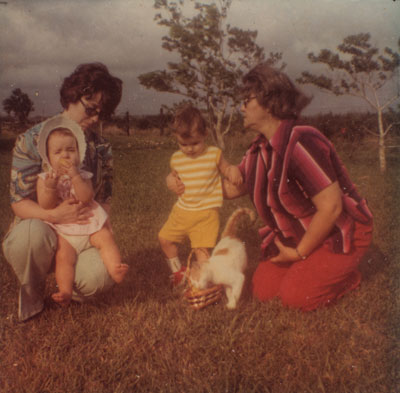
Após EnhancerO resultado está melhor, mas a original era tão escura que será necessário outro ajuste no Enhancer. Desta vez em conjunto Altas luzes e Luminosidade para 25.
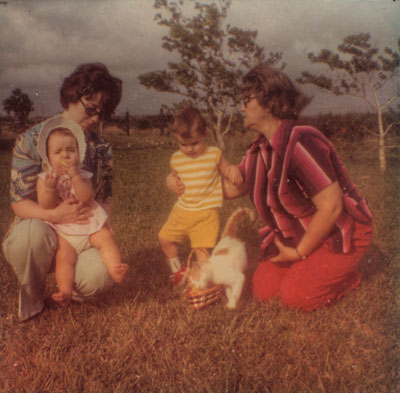
Enhancer, segundo passoAgora a foto é bastante brilhante e as cores são mais vibrantes.
-
Passo 3. Agora nós desenharemos, e daremos nossa atenção para a textura da foto. Como em muitas fotos a partir deste momento, há uma textura forte "favo de mel" para o papel. Isto não é tão evidente quando se olha para o original em um álbum, mas em um monitor é muito óbvio e distração. Podemos reduzir a textura usando AKVIS Noise Buster.
Abra o plugin AKVIS Noise Buster (Effects –> AKVIS –> Noise Buster). Abra a área de trabalho do plug-in. Altere as configurações, como visto abaixo.
Veremos agora com mais atenção as configurações:
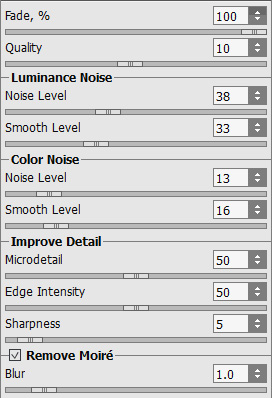
Configurações Noise BusterIsto deve ser suficiente. Não quero remover muitos detalhes, pois quero fazer uma pintura desta foto. Você pode ver a imagem, antes e depois do Noise Buster aqui.
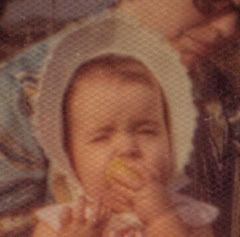
Antes Noise Buster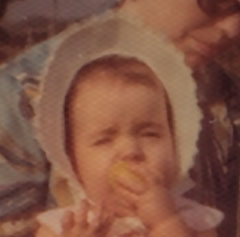
Depois Noise Buster -
Passo 4. Agora vamos para os defeitos da foto. Existem muitas manchas, descolorações e outros danos devido a algumas décadas de exposição à umidade do Texas.
Selecione a ferramenta
 . Para remover as manchas e outros defeitos, selecione o diâmetro da ferramenta que irá funcionar melhor para você, selecione uma área perto do defeito com a tecla Alt e em seguida, clique a ferramenta sobre o defeito.
Depois de fazer o nosso caminho através da foto, encontramos uma mancha branca ao lado da perna direita da menina. Depois de removê-lo, a transição entre a perna e o plano de fundo não é suave. O que fazer?
Selecione a ferramenta
 . Reduza o diâmetro da ferramenta e aplique-o com o botão esquerdo do mouse, passando algumas vezes sobre o defeito. Você pode ampliar a imagem para tornar isto mais fácil. Agora, a transição é muito mais suave.
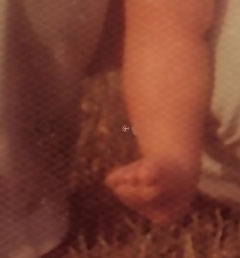
Antes da ferramenta Desfocar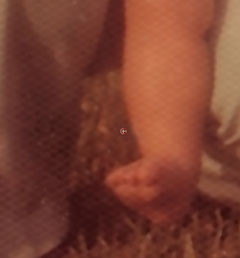
Depois da ferramenta DesfocarOs defeitos foram removidos. Vamos passar para a próxima etapa: transformando esta foto em uma pintura.
-
Passo 5. Abra o plugin AKVIS ArtWork (Effects –> AKVIS –> ArtWork). A área de trabalho será aberta, exibindo a foto. A pequena janela Visão antecipada mostra como a foto ficaria com base nas configurações padrão.
Depois de algumas experiências, escolho essas configurações...
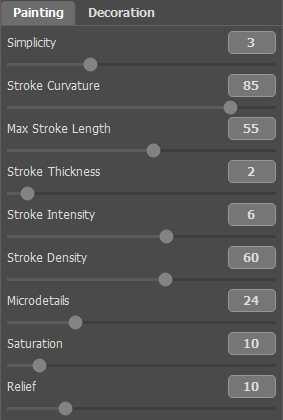
Configurações ArtWork...mas é claro você pode fazer seus próprios ajustes, é apenas uma questão de preferência.
Podemos orientar os traços de tinta usando a ferramenta
 . Selecione no desenho algumas linhas guias na foto, onde você acha que uma mudança na direção do curso ficaria melhor.
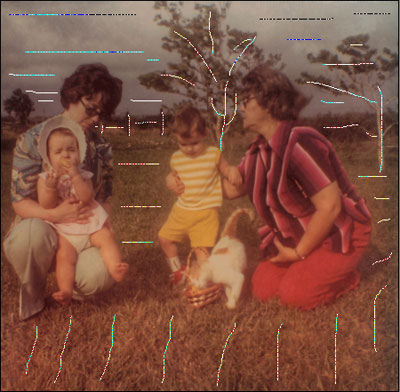
Linhas guiasAgora pressione
 para processar a imagem, e se você estiver satisfeito com o resultado pressione para aceitar as alterações e retornar a imagem para o editor de gráficos.
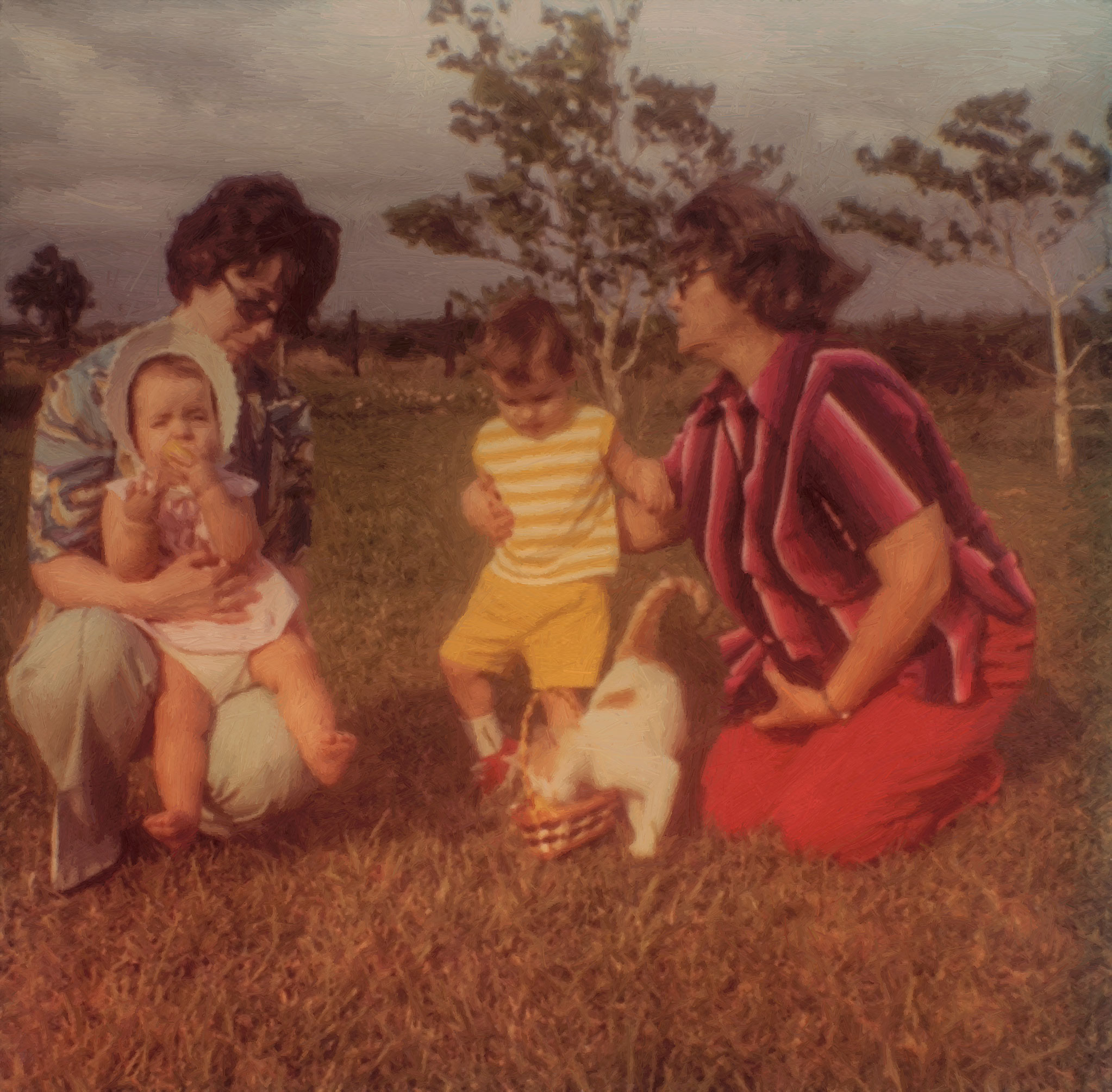
Aqui está o resultado – uma foto antiga se transformou em uma obra de arte! Você pode clicar sobre o resultado para abrir uma versão em tamanho completo e ver as pinceladas mais detalhadamente.
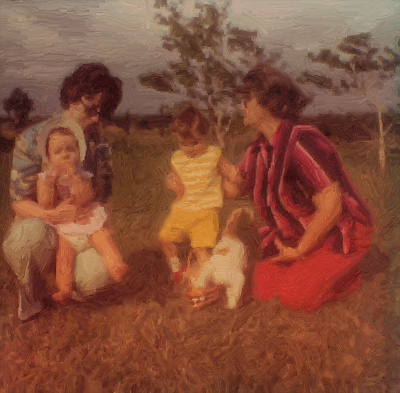
Pintura a óleo
ArtWork v. 15.1 - Teste gratuito 10 dias
