Dove in the fire
Questa pagina al momento è usufruibile in lingua inglese. La versione italiana sarà presto disponibile.
The example was made in the old version of the Chameleon plug-in.
Now the technique of using AKVIS Chameleon is different, but the result will be the same.
Now the technique of using AKVIS Chameleon is different, but the result will be the same.
Consult the article "Blend mode" to get the same result with the new version. In the older versions (before v.5.0) this mode was called Snapshot and applied automatically right after you launch the plugin from the menu Filter.
This example has been created by Gun Legler.
To create the photo collage Gun used Jasc Paint Shop Pro 7 and AKVIS Chameleon.
 |
 |
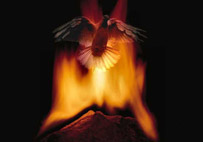 |
| Source images | Result | |
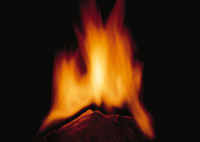
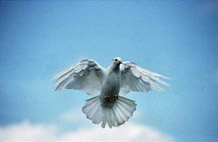
Below there are two images: a photo of a fire and a photo of a dove.
To make a photo collage out of these two images you have to go through a few simple steps.
- Step 1. First we should select the dove. For this purpose we activate the Magic wand, select the sky around the dove and invert the selection.
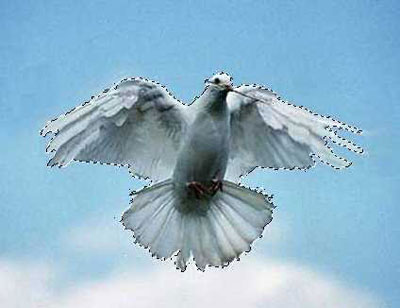
- Step 2. Take a snapshot of the fire by calling the command AKVIS - Chameleon (Take Snapshot).
- Step 3. Copy the selected dove and insert it into a new layer of the photo with the fire. Then, using the Magic wand select the background and inverse the selection. As a result, the dove will be selected.
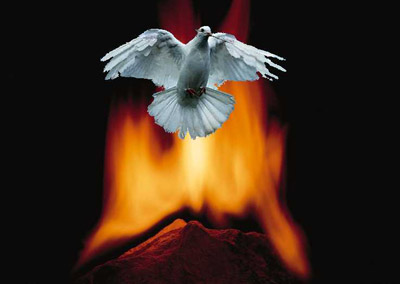
- Step 4. Merge layers (Layer -> Merge -> Merge all) without removing the selection.
- Step 5. Start AKVIS Chameleon (Use Snapshot).
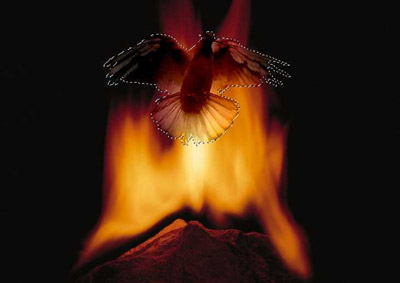
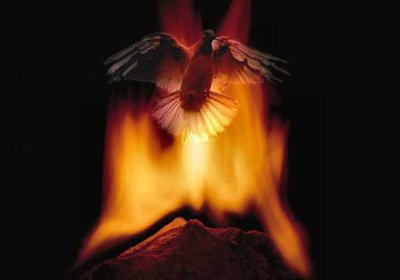
- Step 6. You can increase the lightness of the dove, as after the plugin application it looks a bit dark. Increase the brightness to 20 and the contrast to 15 (Adjust -> Brightness and Contrast) without removing the selection
- Step 7. If the borders of the dove seem jagged, you can handle them with the Soften Tool. You should thoroughly process the image with a small brush.
- Step 8. When the dove is brightened and the borders are processed you can remove the selection.
Chameleon v. 12.2 - 10-giorni di prova gratuita
