Nature Effects: Lightning
This effect can be used to add Lightning of any size and number to an image.
Usually lightning appears during a thunderstorm. It often gives us an unforgettable light show in the sky! What is this amazing phenomenon of nature, beautiful and devastating at the same time?
Ancient people perceived the thunder and the lightning flashes as an expression of the will of the Gods and the manifestation of God's wrath. Only in the 18th century was it proved that lightning is an electric discharge in the atmosphere accompanied by a flash of light and the rumble of thunder. There are various types of lightning, but usually we see streak lightning or forked lightning.
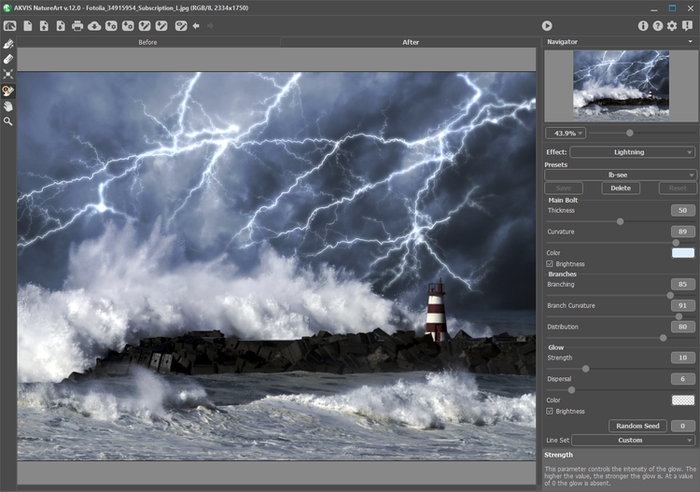
Lightning Effect in AKVIS NatureArt
Before applying this effect, you need to draw a "skeleton" where the lightning will be, to act as a schematic for it. Do this in the Before tab with the following tools:
- Direction
 . Use this tool to draw lines over which lightning will be drawn. To set a line, click anywhere on the image, and while holding down the button, draw a line in any direction.
 - Eraser
 . Use this tool to delete unwanted parts of lightning. Any lines whose starting points are within the zone of the tool will be erased. This zone is determined by the size of the eraser. You can change the size of the eraser by right-clicking anywhere in the image and making an adjustment in the pop-up window.
The Line Set drop-down list in the Setting Panel contains ready-to-use lightning layouts which come bundled with the program. When editing a sample its name is changed to Custom. To remove all the lines from the image, select Clear All.
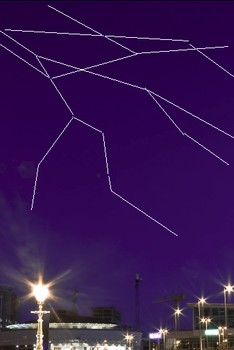
Draw the Direction Lines
Adjust the parameters to specify the settings for the lightning. The settings will apply to all of the lightnings on an image. If you want to get various lightnings, save the result and restart the effect.
Main Bolt:
- Thickness (1-100). This parameter controls the thickness of all lines which make up the lightning bolt. The higher the value, the thicker and brighter the lines are.
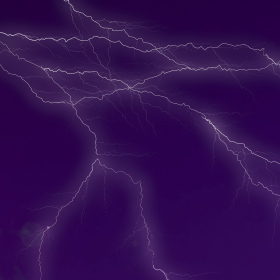
Thickness = 30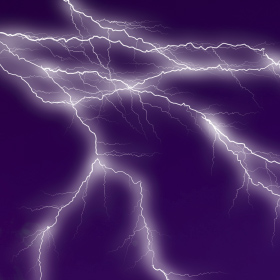
Thickness = 80 - Curvature (0-100). The lightning will be drawn as a curve. This parameter regulates the degree of curvature of the main line of lightning. The higher the value, the more the bolt will be curved.
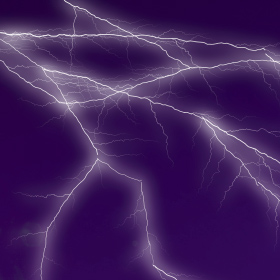
Curvature = 15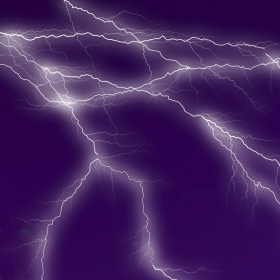
Curvature = 75 - Color. Use this parameter to change the color of the lightning. To change the color, click on the color plate and choose a different color from the Select Color dialog.
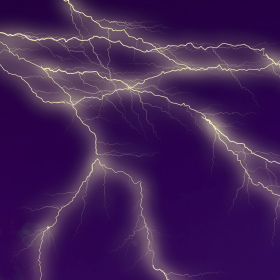
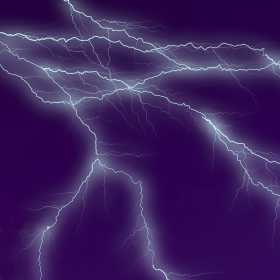 Changing the Color of the Lightning
 - Brightness check-box. If the check-box is disabled, the program draws the lightning only with the selected color. If the option is enabled, the lightning blends with background colors and becomes brighter giving an impressively luminous effect.
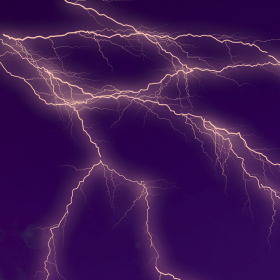
Brightness Deactivated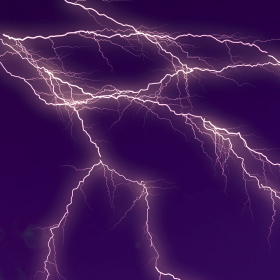
Brightness Activated
Branches:
- Branching (1-100). This parameter determines the branching of lightning. The higher the value, the more branches will come from the main bolt of lightning.
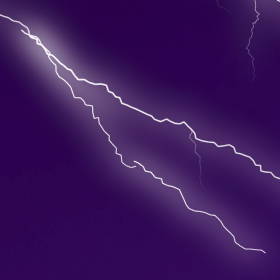
Branching = 5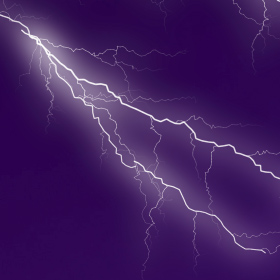
Branching = 80 - Branch Curvature (0-100). This parameter regulates the degree to which branches of lightning bend. The higher the value, the more curved the kinks forming a branch become.
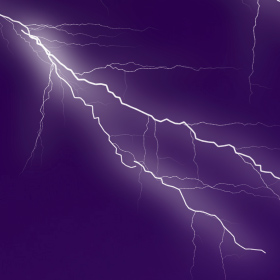
Branch Curvature = 15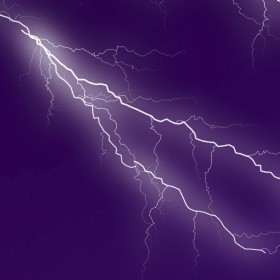
Branch Curvature = 65 - Distribution (1-100). This parameter controls the distribution of the lightning's branches. The higher the value, the greater the distance over which branches will be distributed, and the larger the area they will occupy.
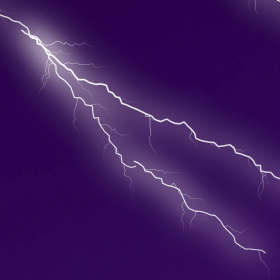
Distribution = 20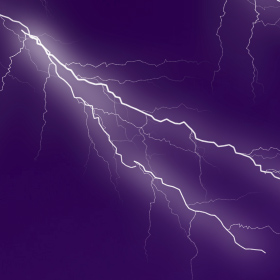
Distribution = 80
Glow:
- Strength (0-40). This parameter controls the intensity of the glow. The higher the value, the stronger the glow is. At a value of 0 the glow is absent.
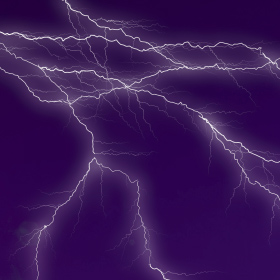
Glow = 10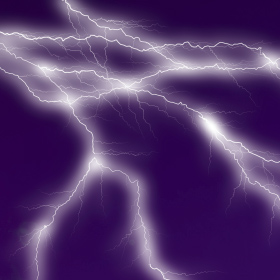
Glow = 35 - Dispersal (0-40). At low values the glow is concentrated along the main line. The higher the value, the wider the glow spreads. At high values the glow has less contrast.
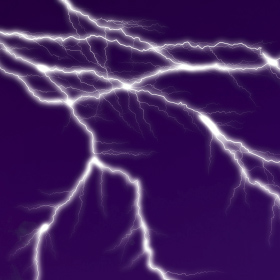
Dispersal = 10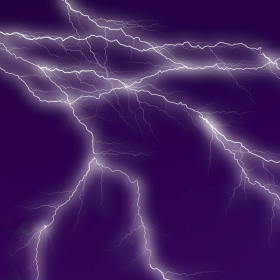
Dispersal = 25 - Color. Change the color of the glow in the Select Color dialog. Click on the color plate and choose a different color. By default, the glow color is not selected and is equal to the color of the main lightning bolt. To reset a color, right-click on the color plate.
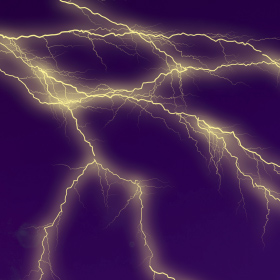
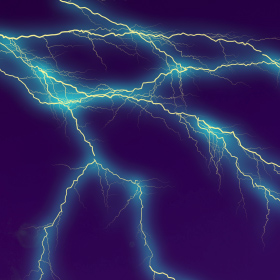 Changing the Color of the Glow
 - Brightness check-box. If the check-box is disabled, the program uses only the selected color to draw the glow. If the option is enabled, the glow blends with background colors and becomes brighter giving an impressively luminous effect.
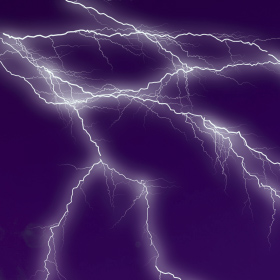
Brightness Deactivated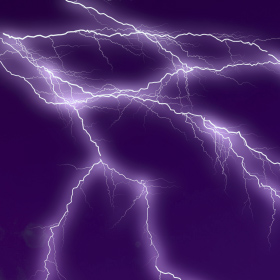
Brightness Activated
Random Seed. This is the starting number for the random number generator that defines the form of the lightning.
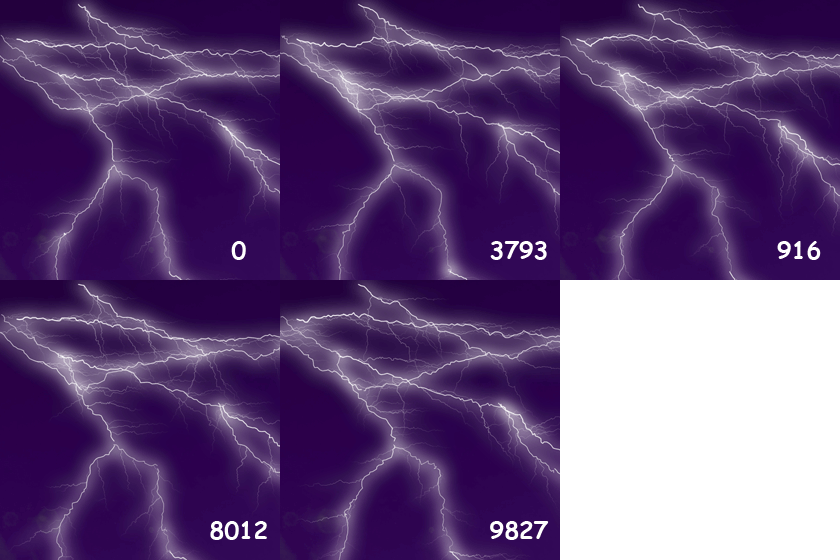
Generating Versions of Lightning
NatureArt v. 12.7 - Free 10-day Trial
