Frosty Window
In this tutorial we'll cover how to use AKVIS NatureArt to create beautiful ice patterns on a window pane.
- Step 1. Open a photograph.
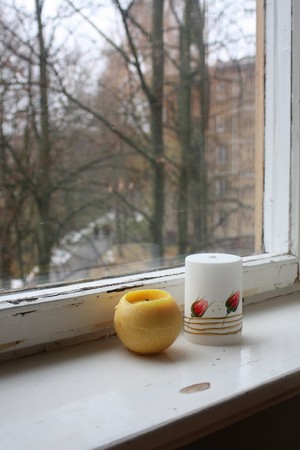
Original Image - Step 2. To decorate the window pane in this dreary photo with a fine openwork frost pattern, choose the Frost effect, and then the AKVIS Ice Pattern preset.
Use the Selection Brush
 to draw over the area to which the effect will be applied.
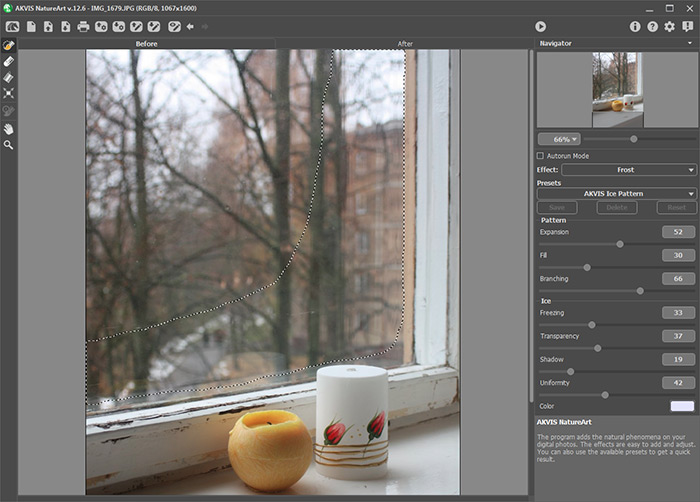
Selecting an Area for the EffectPress
 to process the selection. A frost pattern appears on the window pane:
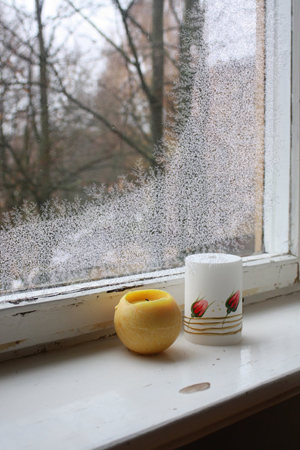
Processing Result - Step 3. There is a way to achieve an even more interesting result. Click on the Before and choose the Eraser
 . Brush over the selection with this tool, choosing different tool sizes, to give the selected area a more complex shape:
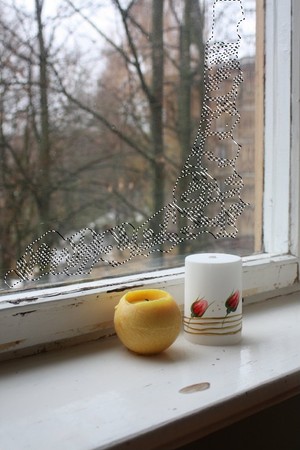
Working on the SelectionPress
to reprocess the image.
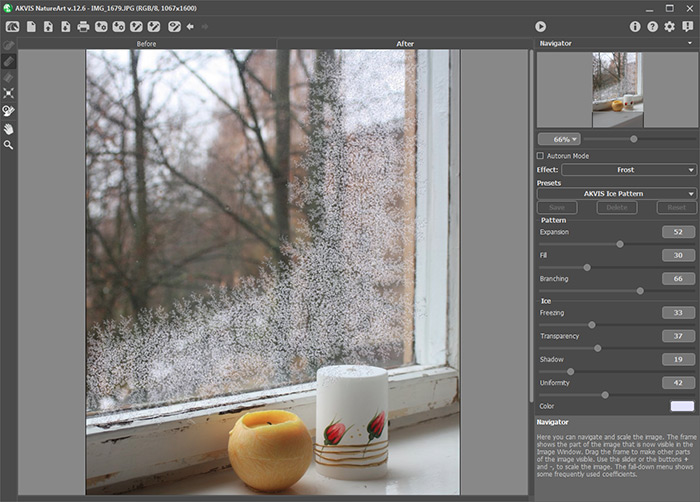
Frosted Window - Step 4. If you wish, you can make small improvements to the image. Restrict the spread of frost beyond the window pane using a History Brush
 .
.
Compare the fragment of the image before and after:
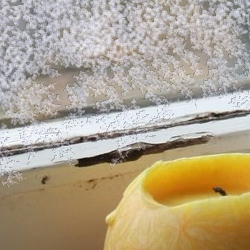
Frost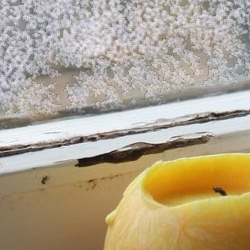
Using History Brush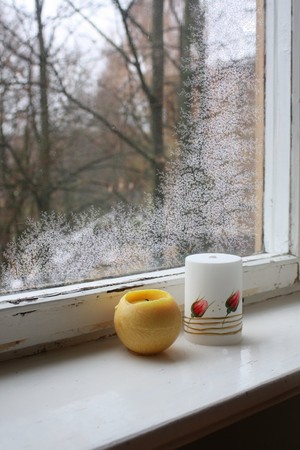
Result
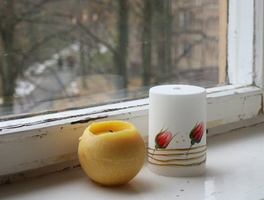
Original Image
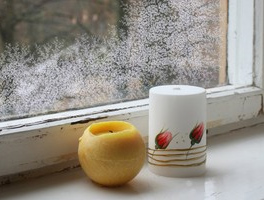
Result
NatureArt v. 12.7 - Free 10-day Trial
