Using the Program
AKVIS NatureArt miraculously adds natural phenomena to your photos. It lets you transform images and make new ones creating nature scenes from scratch. The software can work independently as a standalone application and as a plugin with a compatible graphics editor.
Follow these instructions to add a natural effect to an image:
- Step 1. Load an image into the software.
- If you work with the standalone version:
To load an image, you can double-click within the empty window, drag the image into the program workspace, or use the button
 . The program supports JPEG, RAW, PNG, BMP, TIFF, and WEBP file formats.
- If you work with the plugin:
Open an image in your photo editor by calling the command File -> Open or using the key combination Ctrl+O on Windows, ⌘+O on Mac.
Then call the AKVIS NatureArt plugin in the Filter/Effects menu of the photo editor:
in AliveColors: Effects -> AKVIS -> NatureArt;
in Adobe Photoshop: Filter –> AKVIS –> NatureArt;
in Corel Paint Shop Pro: Effects –> Plugins -> AKVIS –> NatureArt.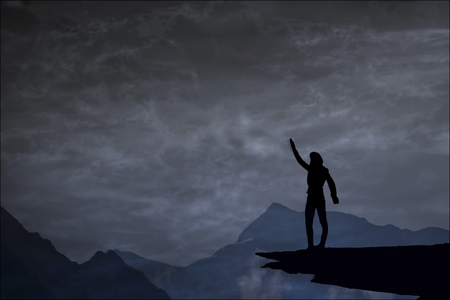
Original Photo - Step 2. Choose an Effect in the Settings Panel. The program offers these nature effects: Rain, Sun, Water, Lightning, Clouds, Frost, Rainbow, Aurora, Fire, Ice, Night Sky, and Snow.
Note: The Aurora, Fire, Ice, Night Sky, and Snow effects are only available for Home Deluxe and Business licenses. In the Home version, these effects are applied with the AKVIS watermark.
- Step 3. Select areas where an effect will be applied. Each effect has its own tools for this task.
Hint: You can change the tool's size in a pop-up window which opens with a right mouse click in the image. To draw a straight line use the Shift-key.
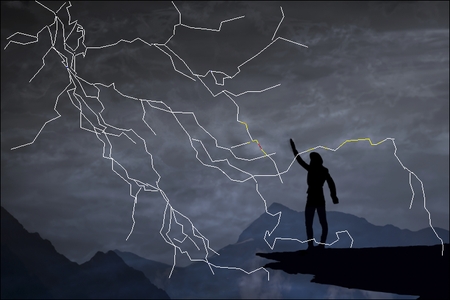
Direction LinesYou can choose how the selection looks like in the program Preferences
 .
.
It's possible to change the size and position of the selection with the Transform tool
 .
.
Hold down the Shift key to maintain the object's proportions. Hold down Alt to rotate the object by 5 degrees intervals or to scale it from its center.
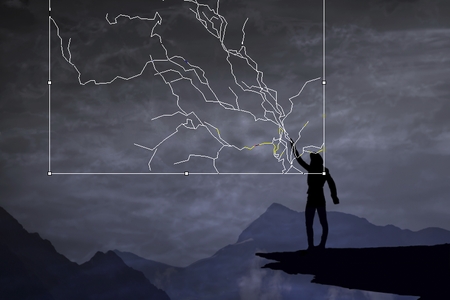
Transforming SelectionYou can save the selection or direction lines to a .nature file with
 and load with
  .
.
- Step 4. Start processing with
 .
.
Hint: Enable the Autorun Mode in the Settings Panel to apply any changes automatically. It is helpful when selecting the presets or adjusting the effect parameters.
If the option is disabled, you need to press in order to see the changes applied.
The image will be processed, and the result will be shown in the After tab.
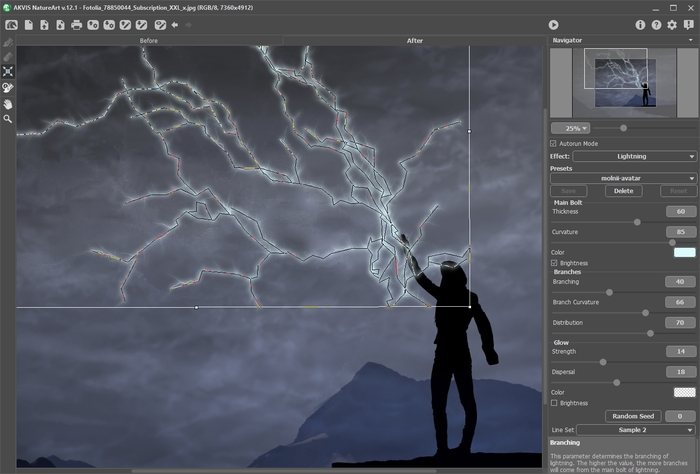
Default Settings for Lightning Effect - Step 5. If you want other results change the effect's parameters in the Settings Panel.
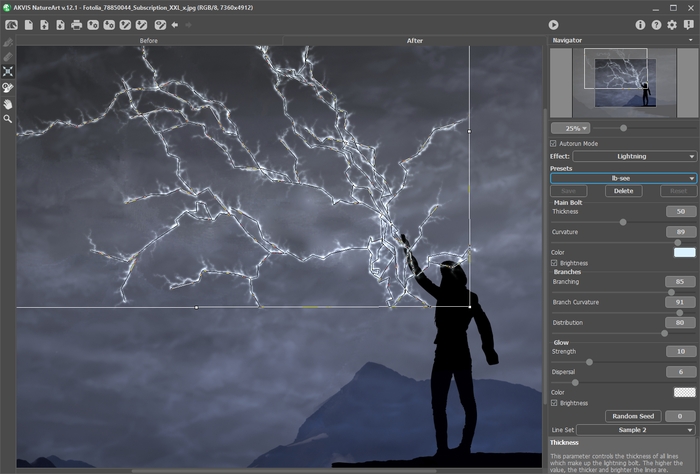
Adjusting Settings - Step 6. You can also make final touches and correct the result using the post-processing tool which - History Brush
 on the After tab. This tool is available only under the Home Deluxe and Business licenses! It lets you change the area and the intensity of the applied effect, fade the effect and restore the image to its original state.
Attention! If you switch to the Before tab and run processing with
, the changes made with the History Brush will be lost.
You can adjust the parameters for the tool in the pop-up box that appears after a right click in the image window:
- Brush Size (1-1000) changes the tool's diameter.
- Hardness (0-100%) defines the blurriness of the tool's edges. The less the value the more blurry the edges of the brush are.
- Strength (1-100%) affects the degree of restoration to the original state.
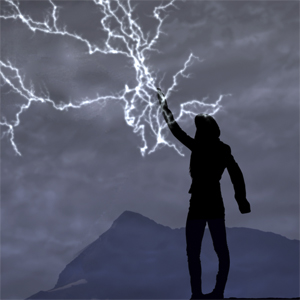
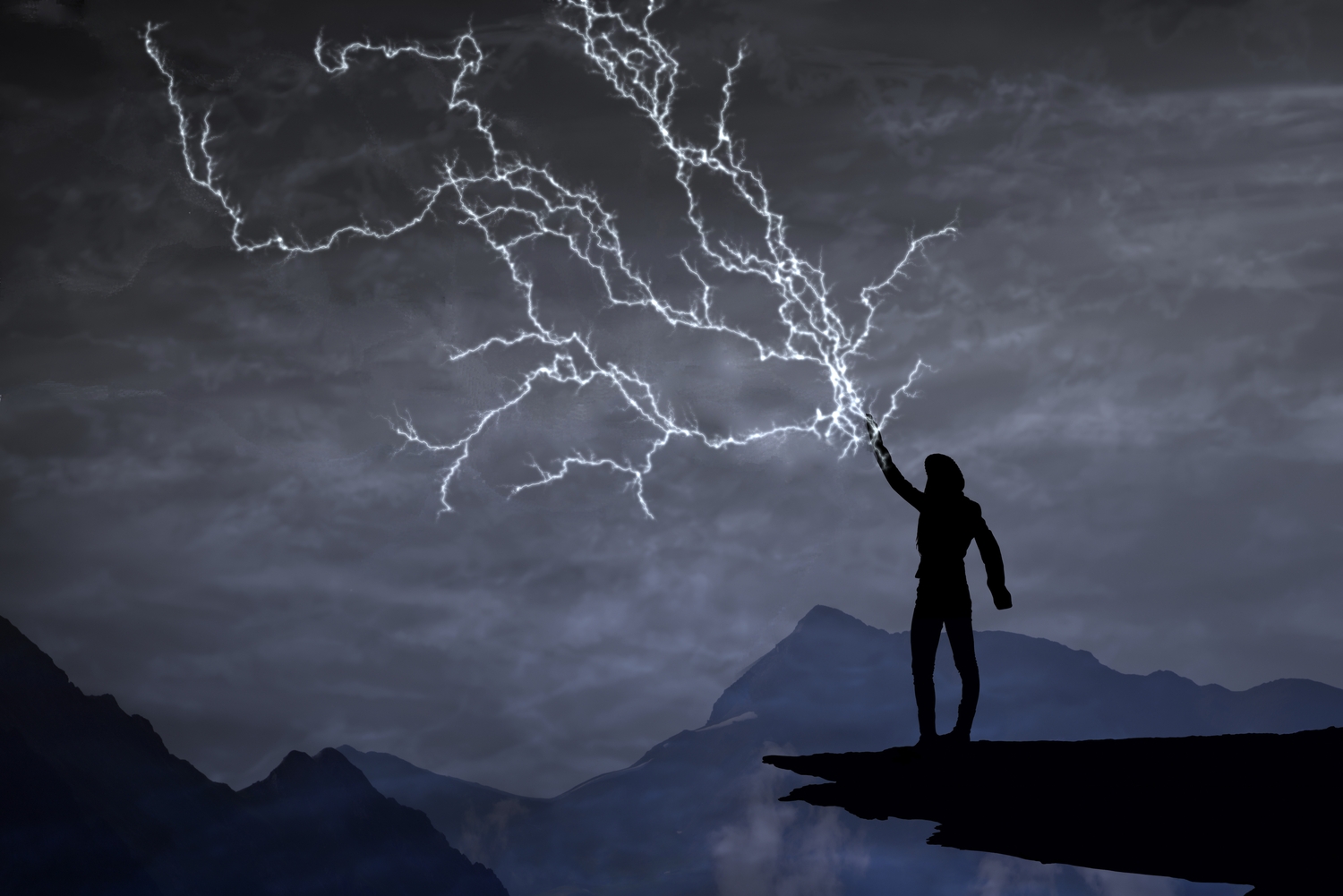
Lightning Effect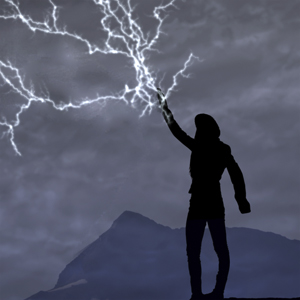
Using the History Brush - Step 7. It is possible to save the settings you like as a preset and use them in the future.
- Step 8. In the standalone program, you can print your image with
 .
.
- Step 9. Save the processed image.
- If you work with the standalone edition:
Click
 to open the Save As dialog box. Enter a name for the file, choose the format (TIFF, BMP, JPEG PNG, or WEBP) and indicate the target folder.
- If you work with the plugin:
Press the button
 to apply the result and close the plugin window. The AKVIS NatureArt plugin will close and the resized image will appear in the workspace of the photo editor.
Call the Save As dialog box using the command File -> Save As, enter a name for the file, choose the format and indicate the target folder.
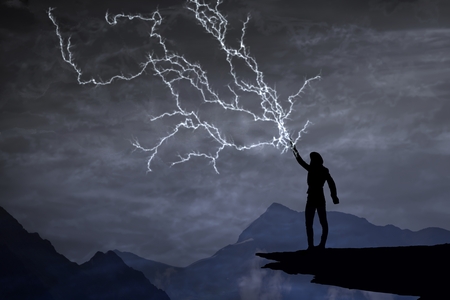
Result (click to open in large size)
NatureArt v. 12.7 - Free 10-day Trial
