Nature Effects: Clouds
This effect adds clouds to an image.
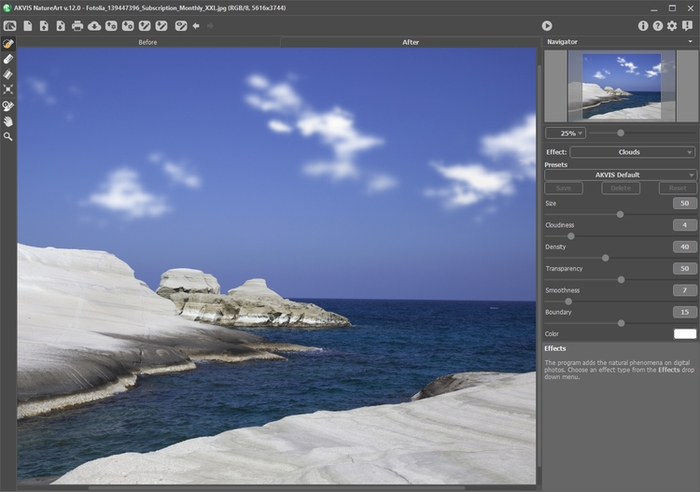
Clouds Effect in AKVIS NatureArt
The effect will be applied only in a selected area! Use the follow tools to make a selection:
- Selection Brush
 . This tool is used to highlight areas to which an effect will be applied. You can change the tool's size in a pop-up window which opens with a right mouse click in the image window.
To get a straight line, draw a line while holding down Shift.
- Eraser
 . Use this tool to erase selection areas. You can change the tool's size in a pop-up window.
 - Selection Bucket
 . The tool fills an area outlined with the Selection Brush (helpful for selecting large areas).
If the area was not circled by
, the entire image will be selected by clicking with .
Hint: You can use Selection Bucket in "eraser mode" to erase all selections at the image. Just click the left mouse button while pressing Ctrl.
In Settings Panel you can adjust the parameters for the Clouds effect:
- Size (1-100). This parameter sets the size of the elements which make up clouds. As the value increases, these elements will become larger.

Size = 20
Size = 60 - Cloudiness (1-20). This parameter sets the degree of cloudiness. The higher the value, the greater the accumulation of clouds in the same area of the image.
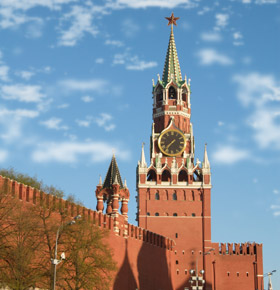
Cloudiness = 2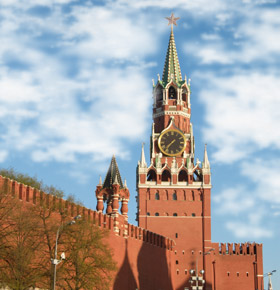
Cloudiness = 7 - Density (1-100). This parameter adjusts the density of the clouds. The higher the value, the denser and brighter the clouds will look.
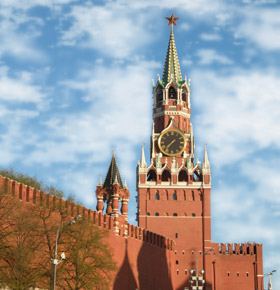
Density = 10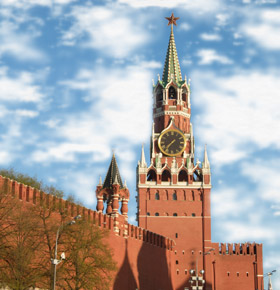
Density = 70 - Transparency (0-100). This parameter affects the transparency of clouds. As the value increases, the clouds become paler in color and more of the image is visible through them.
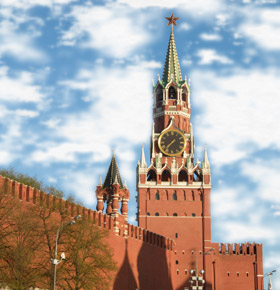
Transparency = 30%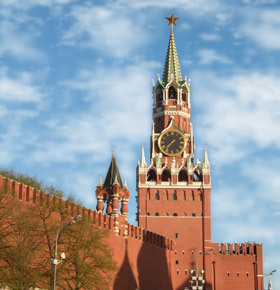
Transparency = 70% - Smoothness (0-50). This parameter affects the appearance of cloud edges. Changing this parameter changes the contrast between neighboring pixels, making the clouds look sharper or softer. Increasing the value makes clouds appear more blurred. At high values the clouds will look like fog.
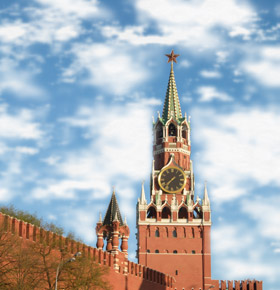
Smoothness = 10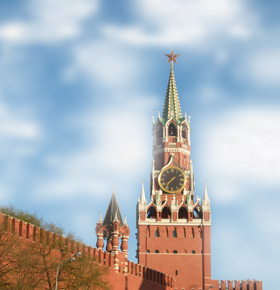
Smoothness = 40 - Boundary (0-30). It has influence only at the selection borders. At mininum values, the selection border is an accurate determinant of where cloud generation ends. Clouds which are not located within the selected area are cut off lengthwise at its boundaries. As the value increases, the edge of where clouds will be generated moves inward, away from the boundary of the selected area. Clouds cannot reach this boundary but at the same time may fall just beyond it.
Low values are useful in situations where the sky is seen through various objects: a window, an arch, etc, or for example, in situations when people are in the foreground.

Boundary = 2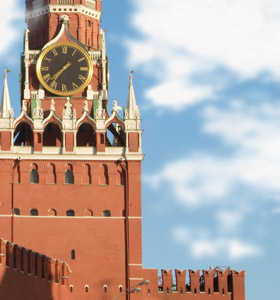
Boundary = 20 - Color. Use this parameter to change the color of the clouds. To change the color, click on the color plate and choose a different color from the Select Color dialog.


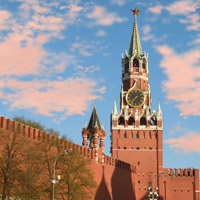 Changing the Color of the Clouds
NatureArt v. 12.7 - Free 10-day Trial
