AKVIS NatureArt Preferences


Please enter your email to be kept posted on updates and discounts:
 
 
  Products     Download     Online Store     Tutorial     Support     Company      Customer Room
en  fr  de  es  pt  it  jp  ru    
 

Tutorial: AKVIS NatureArt

Preferences


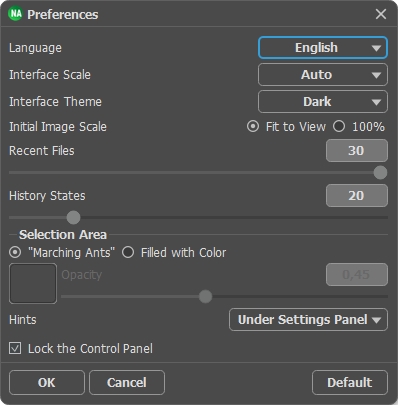
Open the Preferences dialog by pressing on . The dialog looks like this:

AKVIS NatureArt Preferences Window
  • Program Language. To switch the interface language, select another language from the drop down list.
  • Initial Scale. This parameter affects how the image will appear in the program when you first open it. The parameter can have one of two values:

      - If the parameter is set to Fit to view, the image will be scaled so that it will fit completely within the Image Window;

      - If the parameter is set to 100% the image will not be scaled. In most cases, when an image is opened at 100% scale the entire image will not fit within the Image Window.

  • Autorun Mode check box. If this box is checked, any changes will be updated automatically.
    If the mode is not selected you must press the button in order to see changes applied.
  • Selection Area. This parameter defines how the selection appears. Please choose one of two variants:

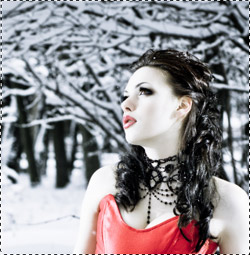
      - "Marching ants". The selection is enclosed in borders that look like a "running" dotted line. This is the default value.

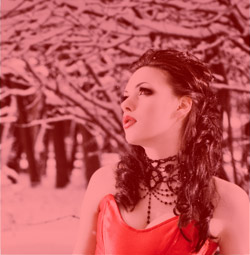
      - Filled with color. The selection will be filled with a color.

        By default the Color is red but you can change it. Just double-click on the color plate and select a color from the Select Color dialog.

        The Opacity parameter allows you to adjust the opacity of the color used to highlight the selection.

    Marching ants Filled with color
    "Marching ants" Filled with color

  • Hints Panel. When you hover over parameters and buttons with the cursor you can see a brief description of them in the Hints field. You can choose how the hints will be shown:
    • The Position option lets you set the location of the field:

        - Under Image Window. It shows the hints in the main window, under the image. This mode is useful if there is not enough space by height to dispay this field under the settings;
        - Under Settings Panel. Select this to show hints at the bottom of the right part, under the settings;
        - Hide. Use this option if you do not need the hints.

    • The Color option lets you set the color scheme of the field:

        - Gray Panel - a white font on a gray background;
        - Yellow Panel - a navy/black font on a yellow background.

  • Recent Files (only in the standalone version). The number of recent documents. The list of the recent files, sorted by time, become visible by right mouse clicking on . Maximum: 30 files.
  • Use OS File Dialog check-box (only in the standalone version). You can check this option if you want to use the System Open/Save Dialog. By default, the AKVIS File Dialog is used.
  • Lock the Control Panel check-box. It disables the possibility to hide/show the top panel. If the check-box is selected the panel is always visible.

To apply changes made in the Preferences window press ОК.

If necessary, you can return to the default settings by pressing Default.

 
How It Works How It Works
   — Workspace — Workspace
   — How To Use The Program — How To Use The Program
   — Preferences — Preferences
Effects Effects
   — Rain — Rain
   — Sun — Sun
   — Water — Water
   — Lightning — Lightning
   — Clouds — Clouds
   — Frost — Frost
   — Fire — Fire
   — Ice — Ice
Examples Examples
   — Torch of Liberty — Torch of Liberty
   — Above the Sea — Above the Sea
   — Day & Night — Day & Night
   — Flaming Text — Flaming Text
   — The Sea on a Midsummer Night — The Sea on a Midsummer Night
   — Playing With Light — Playing With Light
   — Tempest in a Glass — Tempest in a Glass
   — Greeting Card with a Christmas Tree — Greeting Card with a Christmas Tree
   — Enchanted Forest: Adding Fog & Mist — Enchanted Forest: Adding Fog & Mist
   — Smoke & Sandstorm Effects — Smoke & Sandstorm Effects
   — Frosty Window — Frosty Window
   — Planet Of Storms — Planet Of Storms
   — Frozen River — Frozen River


back to top


   Privacy Policy | Site Map | Search at AKVIS    
   Contact Us | Twitter | Facebook | YouTube Channel    
| English  |Français  |Deutsch  |Español  |Português  |Italiano  |日本語  |Pусский  | © 2004-2012 AKVIS. All rights reserved.